Help & Support
Help & Support is your in-app channel to the Pitch N Hire team. Raise support requests, track each one as a ticket, and read the full conversation thread without leaving the app. Every request stays in one place so you always know its current status.
Overview
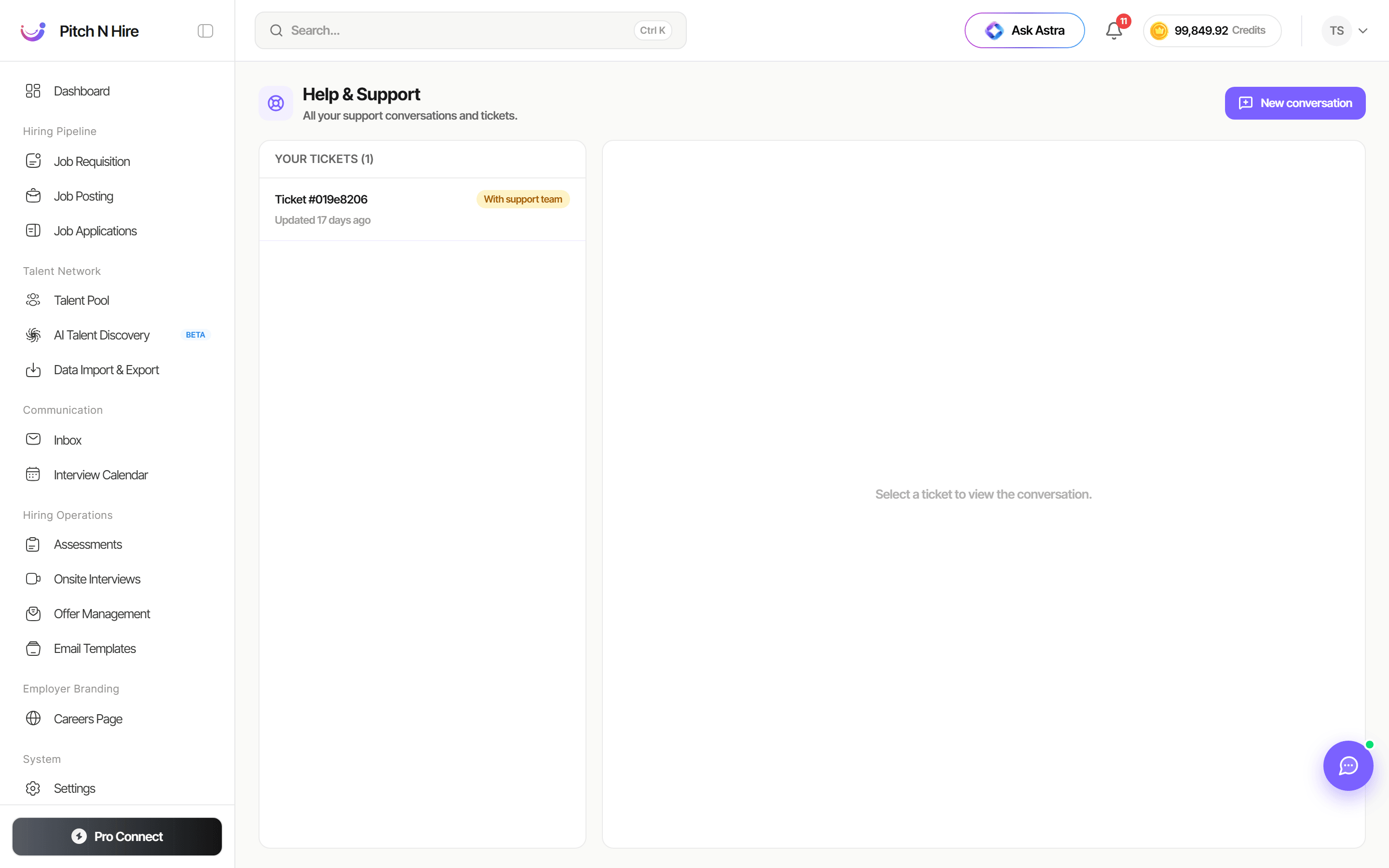
The Help & Support screen is split into two panels. The header reads “Help & Support” with the subtitle “All your support conversations and tickets,” and a New conversation button sits at the top right. The left panel, YOUR TICKETS, lists your support tickets with a count (for example “(1)”); each ticket shows its reference (for example Ticket #019e8206), a status badge (for example With support team), and an “Updated … ago” timestamp. The right panel displays the selected ticket’s conversation, prompting “Select a ticket to view the conversation.” when none is chosen.
Key features
- Your tickets — a list of all your support requests with a live count.
- Ticket reference & status — each ticket has an ID (for example Ticket #019e8206) and a status badge such as With support team.
- Updated timestamp — see when each ticket was last touched (“Updated … ago”).
- Conversation panel — open a ticket to read the full back-and-forth with the support team.
- New conversation — start a fresh support request from the top-right button.
Step-by-step
- Open Help & Support from the app’s help controls (under System → Settings).
- To raise a new request, click New conversation at the top right and describe your issue.
- Submit the request — it appears in the YOUR TICKETS list with its own reference and status.
- Click any ticket in the left panel to open it; the conversation thread loads on the right.
- Read replies from the support team and continue the conversation within the ticket.
- Watch the status badge (for example With support team) and the “Updated … ago” timestamp to track progress.
Tips
Common issues & fixes
- Don’t see a ticket you raised — refresh the screen; new tickets appear in YOUR TICKETS with their reference and status.
- Not sure if support has replied — check the “Updated … ago” timestamp and the status badge on the ticket.
- Need to start over — use New conversation to open a separate ticket rather than reusing an unrelated one.