Talent Pool
The Talent Pool is your central candidate database in Pitch N Hire. Every candidate you source, import, or add manually lands here, giving recruiters a single searchable table to review profiles, gauge match quality, and take quick action. From this screen you can filter the list, choose which columns to display, switch between view modes, and add a new candidate in just a few clicks.
Overview
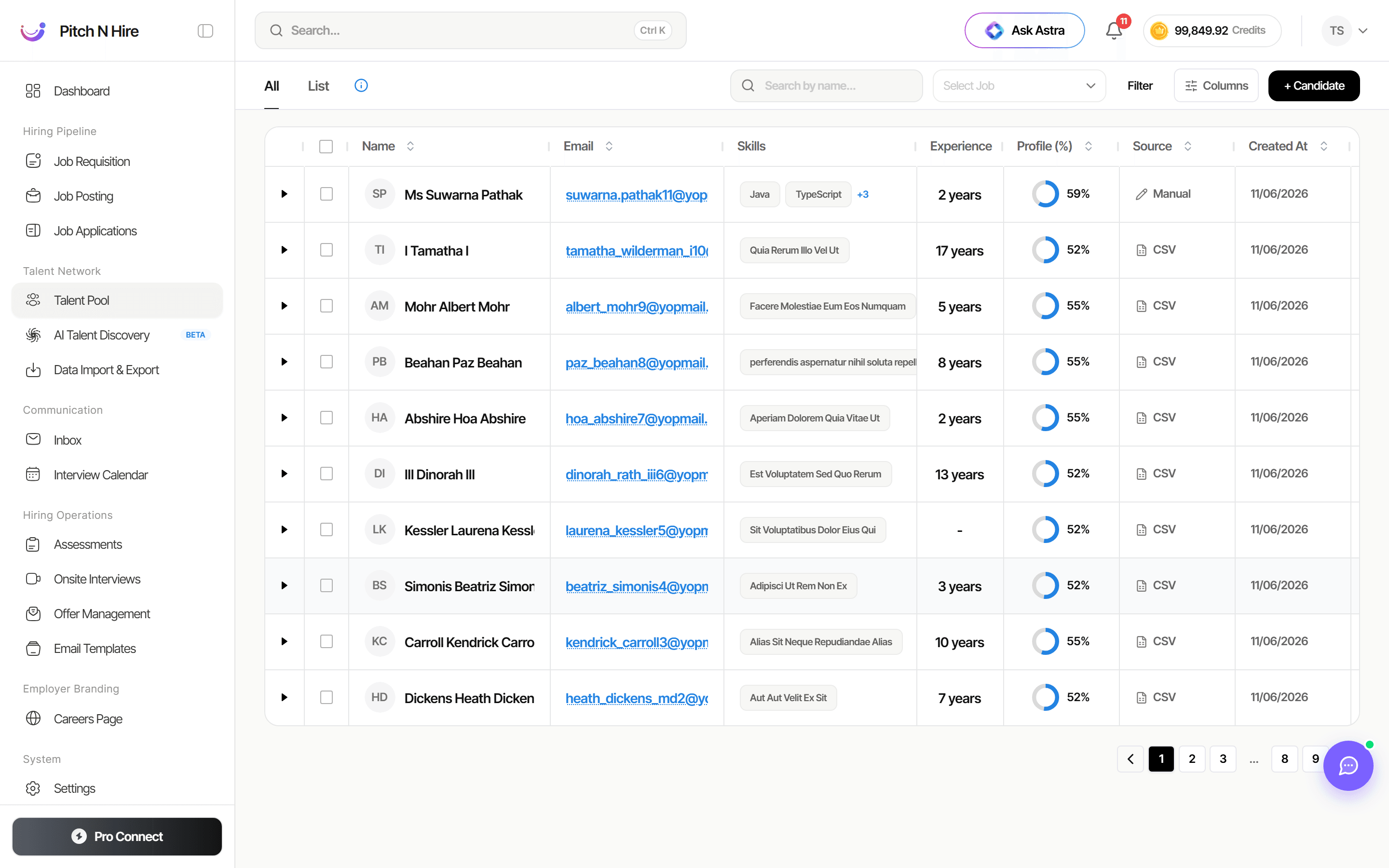
The Talent Pool opens to a full-width candidate table. Across the top you have All and List view tabs, a candidate search box, a status/source dropdown, and the Filter, Columns, and + Candidate buttons. Each row represents one candidate, and the table is paginated at the bottom right so large databases stay easy to browse.
Key features
- Candidate table with the following default columns:
- Name – candidate’s full name with avatar initials.
- Email – the candidate’s email address.
- Skills – tagged skills (for example Java, TypeScript) with an overflow counter when there are more.
- Experience – total years of experience.
- Profile % – a circular completeness indicator showing how filled-out the profile is.
- Source – how the candidate entered the system (Manual, CSV, and so on).
- Created At – the date the record was added.
- All / List view tabs to switch between the default grid-style table and a condensed list layout.
- Search and source dropdown to quickly narrow the table by name or by where candidates came from.
- Filter to build more specific queries across candidate attributes.
- Columns to show or hide columns so the table matches what you care about.
- + Candidate to add a candidate manually through a guided form.
- Row expander (the small arrow at the start of each row) and a checkbox per row for selecting candidates in bulk.
- Pagination controls at the bottom right to move through pages of candidates.
Candidate row actions
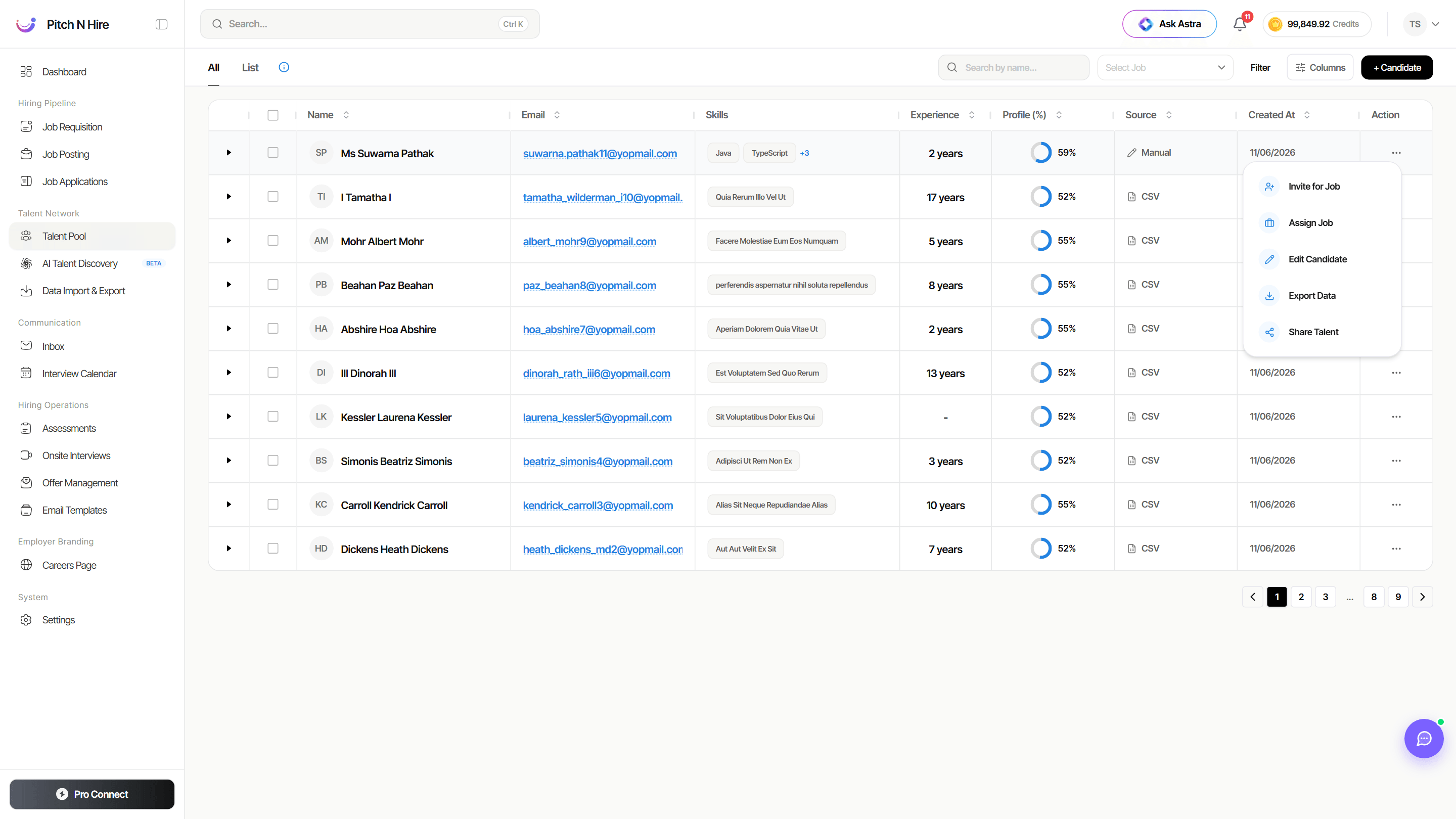
Each candidate row has an Actions (⋯) menu with quick operations:
- Invite for Job — email the candidate an invitation to apply for a specific job.
- Assign Job — apply the candidate directly to a selected job (they enter that job’s pipeline).
- Edit Candidate — open the candidate’s profile to update details.
- Export Data — export the candidate’s data.
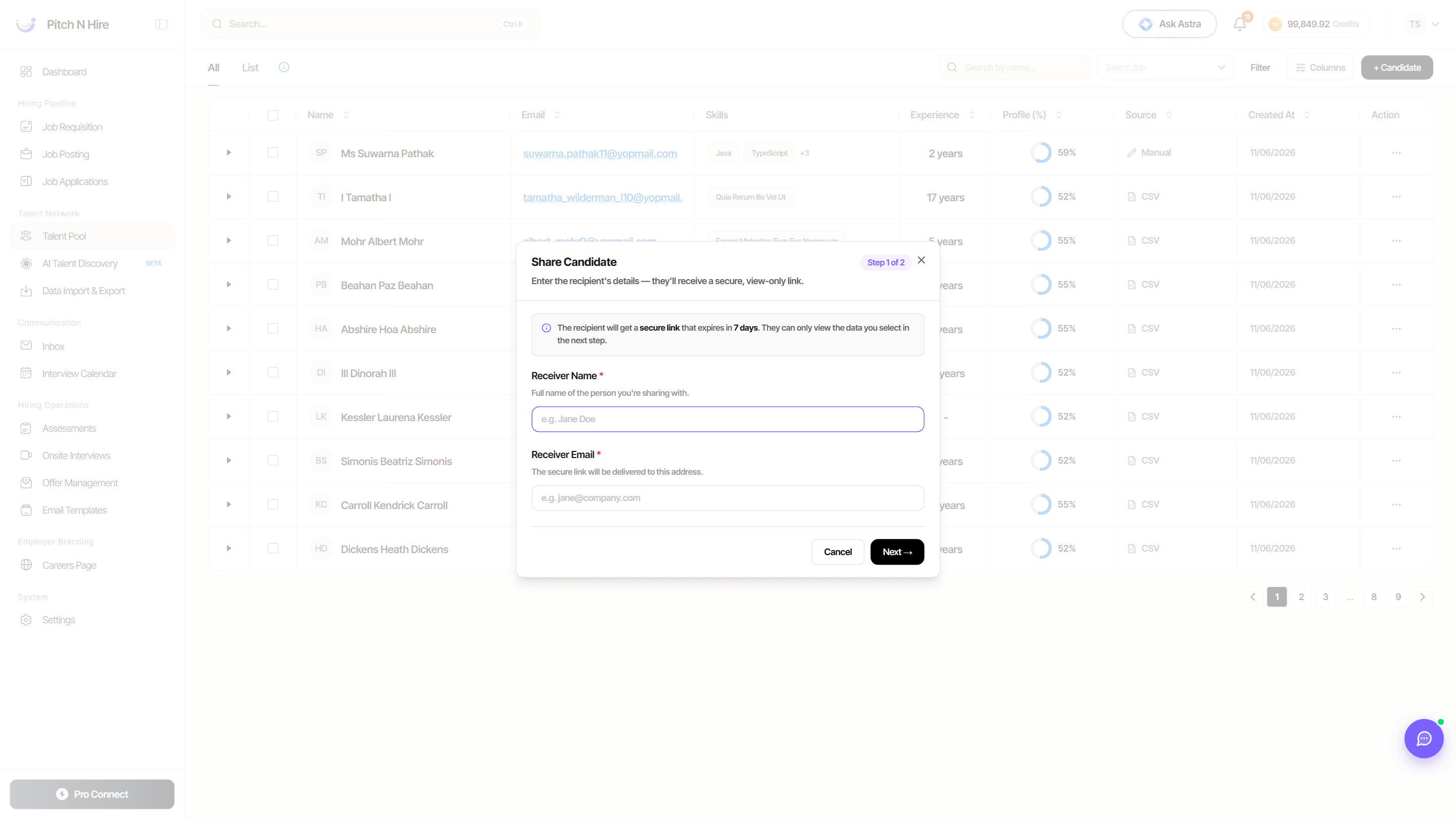
- Share Talent — send the profile to someone via a secure, time-limited view-only link.
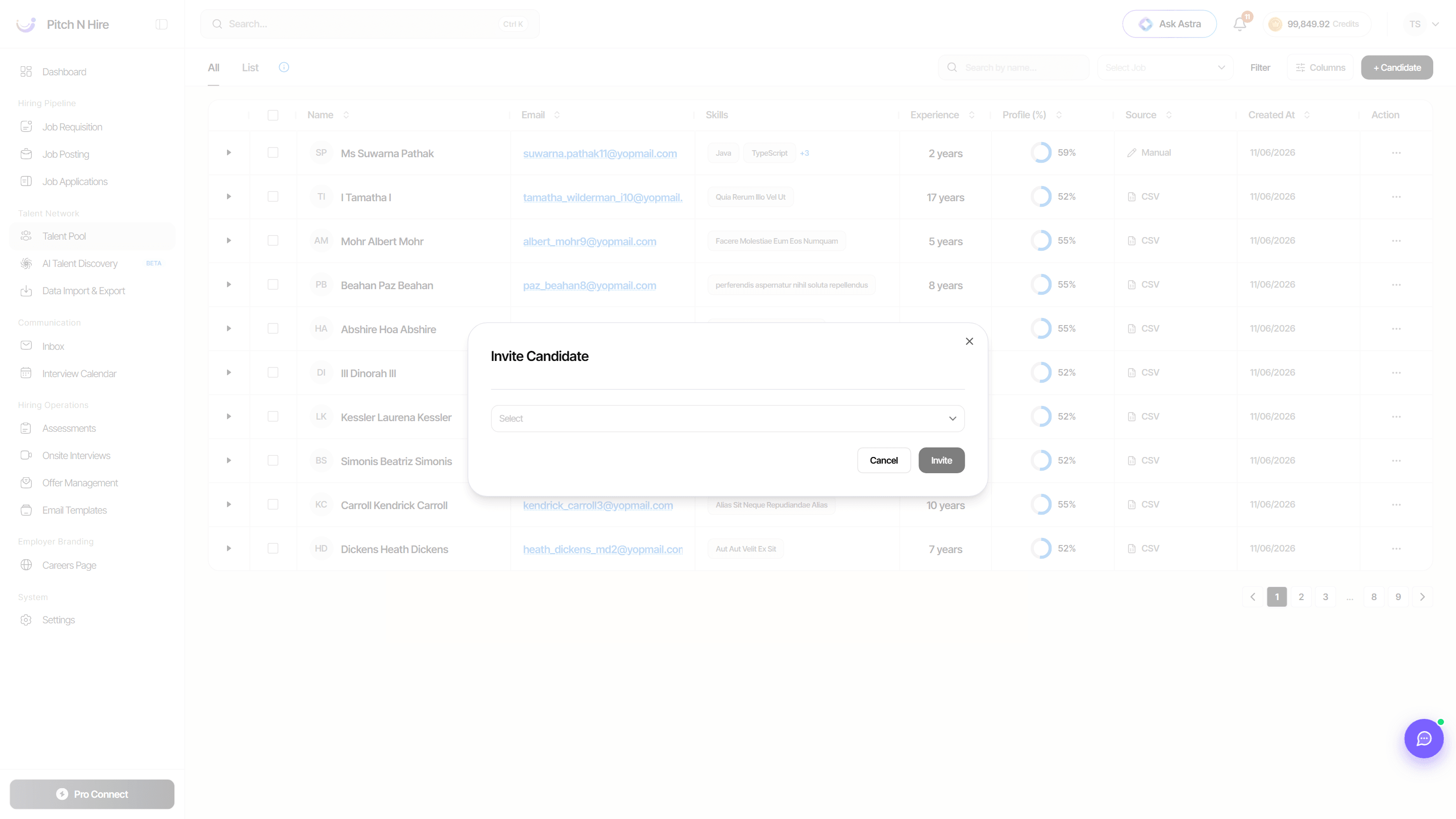
Invite for Job opens a dialog where you pick the job and send the invite:
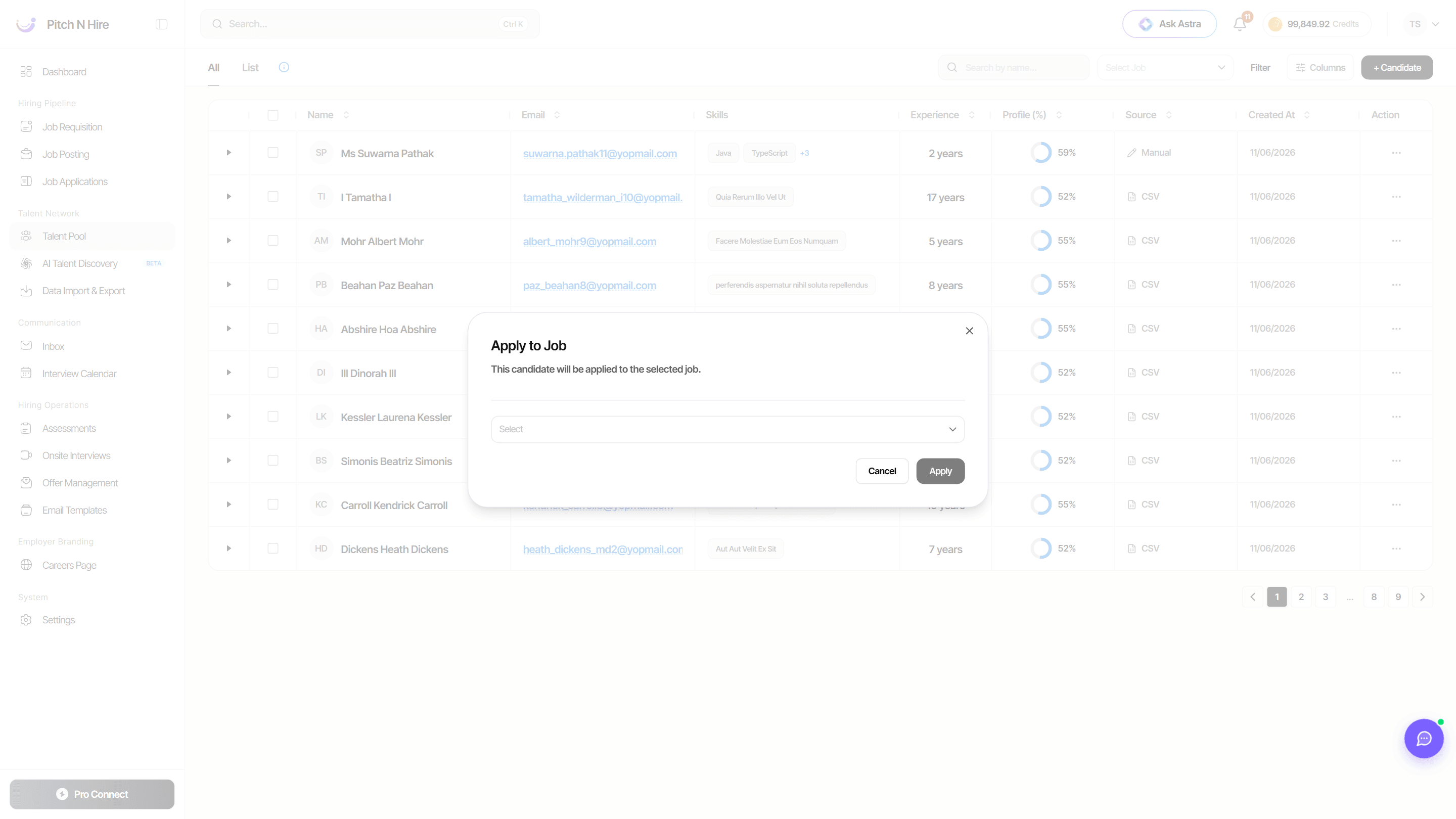
Assign Job applies the candidate to the chosen job straight away:
Share Talent generates a secure link (valid 7 days, view-only) and asks for the recipient’s name and email:
AI Search and voice search
Above the table, a search type selector offers AI Search, { } Boolean and Keyword. Choose AI Search to describe the people you need in one plain sentence, in English or Hinglish, for example React developers in Pune with 3-5 years and notice under 30 days. AI Search works on the All candidates and Org Pool tabs.

- Your sentence becomes chips under the bar (for example Skill: React, Exp: 3-5 yrs) and the same conditions are filled into the Filters panel. Solid chips are must-haves; dashed bonus chips are nice-to-haves that rank candidates higher.
- Click a chip to change it or the x to remove it. Editing the Filters panel re-runs the search about half a second later.
- Strict (inside the search box) shows only candidates who meet every condition. Turn it off to also see close matches and what each one is missing in the Match column.
- When there are fewer than 5 exact matches, suggestion chips such as + Greater Noida (6) show changes that would find more people. Click one to run it.
- Voice search: click the microphone at the right end of the box, allow microphone access the first time, and say what you need. Recording stops when you click again, after about 2 seconds of silence, or after 30 seconds. The text appears in the box and the search runs. The microphone is not shown in Boolean mode.
- Click Clear AI search to go back to the normal results. To rank candidates against a job, pick it in the Job field inside Filters.
If you see “AI search is unavailable - use filters”, switch to Keyword and use the regular filters.
Filtering candidates
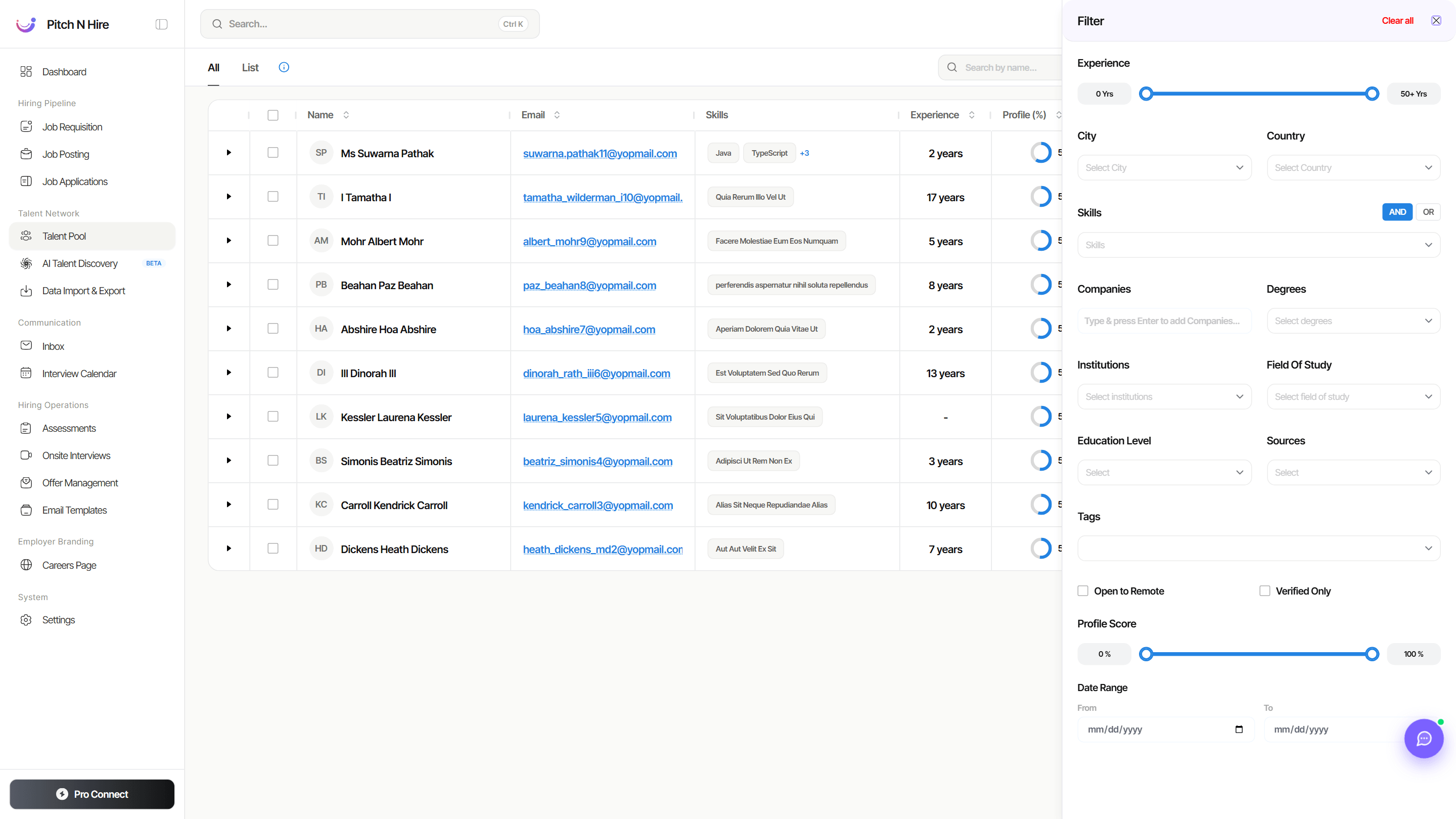
Click Filter for a powerful side panel to slice your pool. You can filter by Experience (range slider), City and Country, Skills (combined with AND/OR logic, or a full boolean expression via fx), Companies, Degrees, Institutions, Field of Study, Education Level, Sources and Tags, plus quick toggles for Open to Remote and Verified Only, a Profile Score range and a Date Range. Use Clear all to reset.
Advanced Search with fx
Each text or list filter — City, Country, Skills, Companies, Degrees, Institutions, Field of Study, Sources and Tags — has a small fx button next to its label. Click it to swap that filter’s tag input for an Advanced Search box where you can write a boolean expression instead of picking values one by one. Click fx again to go back to the tag input. Range filters such as Experience and Profile Score have no fx button.
Because the box already belongs to one filter, a plain term inside it applies to that filter’s field: typing java OR kotlin in the Skills box means skills is Java or Kotlin.
The box validates as you type — a green tick and a term count when the query is good, and a red message with a caret (^) marking the exact character when it is not. Syntax help in the box opens the same cheat sheet at any time, and typing after skills: or city: suggests real values from your data (↑ / ↓ to move, Enter to insert at the cursor, Esc to dismiss).
Your fx choices and the queries you write are kept in the page URL along with the rest of your filters, so a bookmarked or shared link reopens the same search.
Syntax cheat sheet
| What you want | How to write it |
|---|---|
| Both terms must match | java AND kotlin |
| Either term matches | java OR kotlin |
| Exclude a term | NOT android (or -android) |
| Scope a term to a field | skills:java |
| Scope a whole group to a field | skills:(java OR kotlin) |
| Exact phrase | "machine learning" |
| Numeric comparison | experience:>5 |
| Numeric range | experience:3..8 |
| Wildcard | node* matches Node.JS and NodeJS |
| Grouping | (java AND spring) OR (python AND django) |
Field names you can use inside a query: skills, name, city, country, company, degree, institution, field, source, tag, about, experience and score.
Matching is case-insensitive — java, Java and JAVA return the same candidates. NOT binds tightest, then AND, then OR, so use brackets whenever you are unsure.
Examples
- Skills box:
(java OR kotlin) AND NOT android - Skills box:
("machine learning" OR "deep learning") - Companies box:
"Tata Consultancy Services" OR Infosys - Institutions box:
IIT OR NIT - Skills box:
node*— catches Node.JS and NodeJS in one go
Boolean filters combine with everything else on the panel, so you can pair (java OR kotlin) AND NOT android in Skills with an Experience range and a City the usual way. Candidates matching more of your terms are ranked higher in the results.
Did you mean…?
If a search comes back empty because of a typo, a Did you mean …? chip appears above the table with a corrected query — jva suggests java. Click the chip to apply the correction and re-run the search.
Step-by-step
Browse and refine the list
- Open Talent Network → Talent Pool from the sidebar.
- Use the search box to find a candidate by name, or open the source dropdown to filter by origin.
- Click Filter to apply more detailed criteria.
- Click Columns to toggle which fields appear in the table.
- Switch between the All and List tabs depending on how much detail you want per row.
- Use the pagination controls at the bottom to navigate longer lists.
Add candidates
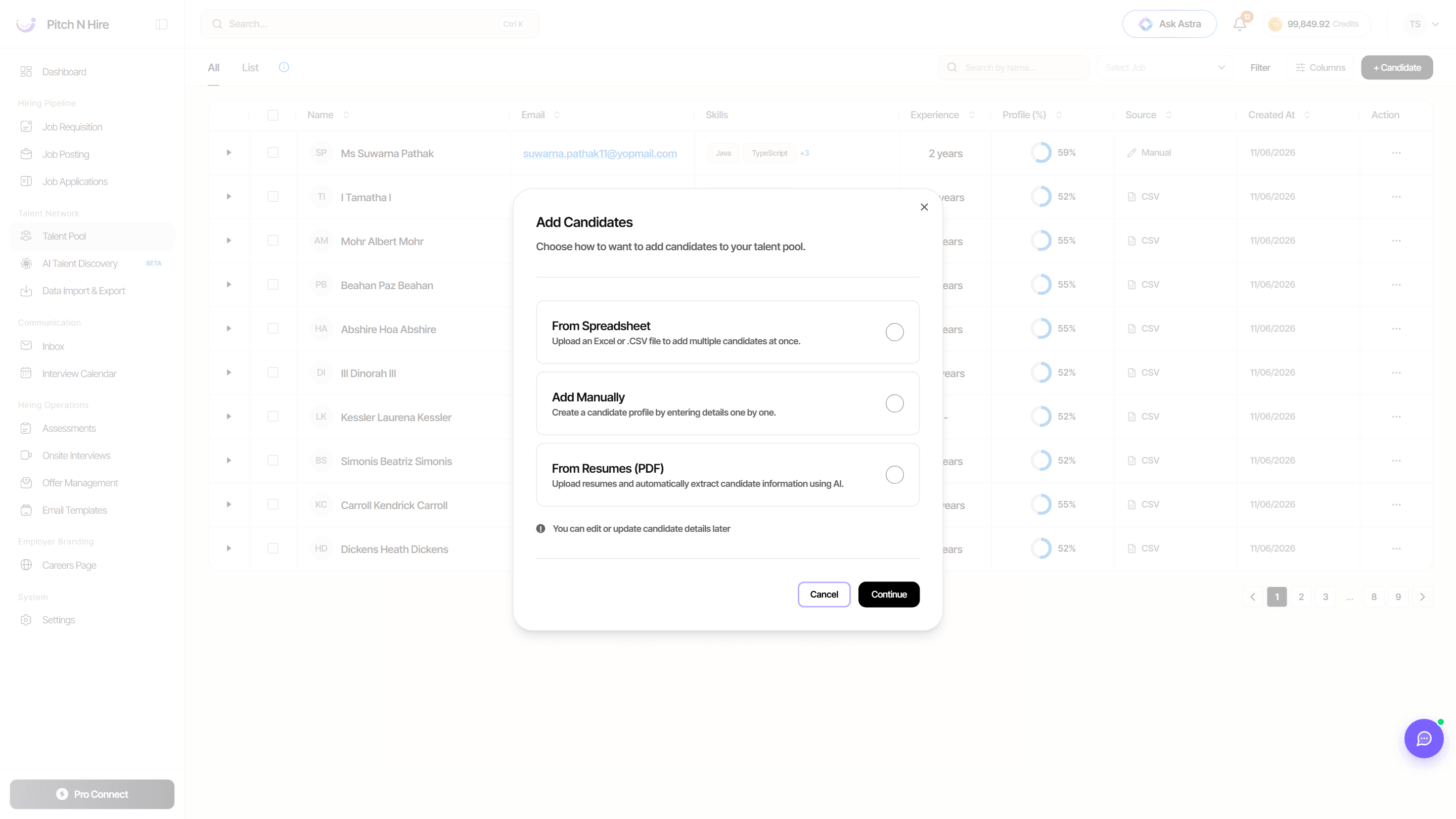
Click + Candidate to open Add Candidates and choose how to bring people in:
- From Spreadsheet — upload an Excel or
.CSVfile to add many candidates at once. - Add Manually — create a single profile by entering details one by one.
- From Resumes (PDF) — upload resumes and let AI automatically extract the candidate information.
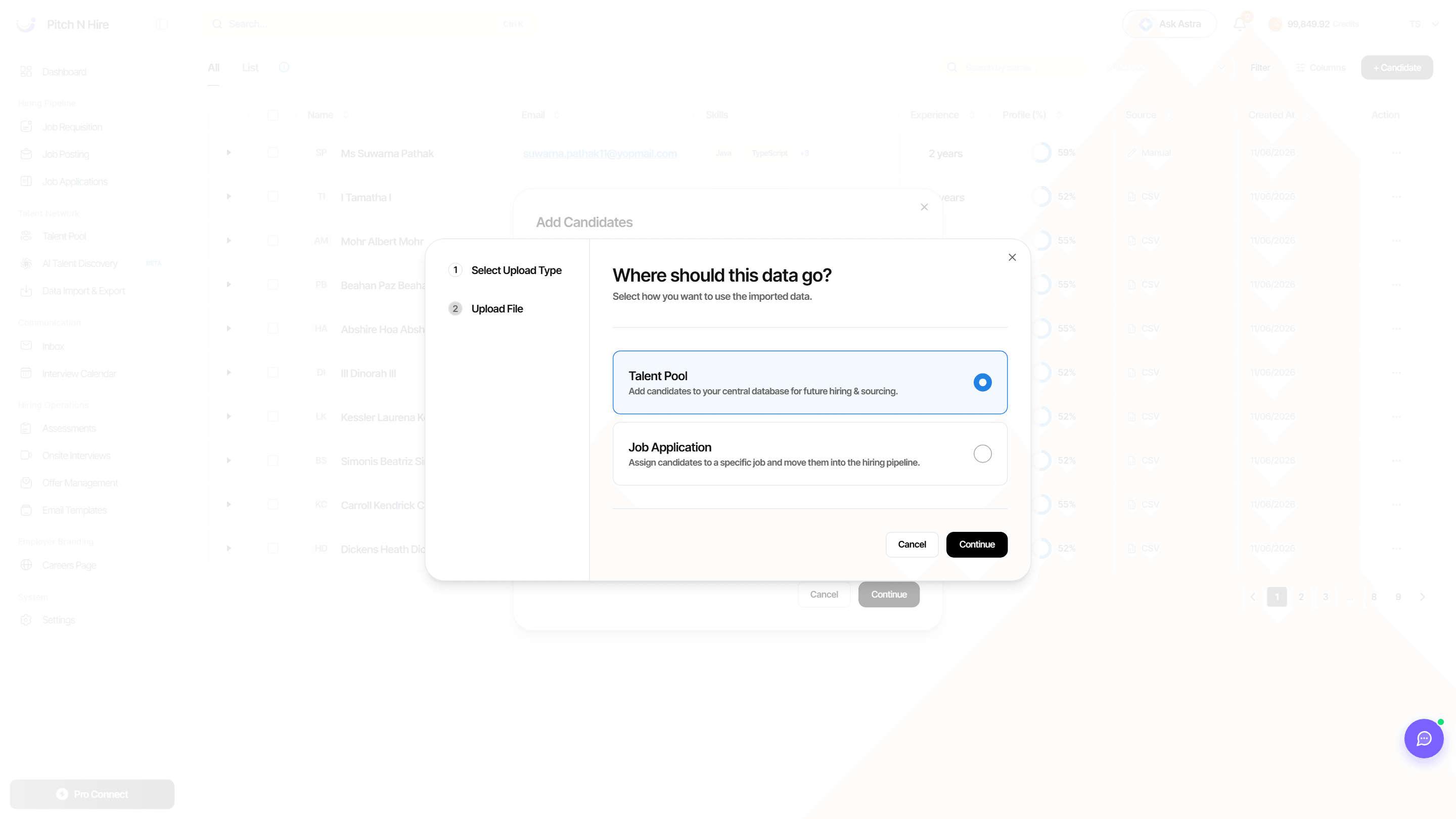
For Spreadsheet and Resume imports, a short wizard (Select Upload Type → Upload File) then asks where the imported data should go, so candidates land exactly where you want:
- Talent Pool — add them to your central database for future hiring and sourcing.
- Job Application — assign them to a specific job and move them straight into that hiring pipeline.
- List — assign them to a specific list and into the pipeline.
Add a candidate manually
- Choose Add Manually and Continue to open a three-step wizard: Overview, Resume & Links, and Qualification.
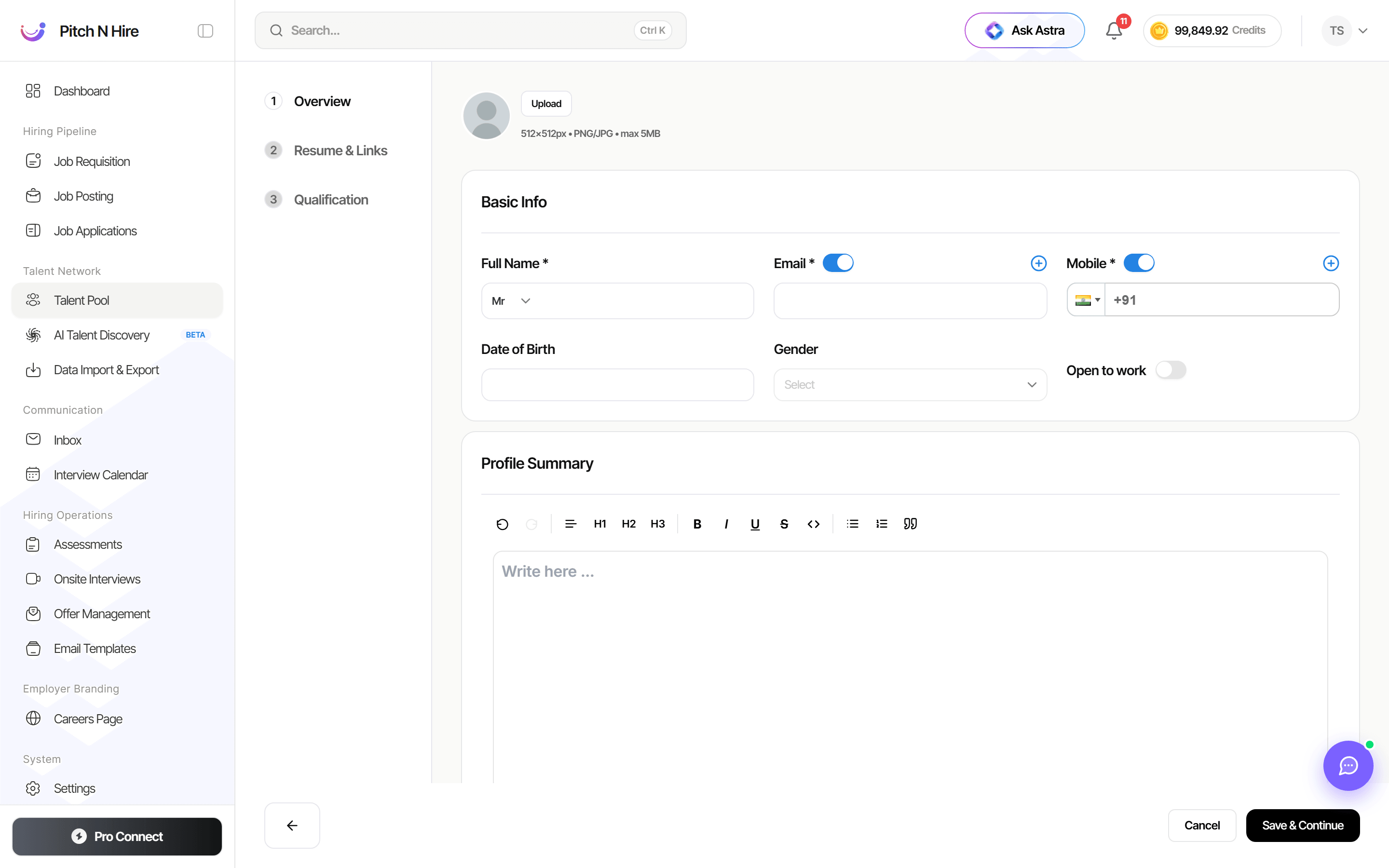
- On the Overview step, upload a profile photo (PNG/JPG up to 5 MB) and complete the Basic Info section:
- Full Name (with a title prefix such as Mr) – required.
- Email – required; toggle on to capture it.
- Mobile – with a country code selector; toggle on to capture it.
- Date of Birth and Gender.
- Open to work toggle.
- Add a Profile Summary using the rich-text editor (headings, bold, lists, links, and more).
- Click Save & Continue to move to Resume & Links, then on to Qualification.
- Finish the wizard to add the candidate to your Talent Pool, where they’ll appear in the table with Manual as the source.