MCQ Assessment
An MCQ (multiple-choice question) assessment lets recruiters test candidates on specific skills with timed, auto-scored questions. Build the test once in the Assessments hub, optionally generate questions with AI, send it to candidates from the pipeline, and review their submissions and scores.
Overview
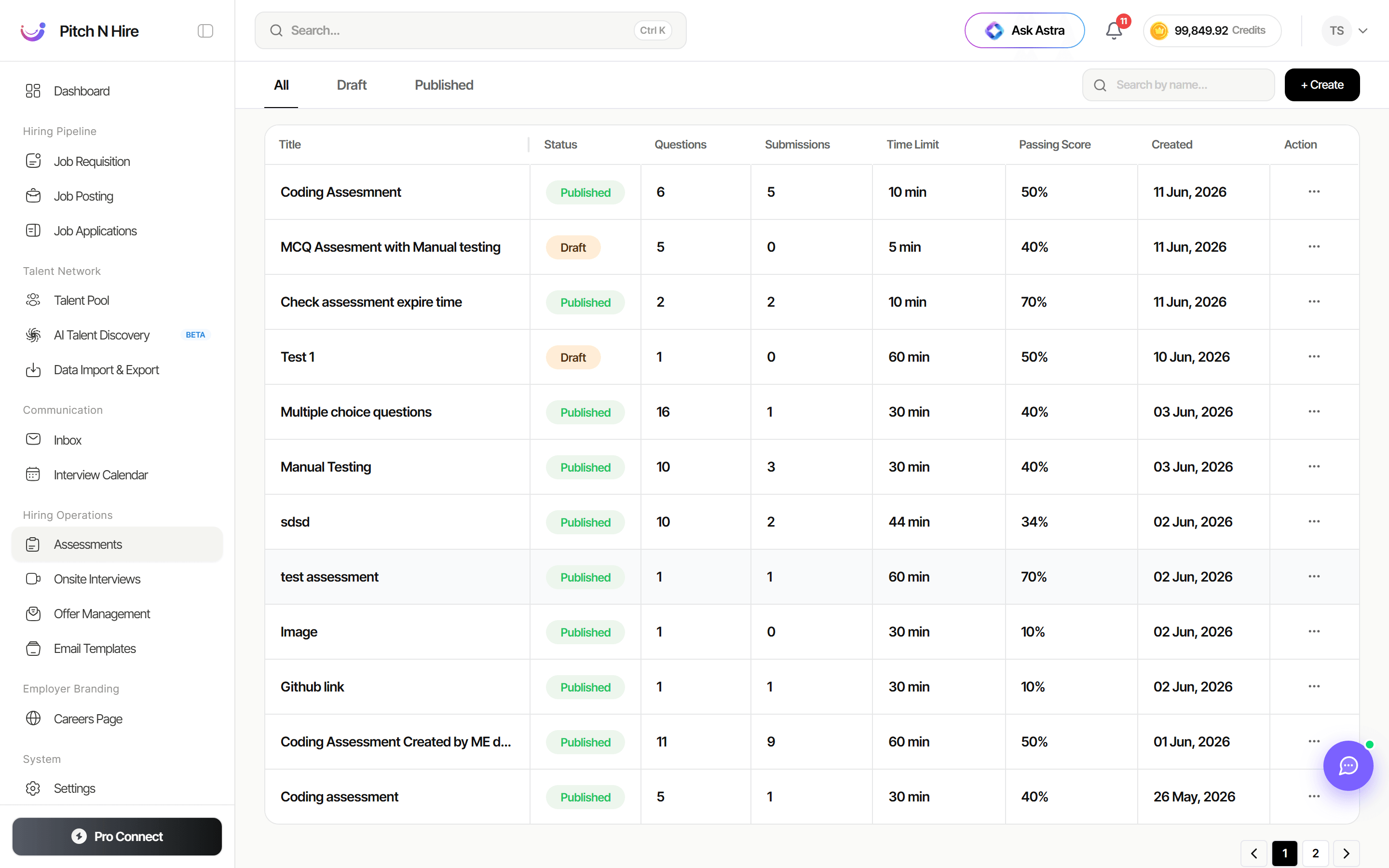
MCQ assessments live in the Assessments table alongside your other tests. Each row shows the test’s Status (Published or Draft), the number of Questions, how many Submissions it has received, the Time Limit, and the Passing Score — the core settings that define an MCQ test. Use + Create to start a new one.
Key features
- Questions — Define how many multiple-choice questions the test contains.
- Time Limit — Set how long candidates have to complete the assessment (for example, 10, 30, or 60 minutes).
- Passing Score — Set the percentage a candidate must reach to pass.
- AI question generation — Generate MCQs automatically so you don’t have to write every question by hand.
- Draft / Published status — Keep a test as a Draft while building it, then publish to make it sendable.
- Submissions tracking — The Submissions column shows how many candidates have completed the test.
- Auto-scoring — MCQ answers are scored automatically against the passing score you set.
Step-by-step
- Go to Hiring Operations → Assessments and click + Create.
- Choose the MCQ assessment type and give it a clear title.
- Set the number of questions, the Time Limit, and the Passing Score.
- Add questions manually, or use AI generation to create multiple-choice questions for the chosen topic and difficulty.
- Save the test as a Draft to keep editing, or Publish it when it’s ready.
- From a job’s pipeline, send the published MCQ assessment to candidates (via email, Microsoft Teams, or WhatsApp).
- Back in the Assessments list, watch the Submissions column grow as candidates respond.
- Open the assessment to review each candidate’s submission and score.
Tips
Common issues & fixes
- AI questions are off-topic — Refine the subject and difficulty prompt, regenerate, and remove any questions that don’t fit.
- Candidates can’t open the test — Make sure the assessment is Published, not a Draft, before sending it.
- Scores look wrong — Re-check the correct answers and the Passing Score percentage in the assessment setup.
- No submissions recorded — Confirm the test was sent from the pipeline and that candidates completed it within the time limit.