Offer Management
Offer Management is where recruiters create, send, and track candidate offer letters end to end. From a single table you can see every offer that has gone out, its compensation, joining and expiry dates, and exactly where each candidate is in the response process — from Draft to Sent, Accepted, Declined, or Revised.
Overview
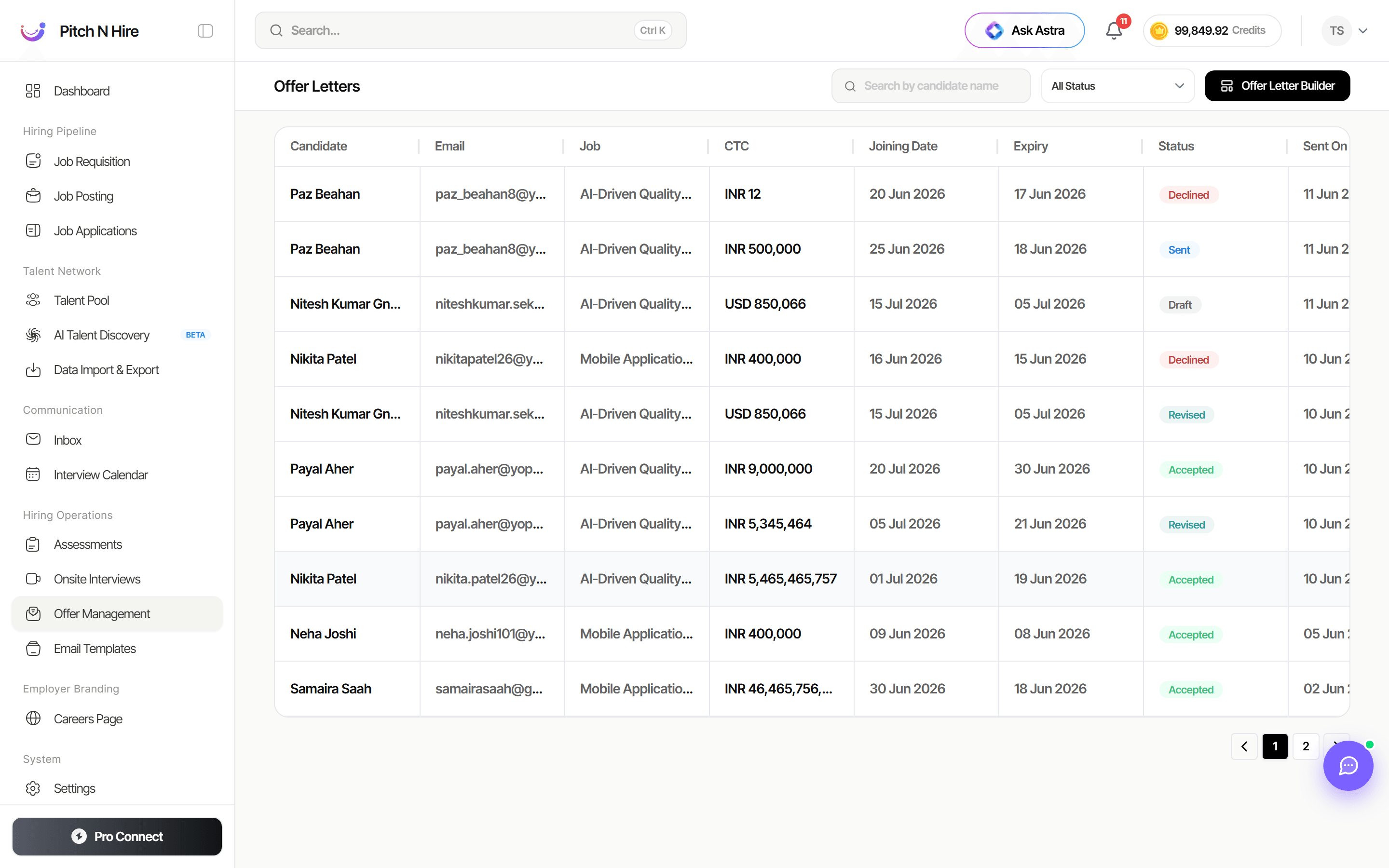
The Offer Letters screen lists every offer in a table with one row per offer. Columns include the Candidate name, Email, the linked Job, the CTC (compensation, shown in the relevant currency such as INR or USD), the Joining Date, the offer Expiry date, the Status, and the Sent On date. A Search by candidate name box and an All Status filter sit at the top, with the Offer Letter Builder button at the top right. Results are paginated at the bottom.
Key features
- Offer list — all offers in one paginated table.
- Candidate & email — who the offer is for and where it was sent.
- Job — the role the offer is tied to (for example “AI-Driven Quality…”, “Mobile Application…”).
- CTC — the offered compensation, with currency (for example
INR 500,000,USD 850,066). - Joining Date & Expiry — when the candidate is expected to start and when the offer lapses.
- Status — color-coded states: Draft, Sent, Accepted, Declined, and Revised.
- Sent On — the date the offer was issued.
- Offer Letter Builder — open the builder to create and customize an offer letter template.
- Search & filter — find an offer by candidate name or narrow by All Status.
Step-by-step
- Open Offer Management from the Hiring Operations section of the left sidebar.
- Review the table to see the status of every outstanding and completed offer.
- To build a new offer or template, click Offer Letter Builder at the top right.
- Set the candidate, job, CTC, Joining Date, and Expiry date, then generate the offer.
- Send the offer to the candidate — its Status moves to Sent and a Sent On date is recorded.
- Track responses: the status updates to Accepted or Declined as the candidate responds, or Revised if you reissue terms.
- Use Search by candidate name or the All Status filter to focus on a subset of offers.
Managing an offer
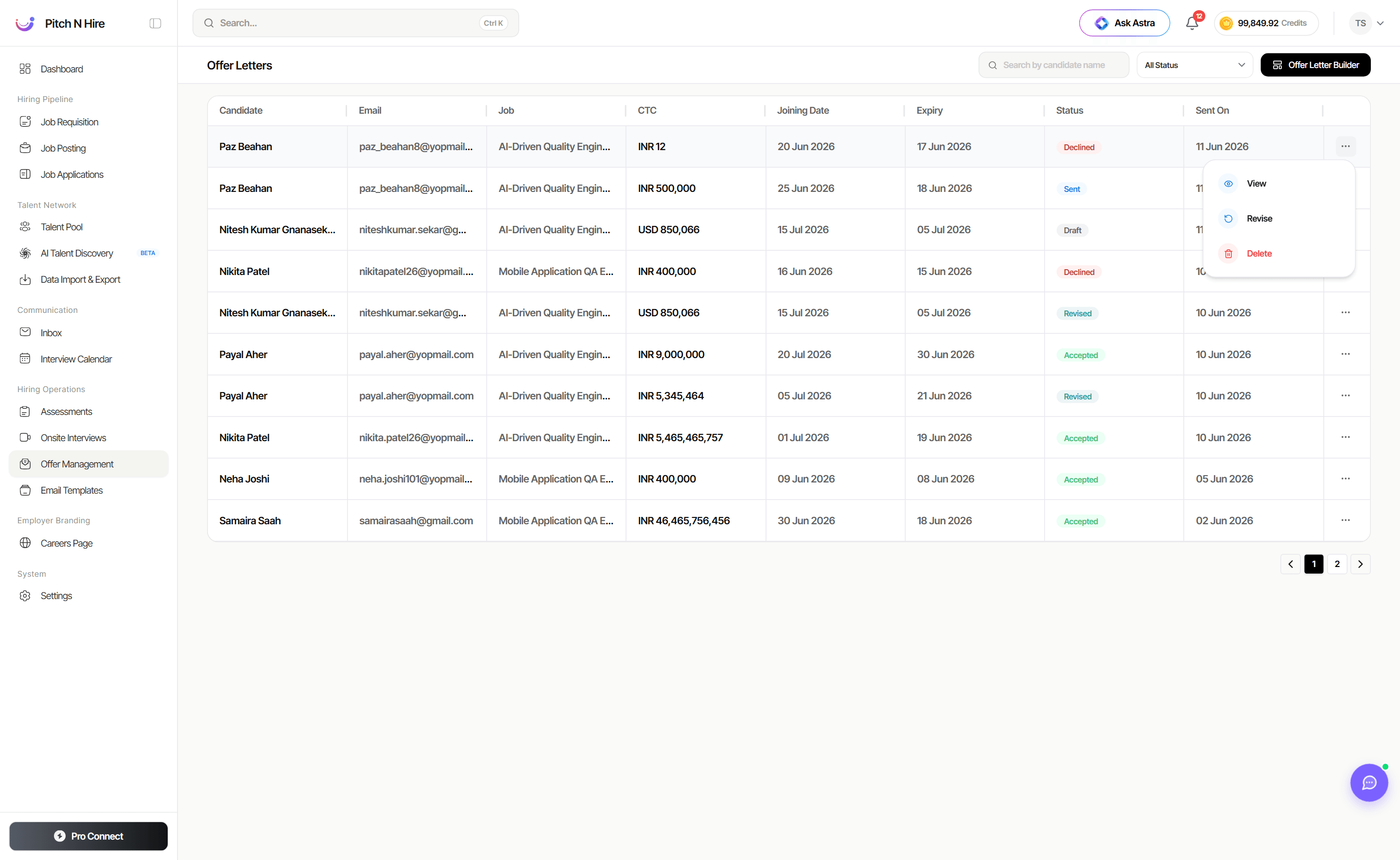
Each offer row has an Actions (⋯) menu to manage that offer through its life:
- View — open the offer to see its full detail.
- Revise — reissue the offer with updated terms (its status becomes Revised).
- Withdraw — pull back an offer that’s already been sent.
- Delete — remove an offer record entirely.
The Offer Letter Builder
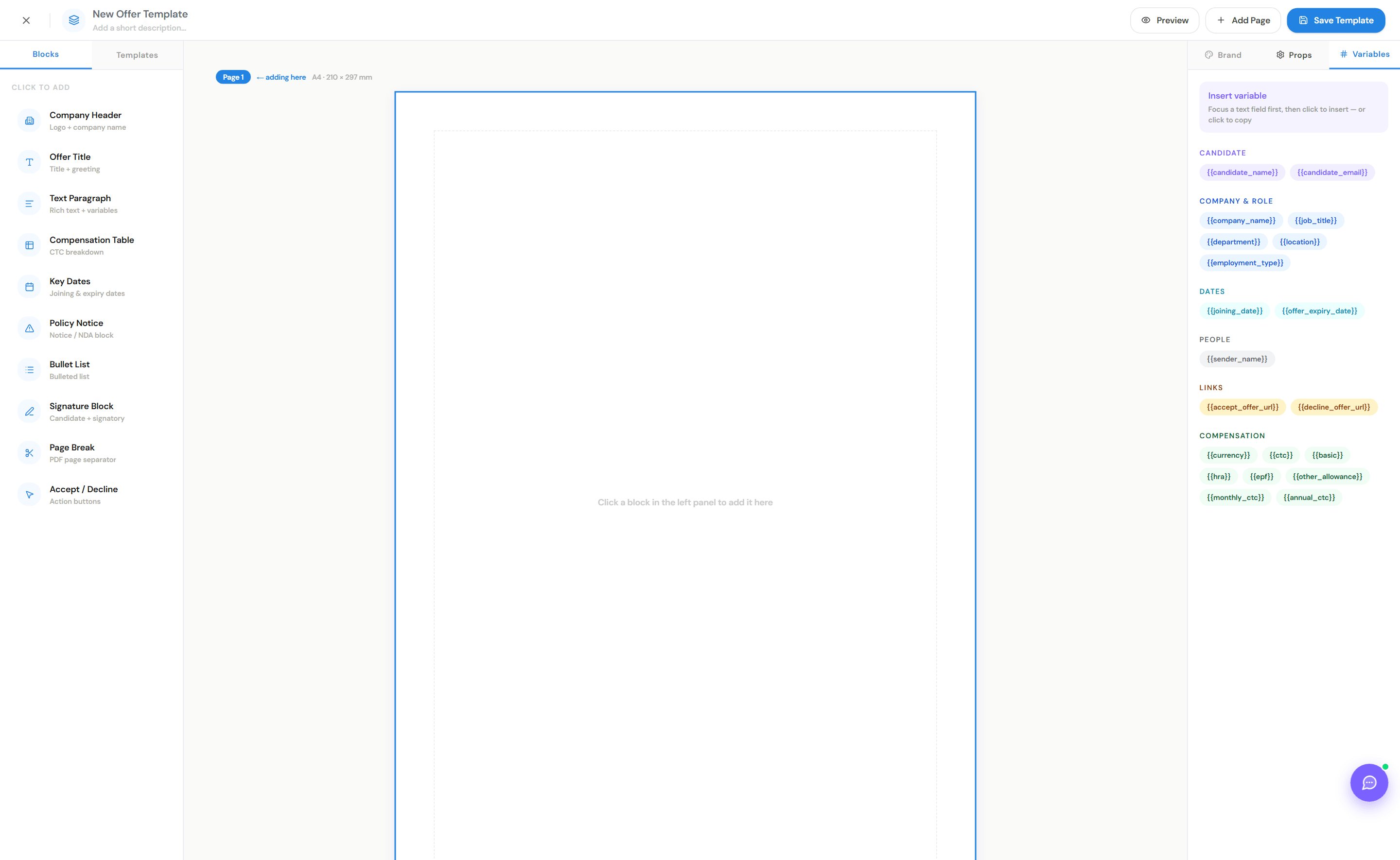
Click Offer Letter Builder to open a drag-and-block editor for designing branded, A4 offer documents. Click blocks in the left panel to add them to the page:
- Company Header (logo + company name), Offer Title (title + greeting), Text Paragraph (rich text + variables), Compensation Table (CTC breakdown), Key Dates (joining & expiry), Policy Notice (notice / NDA), Bullet List, Signature Block, Page Break, and Accept / Decline action buttons.
On the right, insert Variables that auto-fill when the offer is sent — grouped into Candidate ({{candidate_name}}, {{candidate_email}}), Company & Role ({{company_name}}, {{job_title}}, {{department}}, {{location}}, {{employment_type}}), Dates ({{joining_date}}, {{offer_expiry_date}}), People ({{sender_name}}), Links ({{accept_offer_url}}, {{decline_offer_url}}) and Compensation ({{currency}}, {{ctc}}, {{basic}}, {{hra}}, {{epf}}, {{monthly_ctc}}, {{annual_ctc}}, …). The Brand and Props tabs let you style the document. Use + Add Page for multi-page offers, Preview to see the rendered letter, and Save Template to store it.
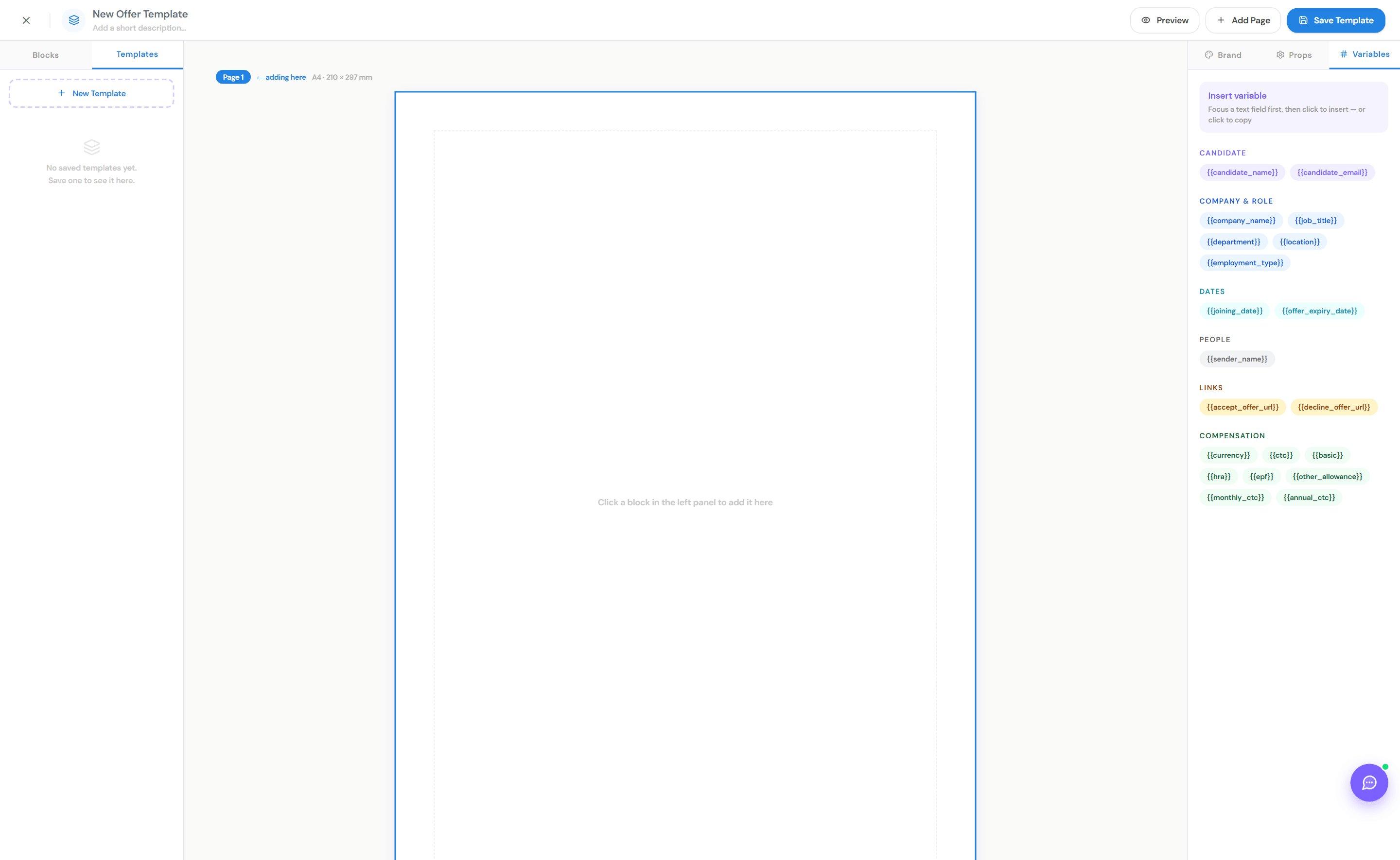
Switch to the Templates tab to reuse your saved layouts — Load & Edit an existing template, start a + New Template, or delete one you no longer need. Saved templates appear here and become selectable when you send an offer.
Sending an offer to a candidate
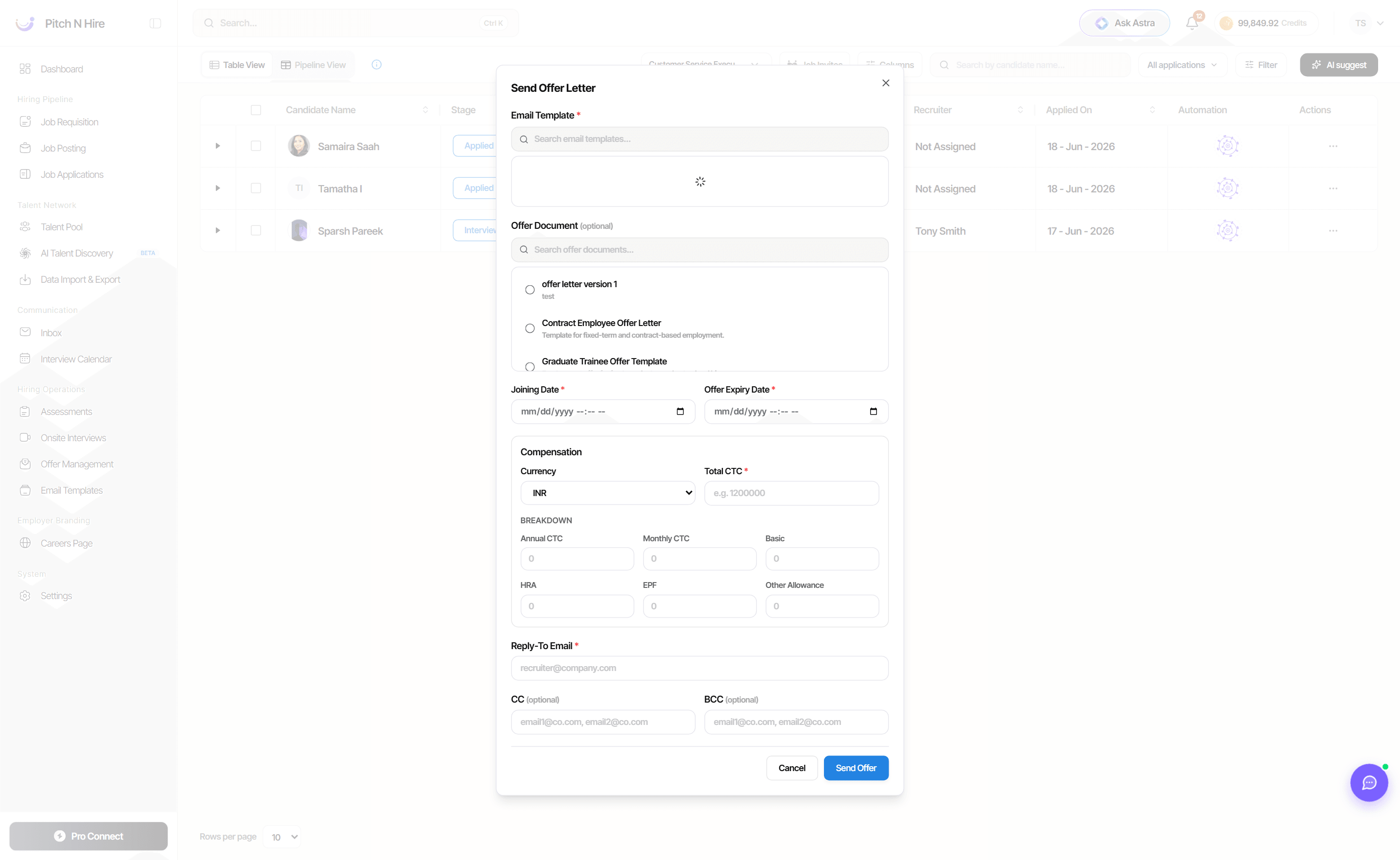
Offers are sent from a candidate’s Job Application. In the pipeline, open a candidate’s Actions menu and choose Send Offer Letter to open the send dialog:
- Pick an Email Template (required) — the message the candidate receives (searchable list).
- Optionally attach an Offer Document — one of your saved offer-letter templates (e.g. Contract Employee Offer Letter, Graduate Trainee Offer Template).
- Set the Joining Date and Offer Expiry Date (both required).
- Enter the Compensation — Currency and Total CTC, plus an optional breakdown (Annual CTC, Monthly CTC, Basic, HRA, EPF, Other Allowance).
- Add the Reply-To Email (required) and any CC / BCC addresses.
- Click Send Offer. The candidate receives the email (with accept/decline links), and the offer appears in Offer Management as Sent.
Tracking offers
Beyond the Offer Management list, you can track a candidate’s offer from their application view page — the offer’s status (Sent, Accepted, Declined, Revised, Withdrawn) is shown alongside the rest of their profile, so reviewers see where the offer stands without leaving the candidate.
Tips
Common issues & fixes
- Candidate didn’t receive the offer — confirm the Email column shows the correct address before resending.
- Need to change agreed terms — reissue the offer; the status will show as Revised so the history stays clear.
- Can’t find an offer — clear the All Status filter and search by the candidate’s name, and check the next page using the pagination controls.