AI Copilot & Ask Astra
The AI Copilot (BETA) is your built-in AI hiring assistant. Ask it anything about your jobs, candidates, assessments, or reports in plain language, and it answers right inside Pitch N Hire. Conversations are saved as threads so you can pick up where you left off, and a usage meter tracks how much of your AI allowance you’ve used. The Ask Astra button in the top bar gives you the same assistant from anywhere in the app.
Overview
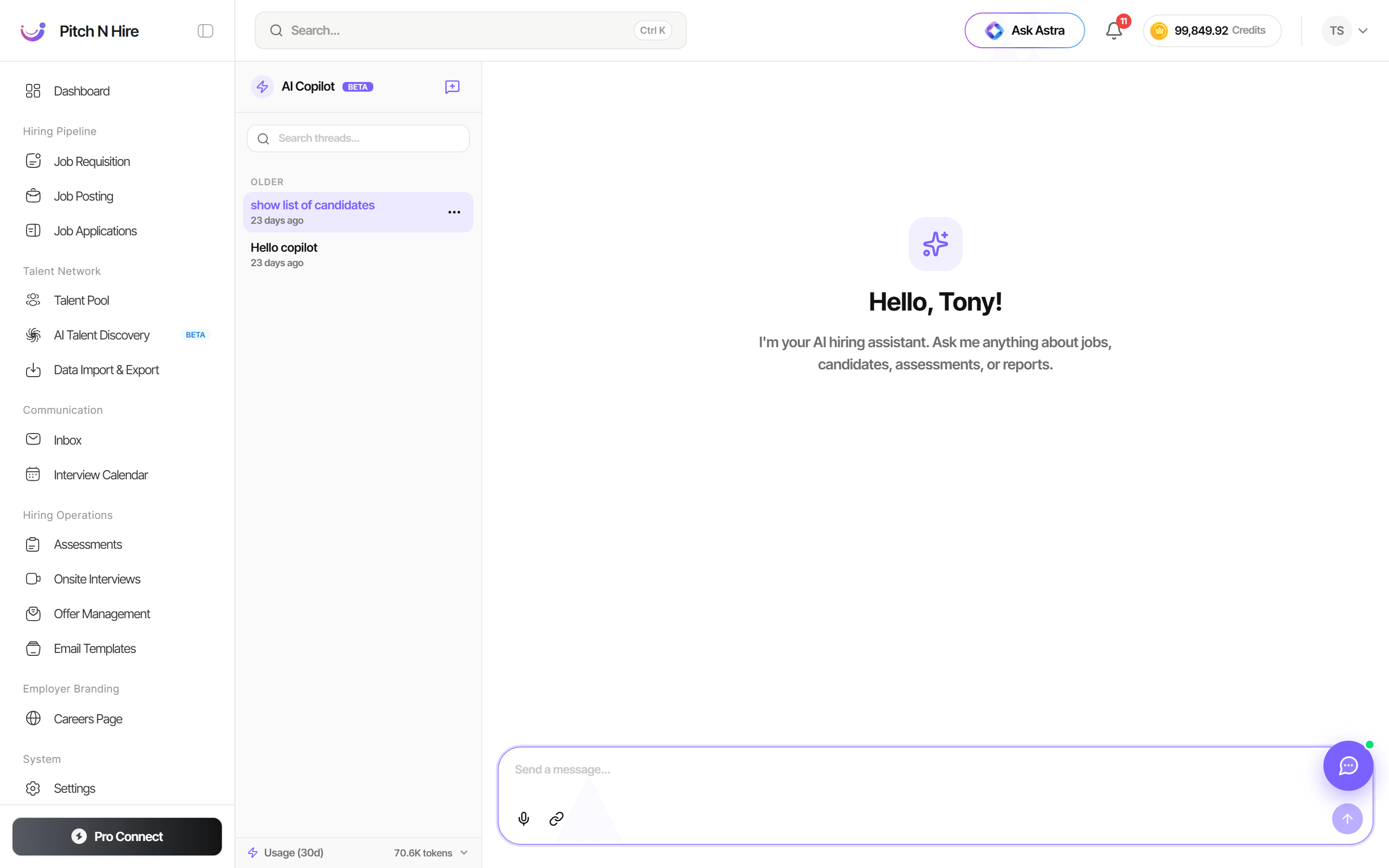
The AI Copilot screen has a thread panel on the left and the conversation area on the right. The header shows the AI Copilot name with a BETA badge and a new-chat icon. Below it, a Search threads… box lets you find past conversations, grouped under headings such as OLDER (for example “show list of candidates” and “Hello copilot”, each with a relative timestamp). The main panel greets you by name — “Hello, Tony!” — with the prompt “I’m your AI hiring assistant. Ask me anything about jobs, candidates, assessments, or reports.” A Send a message… box sits at the bottom with voice (microphone) and attach (link) icons, and a Usage (30d) token meter (for example “70.8K tokens”) runs along the bottom left.
Key features
- AI Copilot (BETA) — an AI hiring assistant you can ask about jobs, candidates, assessments, and reports.
- Threads — past conversations are saved and grouped (for example under OLDER) with timestamps, and searchable via Search threads….
- New chat — start a fresh conversation from the new-chat icon in the panel header.
- Personalized greeting — the assistant greets you by name (for example “Hello, Tony!”).
- Message box — type a prompt in Send a message…, with a microphone for voice input and a link/attach icon to add context.
- Usage meter — a Usage (30d) indicator shows token consumption (for example “70.8K tokens”) so you can track your AI allowance.
- Ask Astra — the same assistant is available from the Ask Astra button in the top navigation bar for quick access from any page.
Step-by-step
- Open AI Copilot from the left sidebar, or click Ask Astra in the top bar from anywhere in the app.
- Click the new-chat icon to start a fresh thread, or pick an existing thread from the list.
- Type your question in the Send a message… box — for example, ask about a job’s pipeline, a candidate’s assessment, or a report.
- To speak instead of type, click the microphone icon and dictate your prompt.
- Use the attach/link icon to add context to your question where supported.
- Read the assistant’s reply in the conversation area and continue the thread with follow-up questions.
- Keep an eye on the Usage (30d) token meter at the bottom to monitor your AI usage.
- Search threads to return to an earlier conversation later.
Tips
Common issues & fixes
- Lost a previous answer — use Search threads… to find the conversation; threads are saved and grouped by recency.
- Usage looks high — check the Usage (30d) token meter; it reflects your consumption over the last 30 days.
- Voice input not working — make sure your browser has microphone permission enabled, then click the microphone icon again.