Integrations
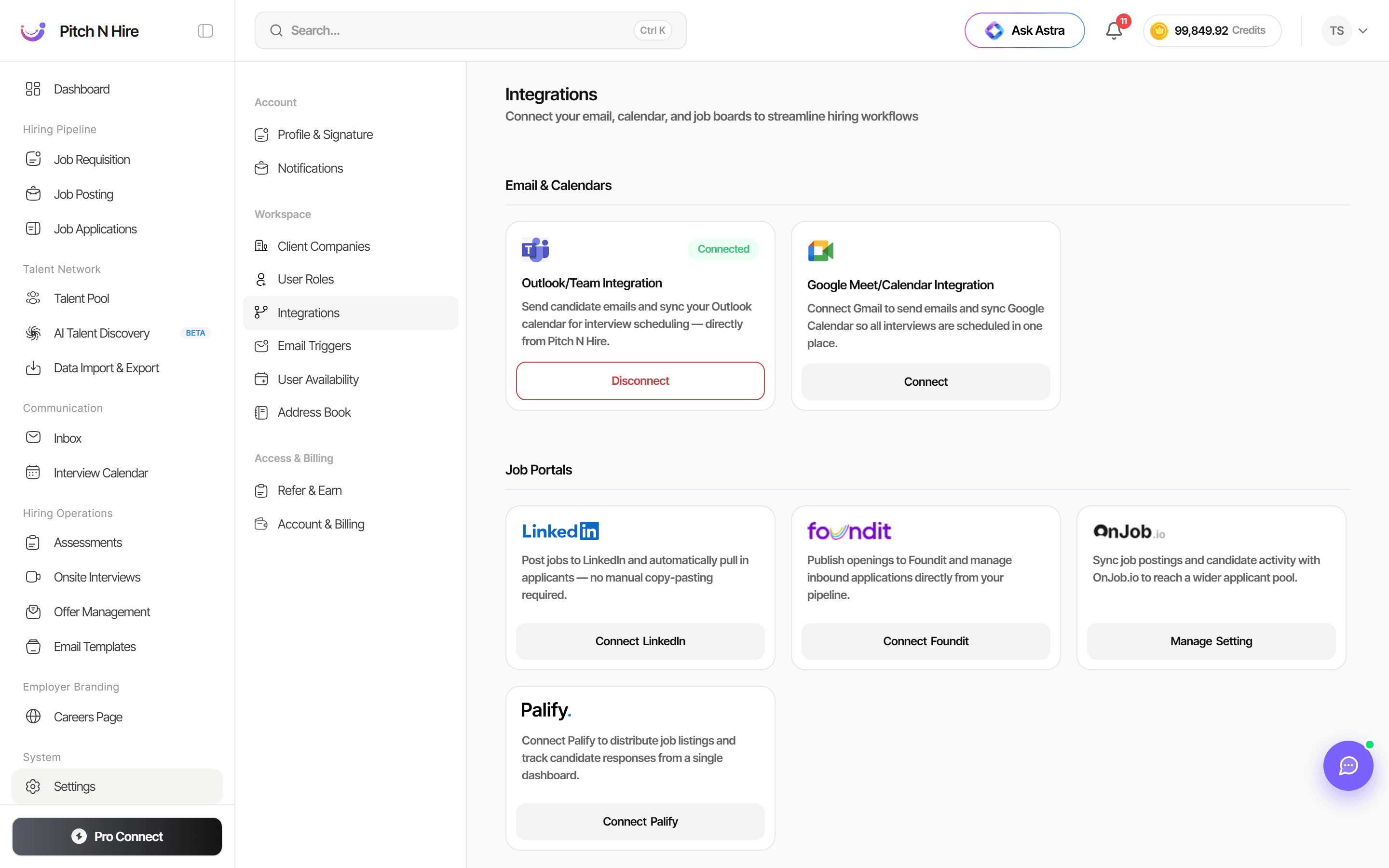
The Integrations page is where you connect Pitch N Hire to the tools you already use — your email and calendar, external job boards, and a dedicated inbox for resume intake — so candidate emails, interview scheduling and job distribution all happen from one place.
Overview
Integrations are grouped into three areas:
- Email & Calendars — Outlook/Teams and Google Meet/Calendar for sending candidate emails and scheduling interviews.
- Job Portals — LinkedIn, Foundit, OnJob.io and Palify for distributing your job postings. (This section appears only if you can manage company settings.)
- Resume Intake — connect a dedicated Gmail or Outlook inbox and Pitch N Hire auto-parses resume attachments into your Talent Pool.
Each integration appears as a card with a short description and an action button. Once set up, a card shows a green Connected badge.
Email & Calendars
Connect a mailbox and calendar so you can send candidate emails and schedule interviews directly inside Pitch N Hire.
Outlook / Teams
Send candidate emails and sync your Outlook calendar for interview scheduling — directly from Pitch N Hire.
- On the Outlook/Team Integration card, click Connect.
- Confirm in the dialog — “You will be redirected to authorize access.”
- Sign in to Microsoft and grant access. When you return, the card shows a Connected badge and your connected email address.
To remove it later, click Disconnect on the card (you’ll lose email and calendar features for that account).
Google Meet / Calendar
Connect Gmail to send emails and sync Google Calendar so all interviews are scheduled in one place.
- On the Google Meet/Calendar Integration card, click Connect.
- Confirm in the dialog, then authorize access with your Google account.
- On return, the card shows Connected and your Gmail address.
Use Disconnect on the card to revoke access.
Job Portals
Distribute your job postings to external boards and pull applicants back into your pipeline. The Job Portals section is only visible to users who can manage company settings — ask an organization admin if you don’t see it.
Post jobs to LinkedIn and automatically pull in applicants — no manual copy-pasting required. You connect by entering your LinkedIn Company ID, after which roles can be picked up as LinkedIn Basic Jobs.
Foundit
Publish openings to Foundit (formerly Monster India) and manage inbound applications directly from your pipeline.
- On the Foundit card, click Connect Foundit to open the Connect Foundit dialog.
- Fill in the required fields:
- Account Credentials — Username (your Foundit login email) and Password.
- Organization Details — Company Name (your registered company) and Corporation ID.
- API Access — Recruiter ID and API Key.
- Click Connect Foundit to save. Once configured, the card and dialog show a Connected badge, and the button becomes Update Foundit.
OnJob.io
Sync job postings and candidate activity with OnJob.io to reach a wider applicant pool.
- On the OnJob.io card, click Manage Setting (it reads Update Setting once connected).
- In the OnJob dialog, switch on Auto Publish Jobs to automatically push your jobs to OnJob.
- Click Connect (or Update if already connected) to save.
Palify
Connect Palify to distribute job listings and track candidate responses from a single dashboard.
- On the Palify card, click Connect Palify. Palify connects with one click and auto-publishing of jobs is enabled — you’ll see a Connected badge.
- To turn it off, click Disconnect Palify on the card.
Resume Intake
Connect a dedicated inbox and Pitch N Hire will auto-parse resume attachments into your Talent Pool. Access requires the resume-intake permission (admins and owners always have it).
- In the Resume Intake section, choose Gmail or Outlook and click Connect.
- Confirm in the dialog — access is read-only; Pitch N Hire only reads resume attachments and never modifies your mailbox.
- Authorize the inbox. Once connected, the card shows the mailbox address and a Connected badge.
Managing a connected inbox:
- Automatic scanning — toggle this on/off to start or pause periodic scanning. The card shows when it was last synced.
- Scan now — trigger an immediate scan; you’ll see how many resumes were queued and skipped.
- Disconnect — stop importing resumes from the inbox (you can reconnect anytime).
Tips
Common issues & fixes
- A whole section is missing — you don’t have permission to manage company settings. Ask an organization admin.
- Email/calendar shows disconnected after authorizing — the OAuth window was closed early or access was denied. Click Connect again and complete the provider sign-in.
- Foundit won’t connect — a required field is wrong. Double-check Corporation ID, Recruiter ID and API Key from your Foundit employer account.
- Resume Intake not importing — automatic scanning may be paused, or the inbox hit an error (shown in red on the card). Re-enable scanning or use Scan now; reconnect the inbox if the error persists.