Job Requisition
A job requisition is the formal request to open a role, the step that gets headcount approved before a job ever goes live. The Job Requisition module in Pitch N Hire lets recruiters and hiring managers raise these requests, route them through an approval workflow, and watch each one move from In Review to Approved, On Hold or Rejected, all from a single tracked list.
Overview
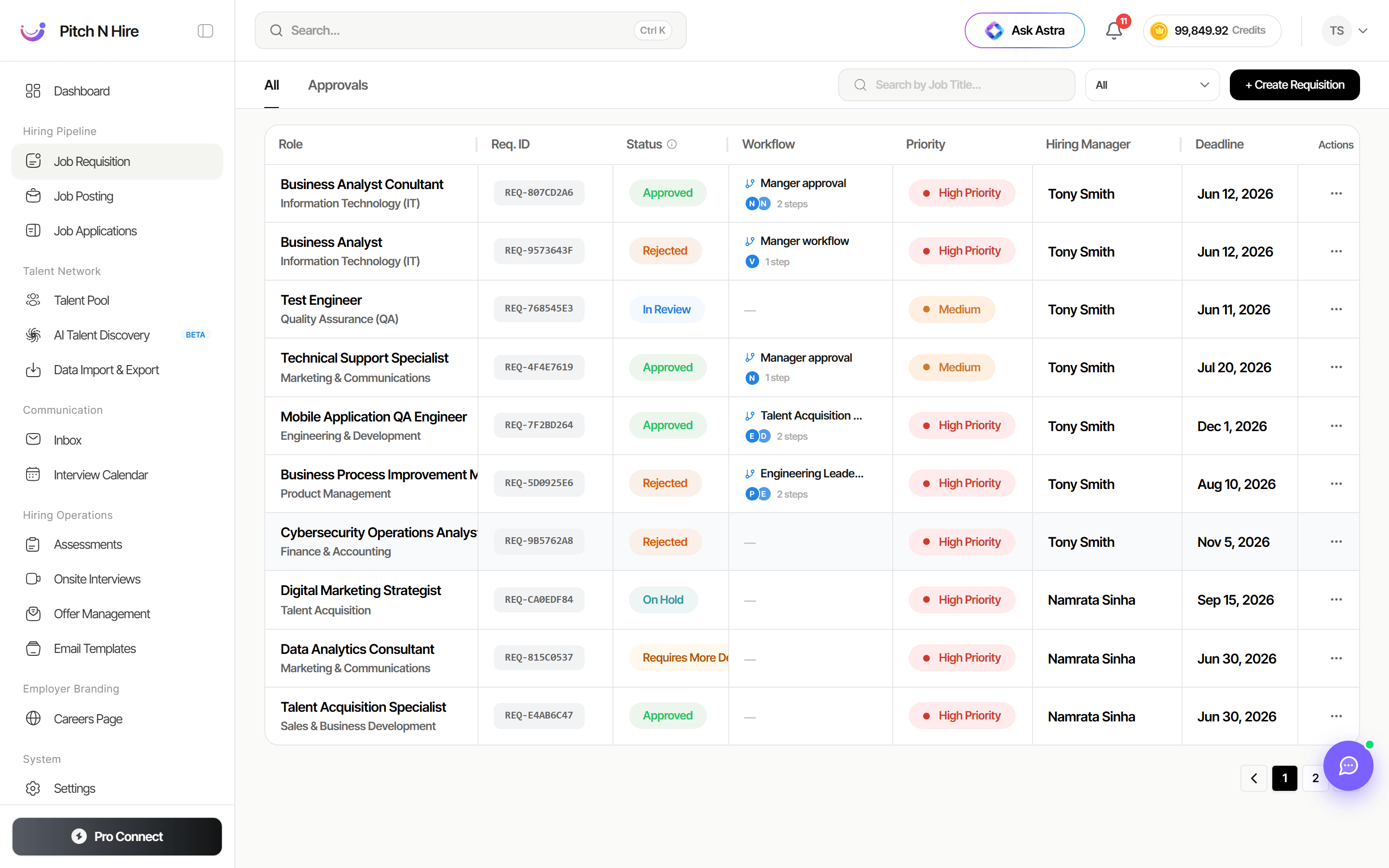
The Job Requisition screen presents every request in a sortable table with two tabs at the top, All and Approvals. Each row shows the role, its requisition ID, current status, the approval workflow with progress, priority, the hiring manager and a deadline. A + Create Requisition button in the top-right launches a guided, multi-step form for raising a new request.
Key features
- All / Approvals tabs to view every requisition or focus on those moving through approval.
- Requisition table with columns for Role (and department), Req. ID, Status, Workflow, Priority, Hiring Manager, Deadline and a row Actions menu.
- Status badges that track each request: Approved, In Review, Rejected, On Hold and Requires More.
- Workflow column showing the active approval step (for example “Manager approval”, “Approve workflow”, “Talent Acquisition…”, “Engineering Leader…”) with a progress indicator.
- Priority labels (High, Medium) and a Deadline date to help you prioritise.
- Per-row search and a + Create Requisition action to raise a new hiring request through a 5-step guided form.
Step-by-step
Raise a new requisition
- Open Hiring Pipeline -> Job Requisition and click + Create Requisition.
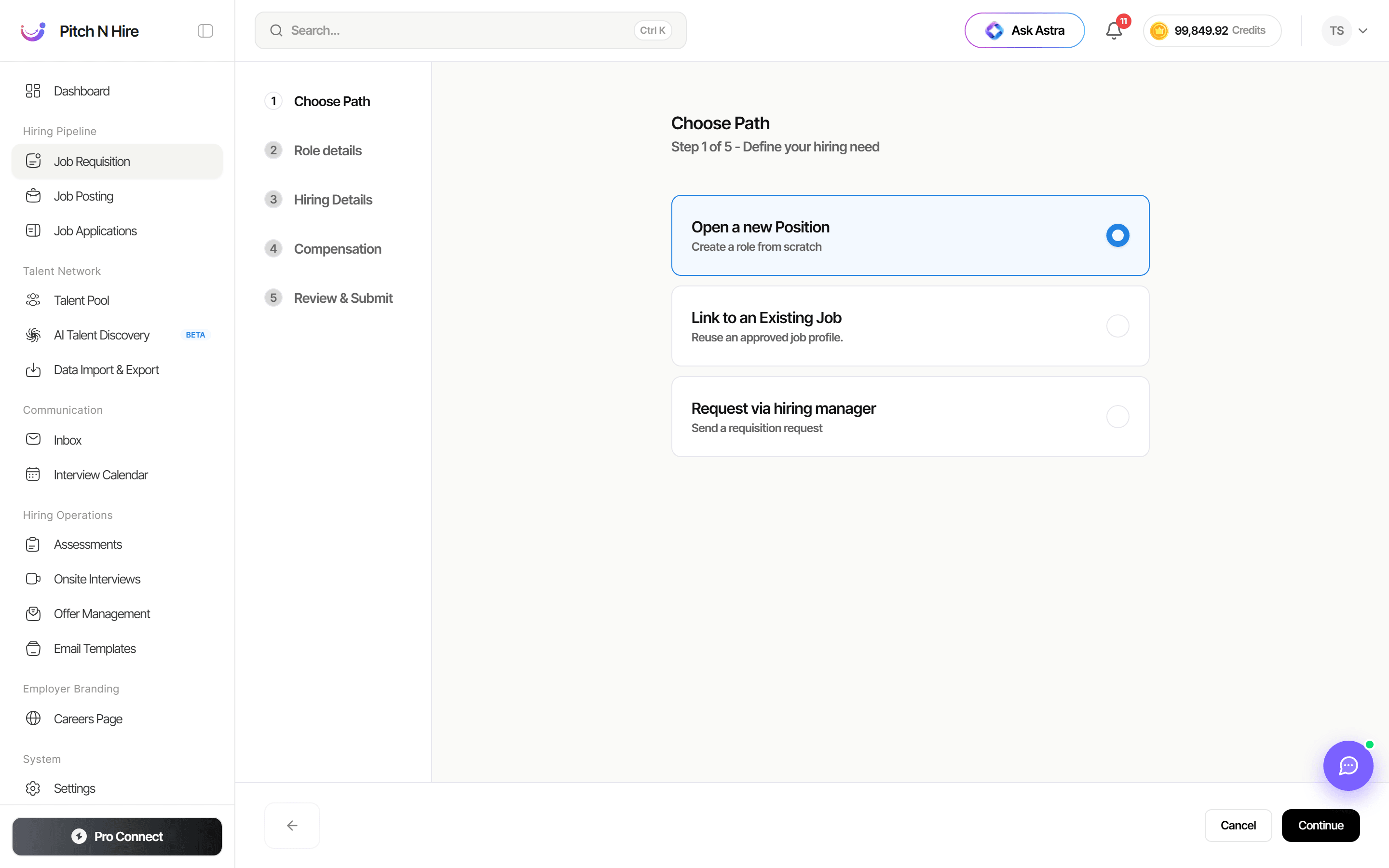
- Step 1 - Choose Path: define your hiring need by selecting one of:
- Open a new Position - create a role from scratch.
- Link to an Existing Job - reuse an approved job profile.
- Request via hiring manager - send a requisition request. Pick an option and click Continue.
- Step 2 - Role details: enter the role title, department and the core details of the position.
- Step 3 - Hiring Details: add hiring specifics such as the number of openings, priority and target deadline.
- Step 4 - Compensation: set the budget or salary range for the role.
- Step 5 - Review & Submit: check every entry, then submit the requisition into the approval workflow.
Track approval status
- Back on the list, read the Status badge on each row to see where the request stands (In Review, Approved, On Hold, Rejected, Requires More).
- Check the Workflow column to see the current approval step and how far it has progressed.
- Switch to the Approvals tab to concentrate on requisitions moving through the approval flow.
- Use the row Actions menu to open, edit or act on a requisition.
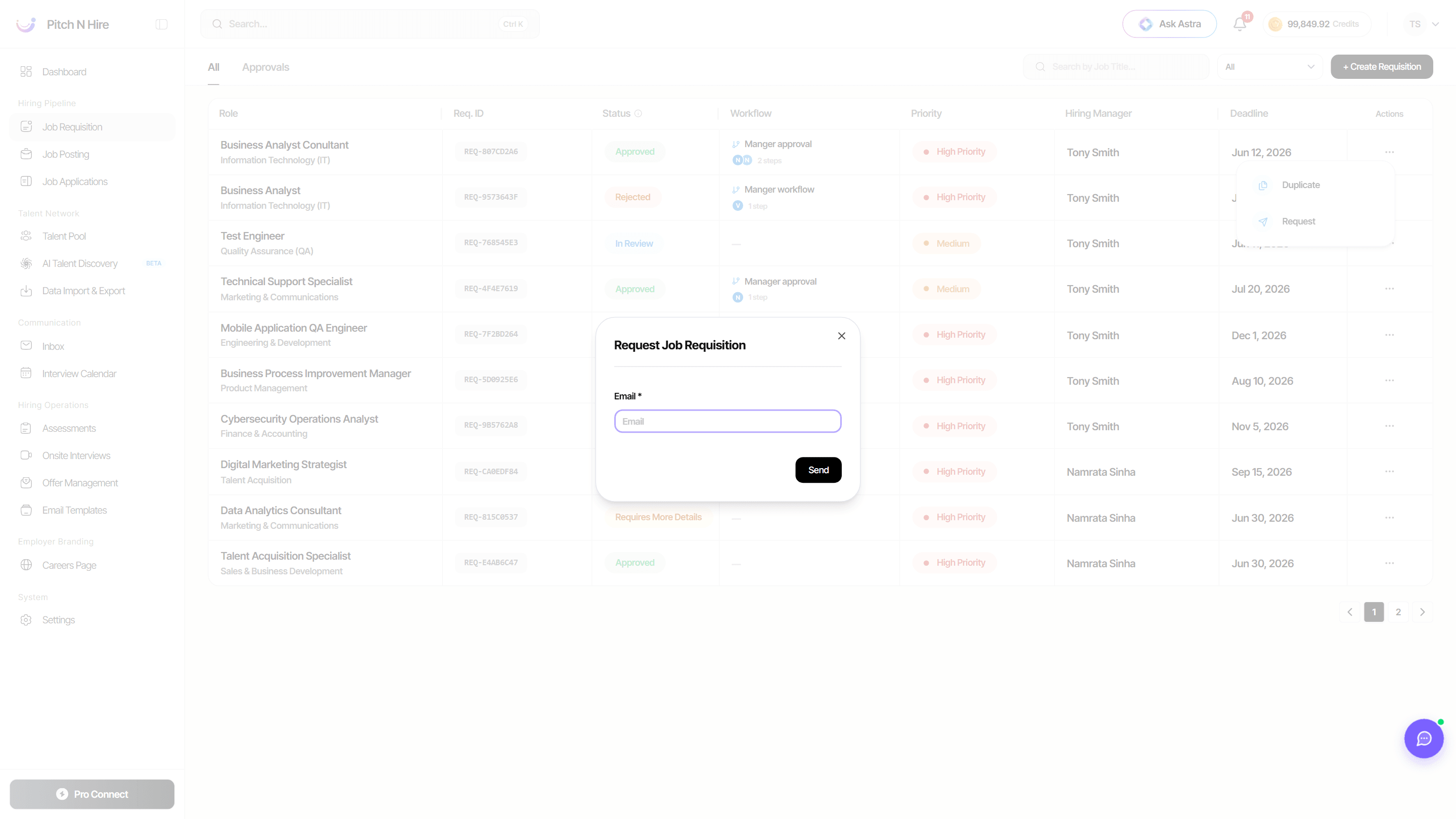
The row Actions (⋯) menu collects everything you can do to a requisition: Edit, Duplicate, Change Status, Request (ask someone else to update it), Workflow (build or edit its approval flow) and, for rejected requests, Delete.
Approval workflows
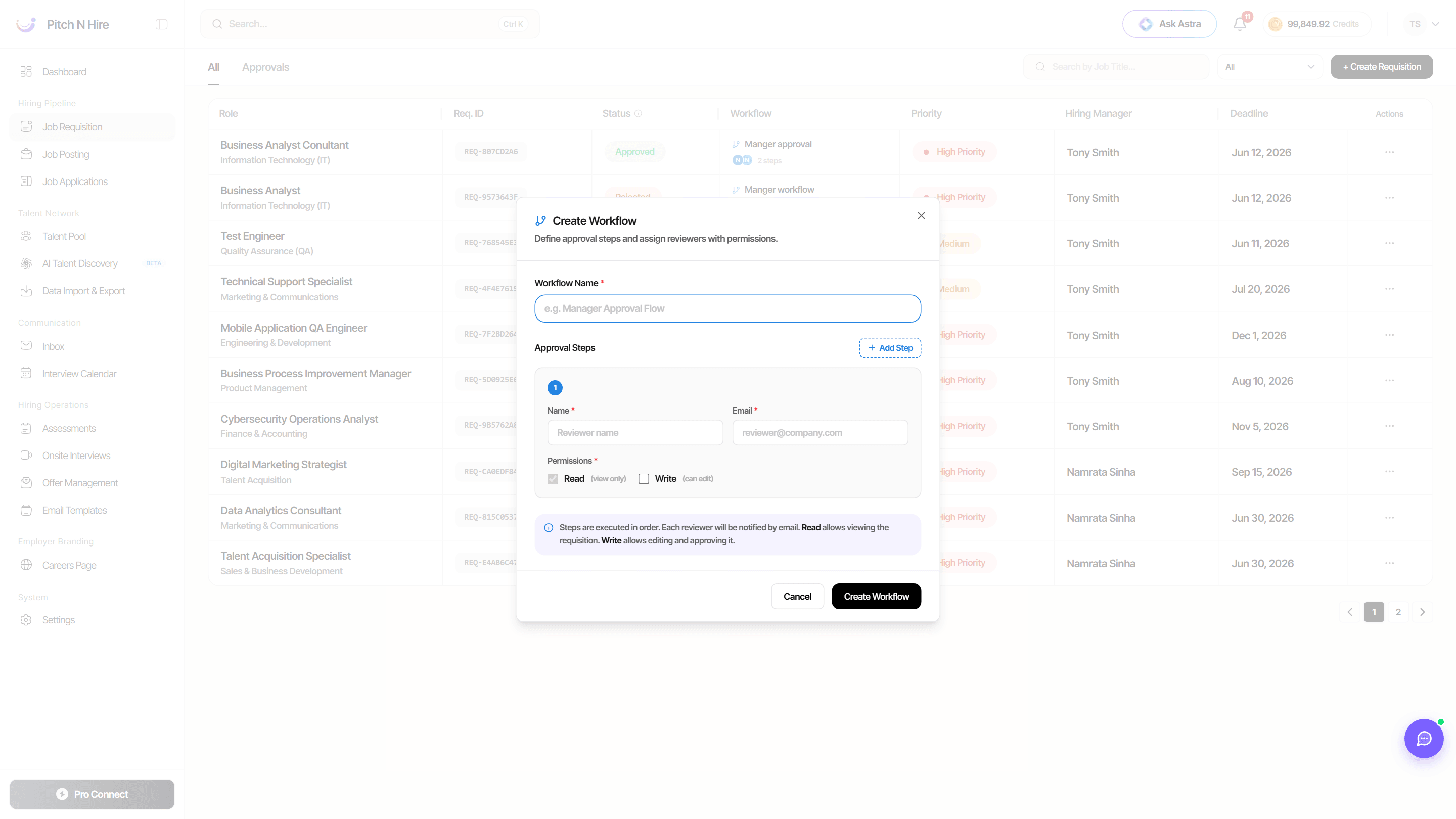
A workflow is the chain of reviewers a requisition must pass before it’s approved. From a requisition’s Actions → Workflow, give the flow a name and add one or more Approval Steps, each with a reviewer Name, Email and Permissions:
- Read (view only) — the reviewer can view the requisition.
- Write (can edit) — the reviewer can edit and approve it.
Steps run in order, and each reviewer is notified by email when it’s their turn. Click Add Step for multi-stage sign-off (for example Hiring Manager → Finance → VP), then Create Workflow.
Request an update from someone else
Need a hiring manager or colleague to fill in or revise a requisition? Use Actions → Request, enter their email and click Send. They receive a secure link to update the requisition without needing full access — their changes come back as proposed changes you can review on the requisition’s view page.
The requisition view page
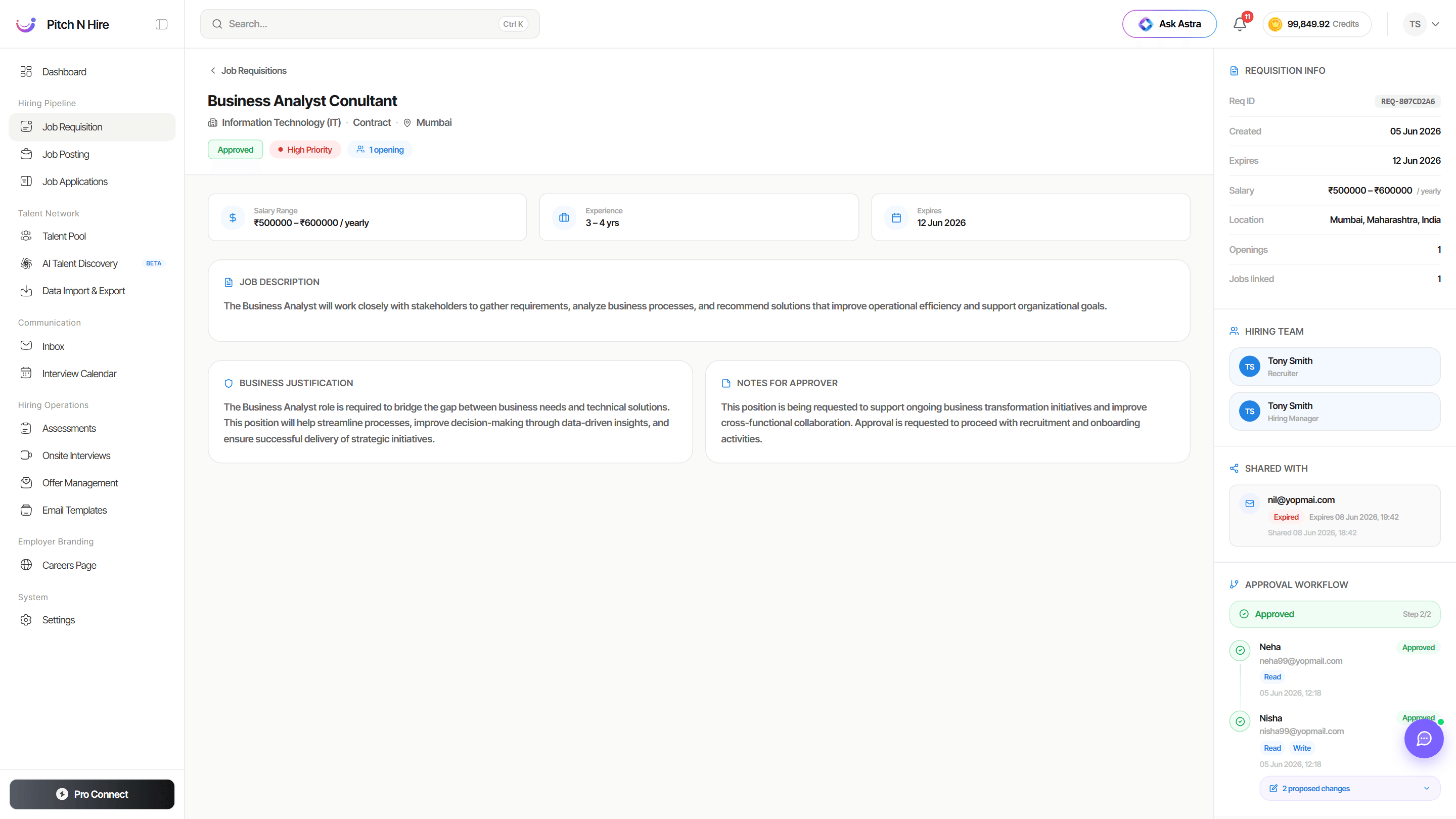
Click a requisition’s Role to open its full view. The main panel shows the status, priority and openings, the salary range, experience and expiry, plus the Job Description, Business Justification and Notes for Approver. The right rail summarises everything else:
- Requisition Info — Req ID, created/expiry dates, salary, location, openings and linked jobs.
- Hiring Team — the recruiter and hiring manager on the role.
- Shared With — external people the requisition was sent to (with link status), and any proposed changes they made (each edit is shown as a clear old → new diff, e.g. Max Experience 10 → 20).
- Approval Workflow — each step, its reviewer, their Read/Write permission and whether they’ve approved — so you can see exactly who changed or signed off on what.
Tips
Common issues & fixes
- Requisition stuck in In Review - it is waiting on an approver in the workflow - check the Workflow column for the pending step and follow up with that approver.
- Cannot find a requisition - it may be filtered out - clear the per-row search and make sure you are on the All tab, not Approvals.
- Rejected by mistake - approver action - raise a new requisition or contact the approver; rejected requests cannot be silently reopened.
- Continue button disabled in the form - a required field on the current step is empty - complete all mandatory fields before advancing.