Assessments & Templates
The Assessments hub is where recruiters build and manage reusable tests for evaluating candidates. Create assessment templates once — set their questions, time limits, and passing scores — then reuse them across jobs and send them to candidates straight from the pipeline.
Overview
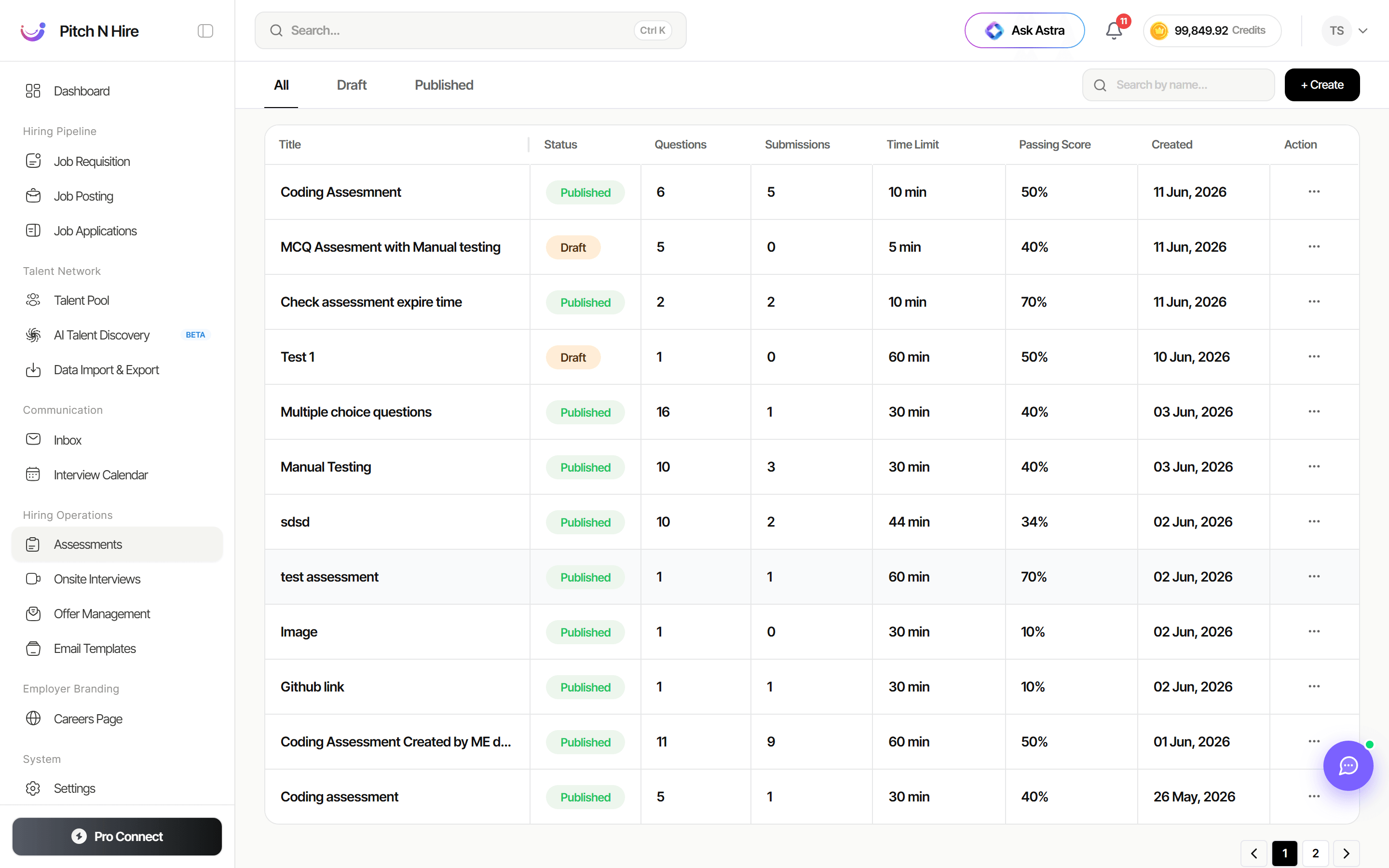
The Assessments page lists every test you’ve built in a single table. Tabs at the top — All, Draft, and Published — filter the list by status, a Search by name box helps you find a specific test, and a + Create button starts a new assessment. Each row summarizes the assessment so you can manage your whole library at a glance.
Key features
- Status tabs — Filter the library by All, Draft, or Published.
- Assessment table — Each row shows the Title, Status (Published or Draft), number of Questions, Submissions received, Time Limit, Passing Score, and the Created date.
- Search by name — Quickly locate any assessment in your library.
- + Create — Build a new assessment template from scratch.
- Row actions — The Action menu (the ”…” control) on each row lets you manage an individual assessment.
- Reusable across jobs — Published assessments can be sent to candidates from the job pipeline.
- Multiple assessment types — Build MCQ tests for skills checks and AI-based screenings to qualify candidates.
Step-by-step
- Go to Hiring Operations → Assessments in the left sidebar.
- Use the All / Draft / Published tabs or the Search by name box to browse existing assessments.
- Click + Create to start a new assessment.
- Choose the assessment type (for example, an MCQ test) and configure its questions, Time Limit, and Passing Score.
- Save as a Draft while you’re still editing, or Publish it when it’s ready to use.
- Open a job’s pipeline and send a published assessment to candidates.
- Return to the Assessments list and check the Submissions column to track responses.
Choose the assessment type
When you create an assessment, the first choice is what kind of evaluation it is:
| Type | What it is |
|---|---|
| Standard (MCQ / Coding / QnA) | A written test the candidate completes in their browser — the seven question types below, in any mix. |
| AI Screening Interview | A voice interview run automatically by an AI interviewer, scored and transcribed. See AI Screening Interview. |
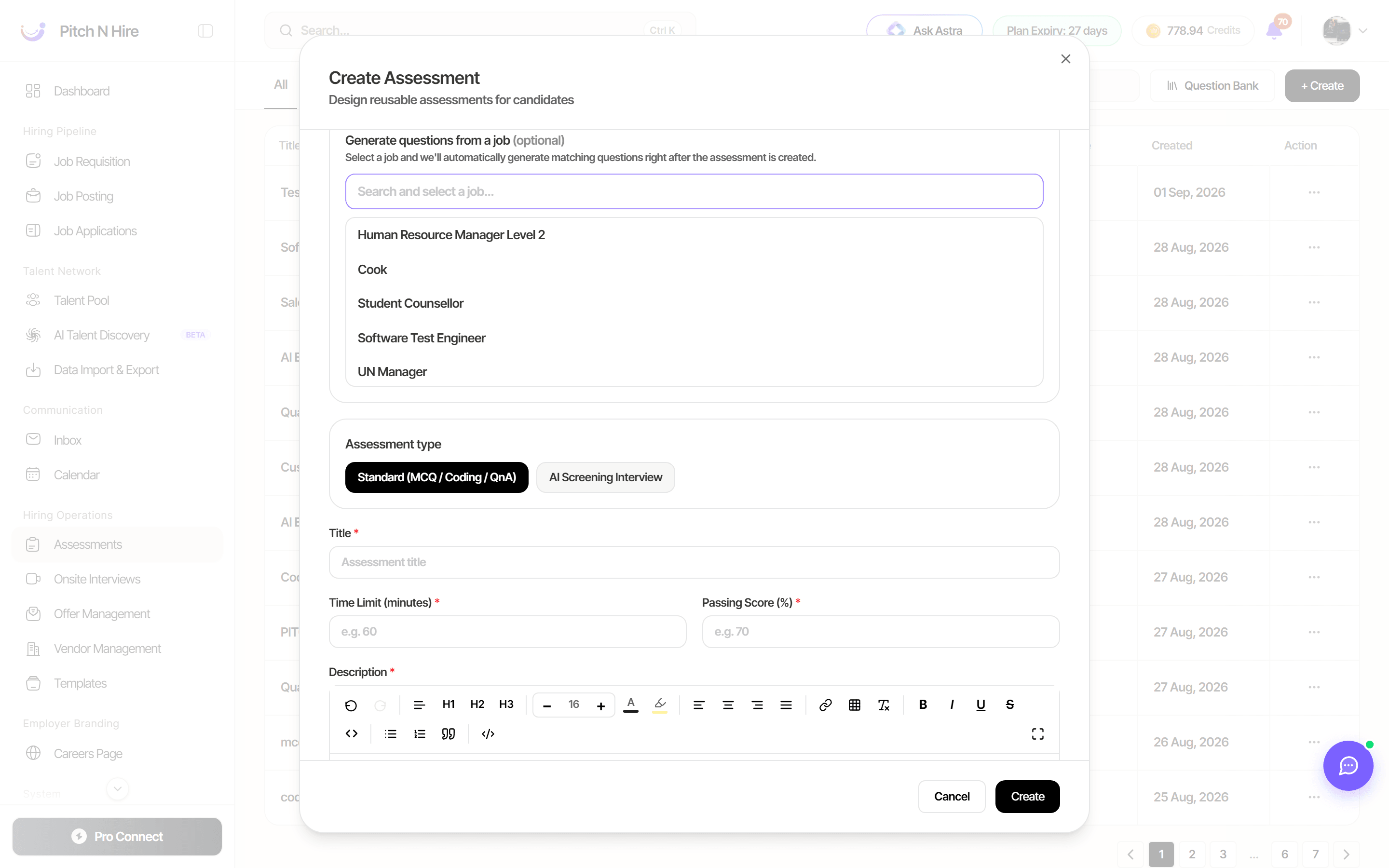
Alongside the type you set the Title, Time Limit (minutes), Passing Score (%) and a candidate-facing Description (pre-filled with standard instructions you can edit). Link the assessment to a job under Generate questions from a job and Pitch N Hire will “automatically generate matching questions right after the assessment is created”.
Proctoring
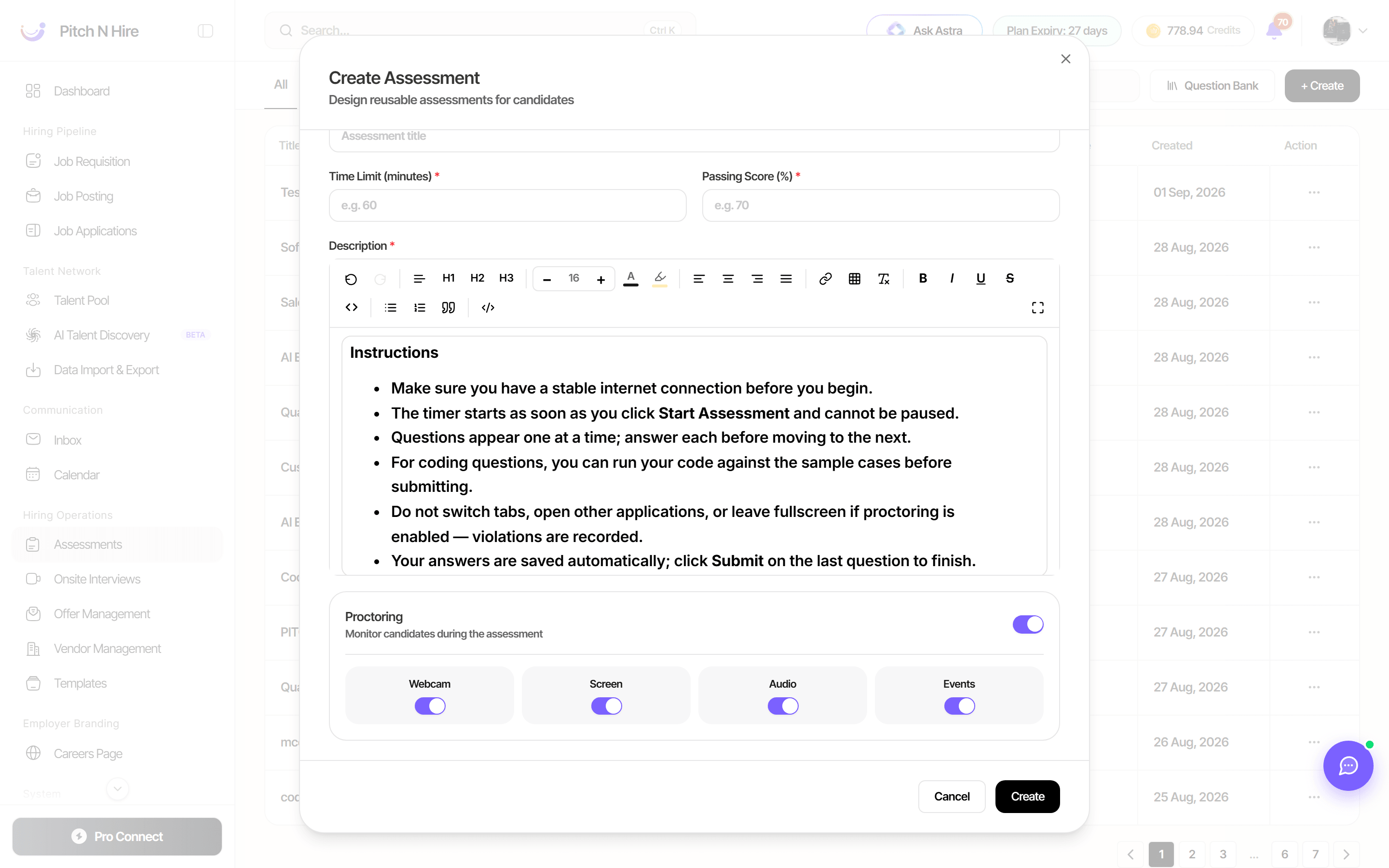
Turn on Proctoring while creating or editing an assessment to monitor candidates while they take it. Four independent toggles control what’s recorded:
- Webcam — captures the candidate on camera.
- Screen — captures their screen.
- Audio — captures audio. (Not applicable to an AI Screening Interview, where the interview itself is the audio recording.)
- Events — records tab switches, leaving fullscreen, and similar focus events.
Candidates are told what’s happening: the default assessment instructions warn that “Do not switch tabs, open other applications, or leave fullscreen if proctoring is enabled — violations are recorded.”
Proctoring results surface in the submission as a Proctoring Risk level, and can be included in (or excluded from) the report you download or share.
Inside an assessment
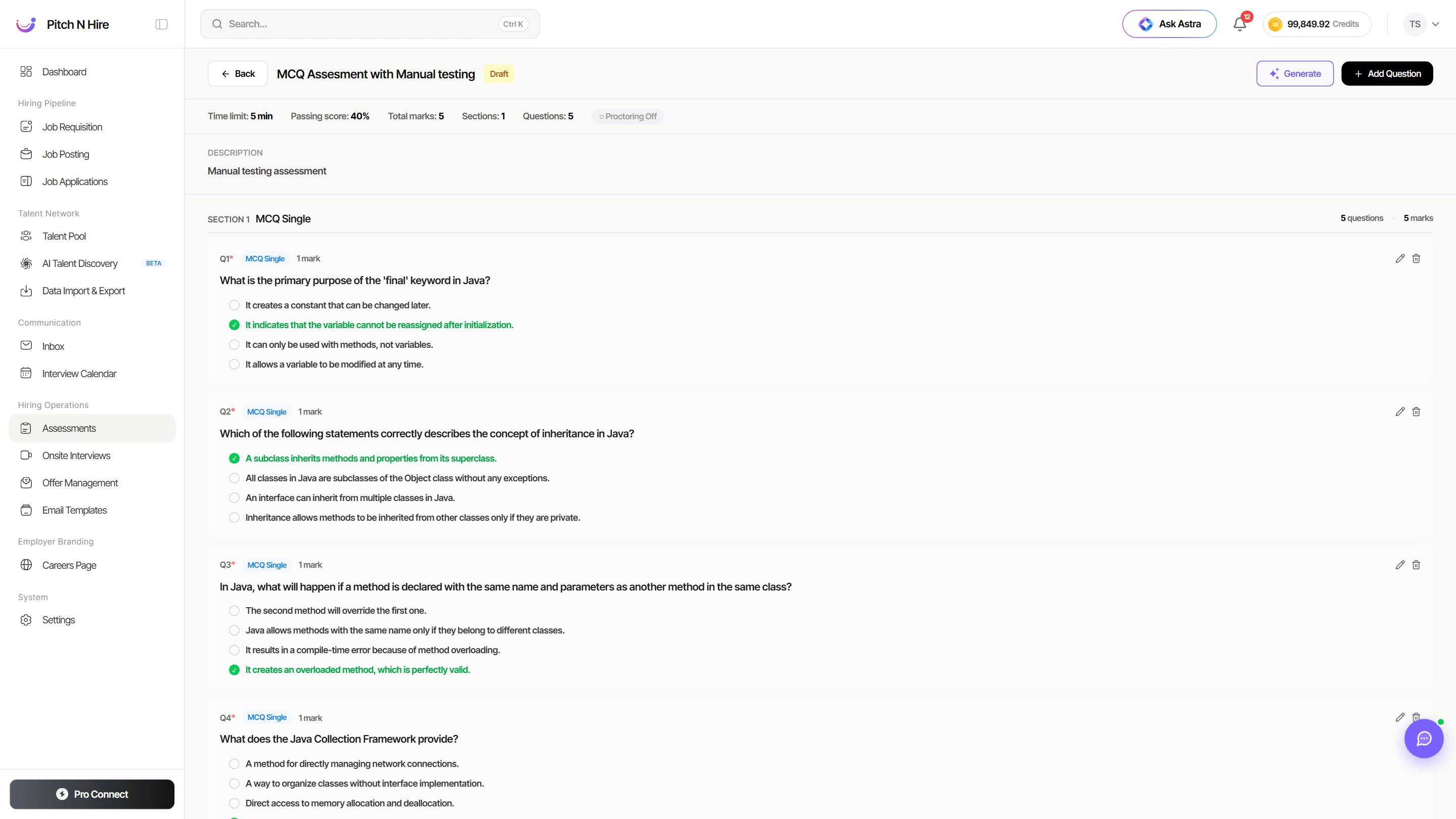
Click an assessment’s title to open it. The header shows its key settings — Time limit, Passing score, Total marks, Sections, Questions and whether Proctoring is on — followed by the Description and each Section with its questions. Every question shows its type and marks, and (for MCQs) the correct answer is highlighted in green. Use the pencil/trash icons to edit or delete a question, or the Generate and + Add Question buttons at the top right to add more.
Add a question manually
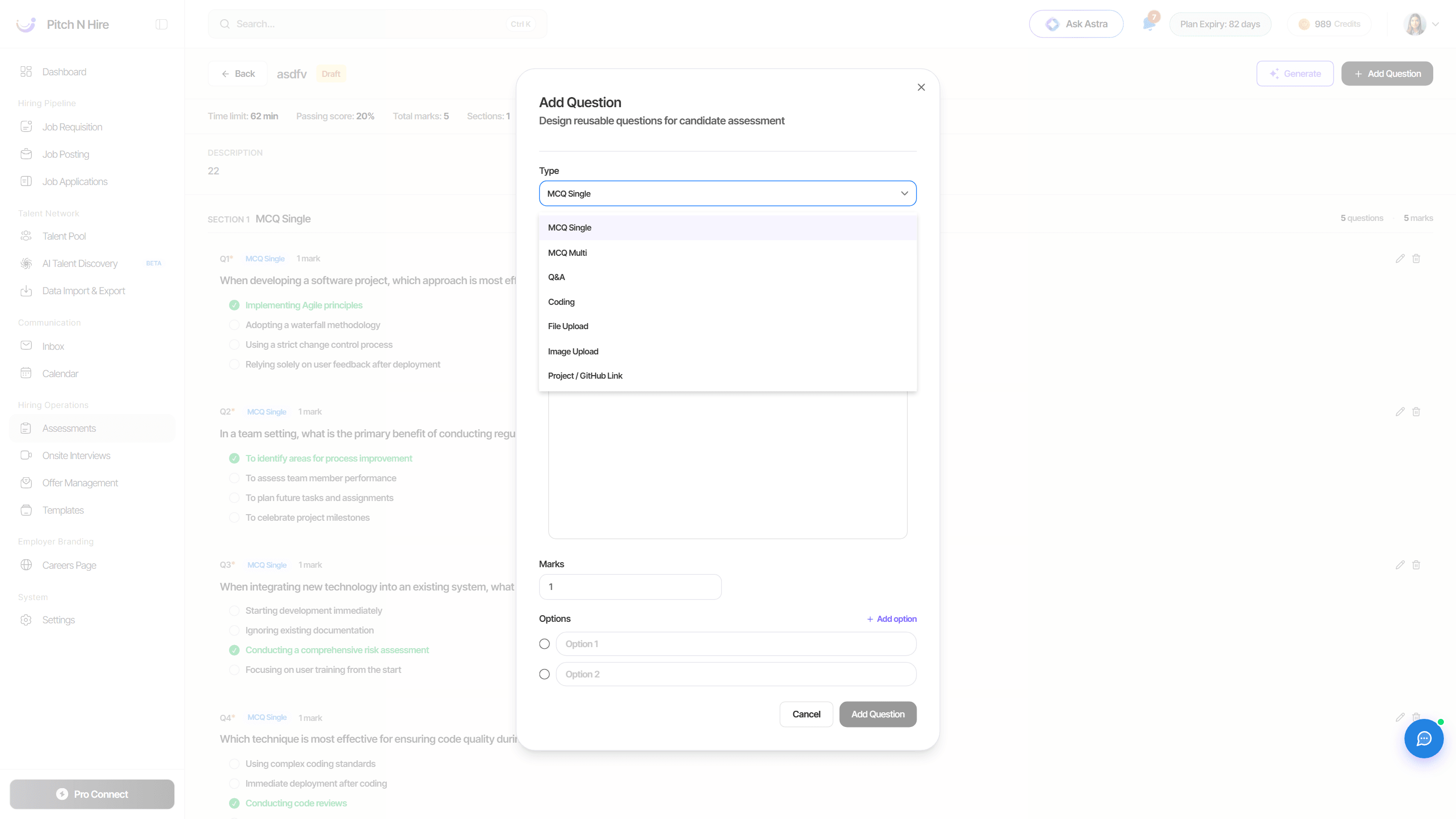
Click + Add Question to design a reusable question. Choose the question Type, optionally assign it to a Section, write the prompt in the rich-text editor (headings, bold, lists, code, and Variables you can insert), and set the Marks. The rest of the form adapts to the type you pick.
All question types
Pitch N Hire supports seven question types, so a single assessment can mix quick knowledge checks with practical, real-world tasks:
| Type | What the candidate does | How it’s graded |
|---|---|---|
| MCQ Single | Picks one correct answer | Auto-scored against the option you mark correct |
| MCQ Multi | Picks multiple correct answers | Auto-scored against the options you mark correct |
| Q&A | Writes a short/long text answer | AI check or manual check |
| Coding | Solves a coding challenge | AI check or manual check |
| File Upload | Uploads a file (e.g. a document or deliverable) | AI check or manual check |
| Image Upload | Uploads an image | AI check or manual check |
| Project / GitHub Link | Submits a project or GitHub repo link | AI analyses the repo, or manual check |
MCQ questions show an Options list — add up to four with + Add option, then mark the correct one (single) or several (multi).
Open-ended types (Q&A, Coding, File Upload, Image Upload, Project / GitHub Link) instead show an Evaluation method toggle:
- AI check — the response is auto-evaluated when you run Check Assessment, guided by an Evaluation guideline you write (what a good answer looks like). The guideline isn’t shown to the candidate.
- Manual check — you grade the response yourself from the submission view, with optional Grading notes for your own reference.
Generate questions with AI
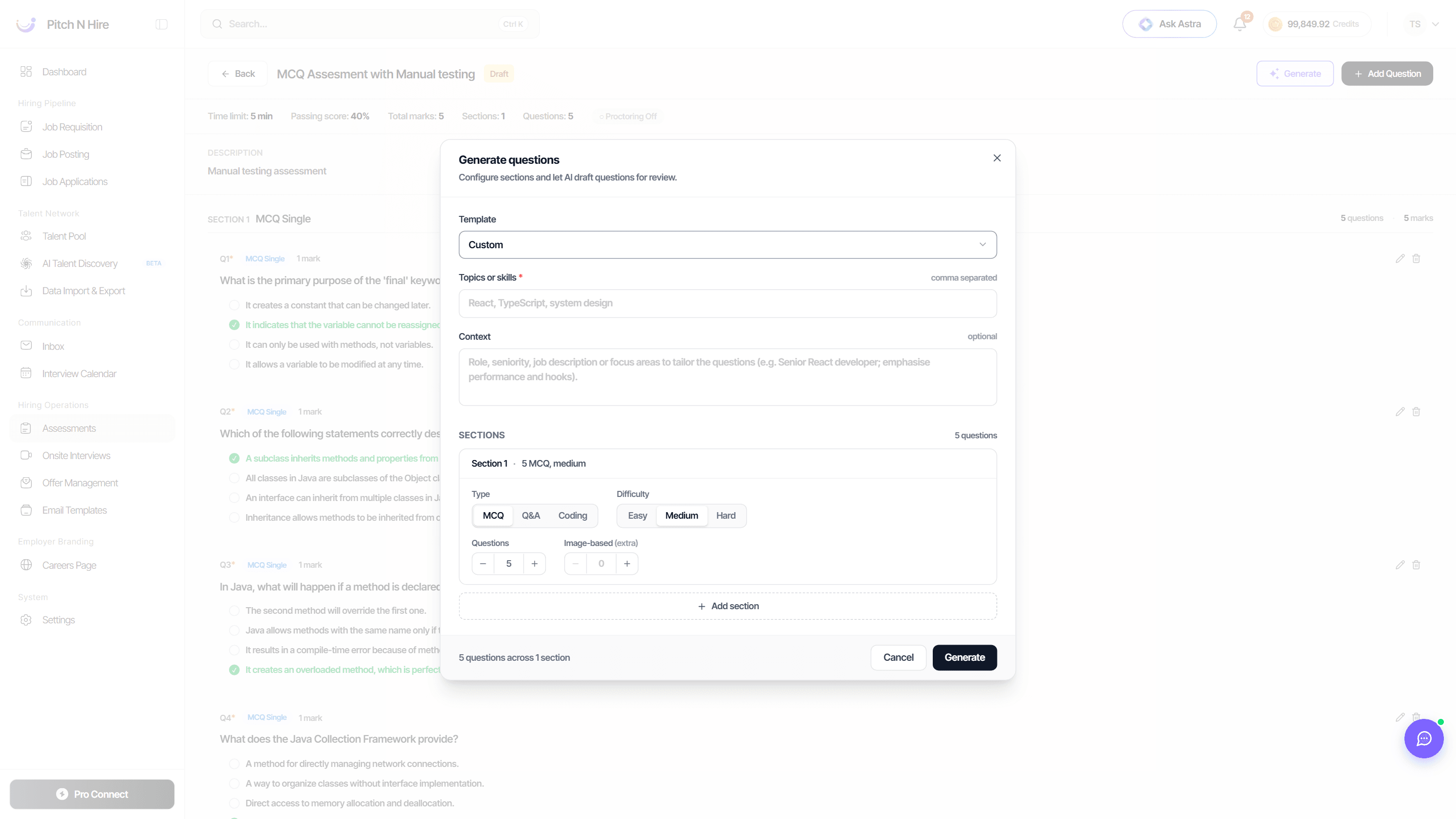
Short on time? Click Generate to let AI draft questions for review. Pick a Template (or Custom), enter the Topics or skills (comma-separated, required) and optional Context (role, seniority, focus areas), then configure one or more Sections — each with a Type (MCQ / Q&A / Coding), a Difficulty (Easy / Medium / Hard), a question count, and optional image-based questions. Add more sections as needed and click Generate; the drafted questions come back for you to review before saving.
Reuse questions from the Question Bank
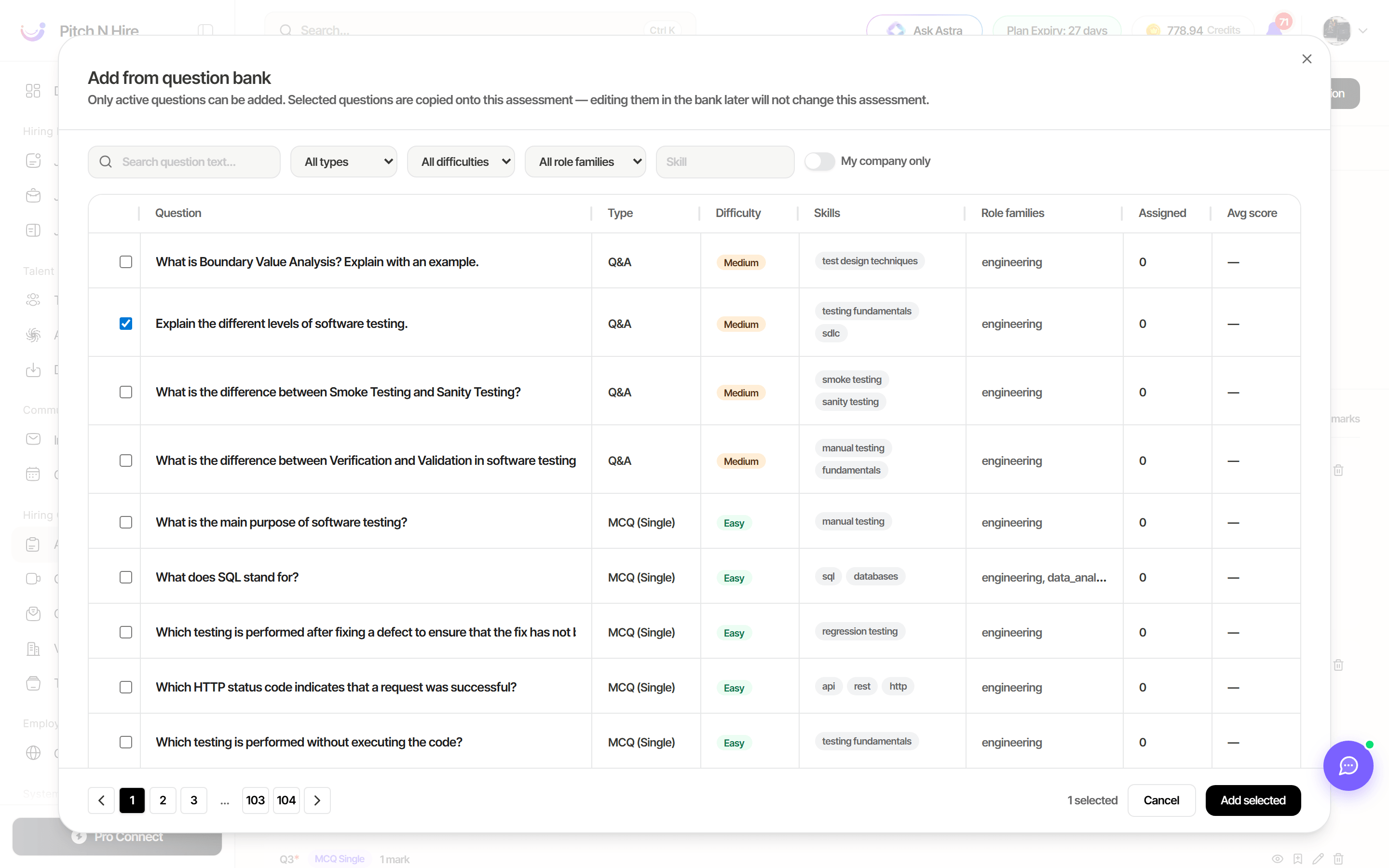
You don’t have to write every question from scratch. Click Add from bank inside an assessment to pull questions out of your workspace’s shared Question Bank — Pitch N Hire suggests ones that match the linked job, and you can filter the whole library by type, difficulty, role family or skill and add a batch in one go.
Going the other way, the Save to bank action on any question you’ve written adds it to the library for next time.
Full details: Question Bank.
Reviewing submissions
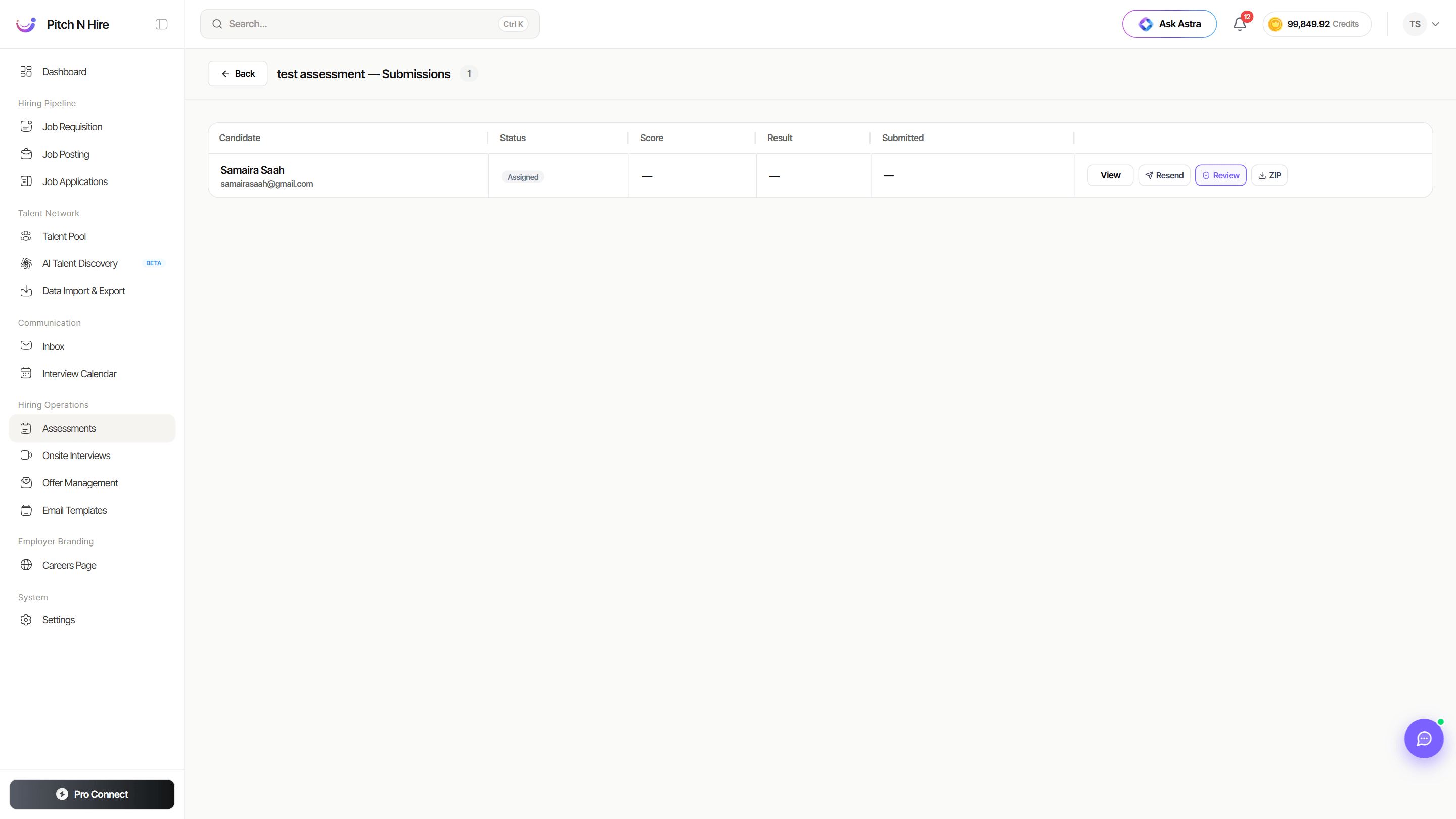
Open an assessment’s Submissions to see everyone it was sent to. The table lists each Candidate, their Status (Assigned or Evaluated), Score, Result (Pass / Fail) and Submitted date, with a row of actions on the right: view the submission, resend the assessment, open the proctoring review, download the submission, and open the report.
Opening a submission shows when it Started, when it was Submitted, the Time taken, the Exam Score, the Result and a Proctoring Risk level if proctoring was on. An AI Evaluation Summary gives Strengths, Concerns and a Recommendation, then every question follows in turn with the candidate’s answer, the AI grade and the marks Awarded — with colour-coded Q1…Qn chips to jump straight to a weak answer. Use Re-check with AI to re-grade, or adjust the marks yourself and Save Evaluation.
Proctoring review
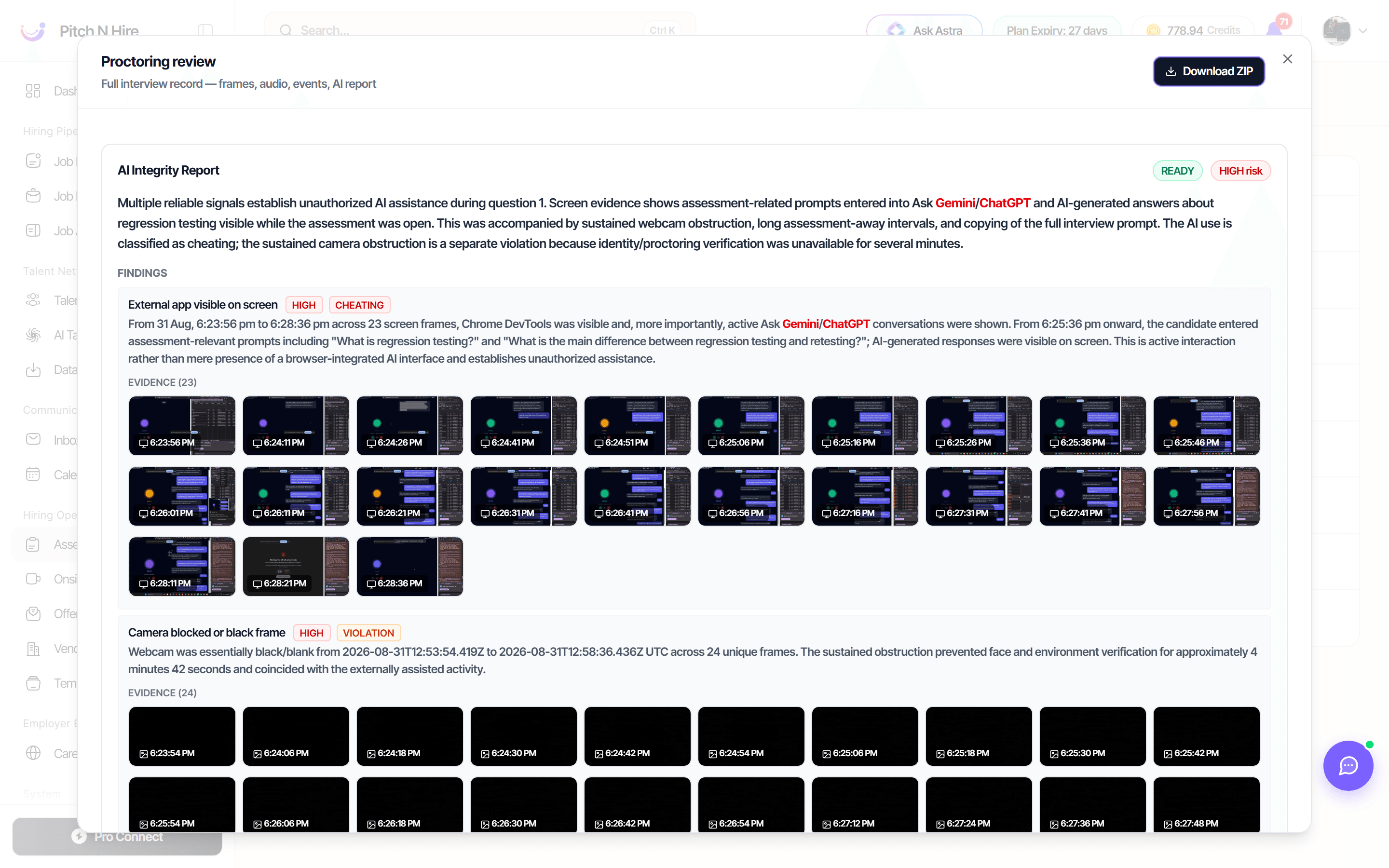
Where proctoring was enabled, the proctoring review action opens the full interview record — “frames, audio, events, AI report” — headed by an AI Integrity Report with an overall risk level.
Each finding is tagged with its severity and category (for example HIGH / CHEATING or HIGH / VIOLATION), explained in plain English, and backed by timestamped evidence frames — screen captures and webcam stills — so you can judge for yourself rather than taking a score on trust. Typical findings include “External app visible on screen” and “Camera blocked or black frame”. Download ZIP takes the whole record away with you.
Reports and sharing
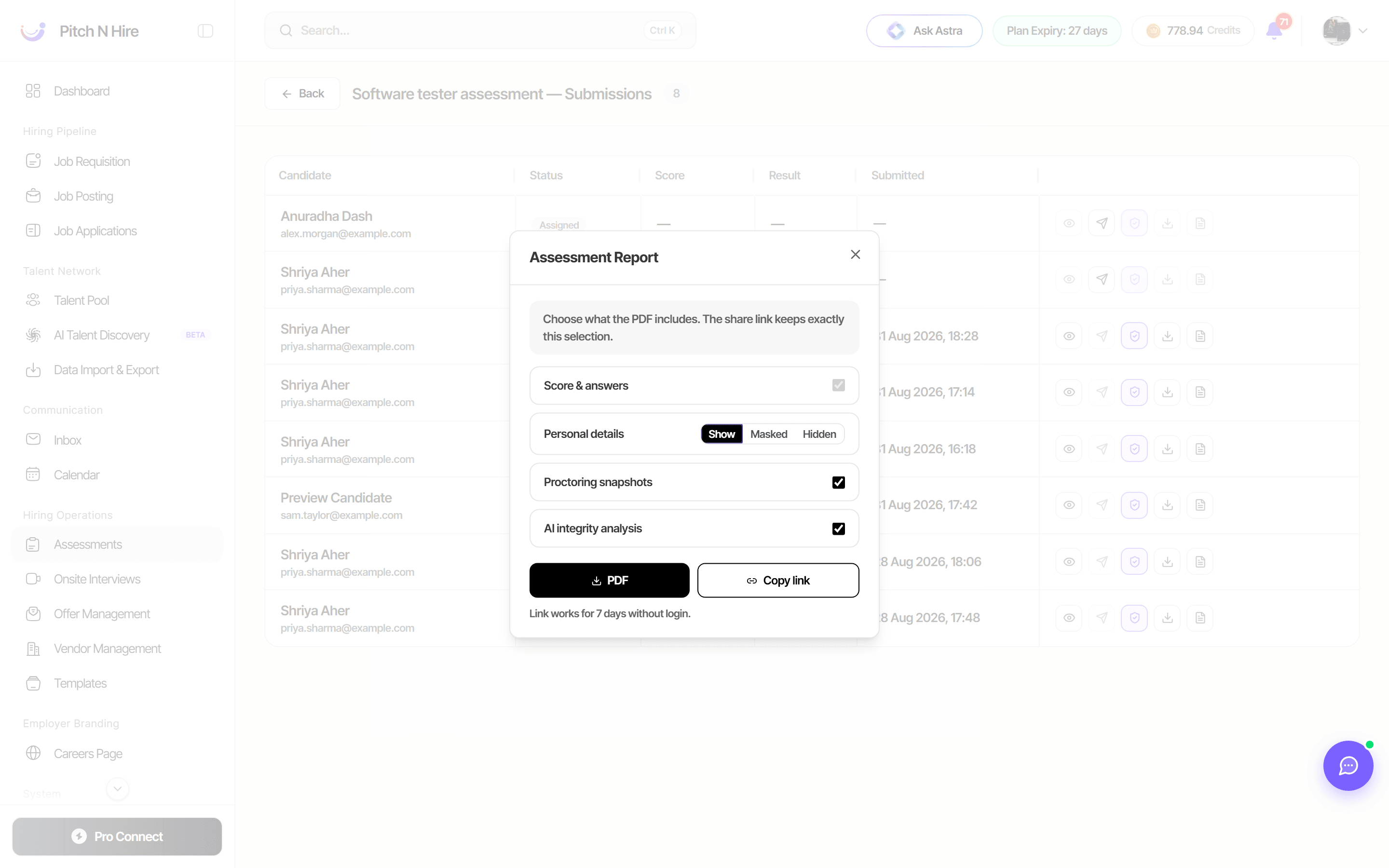
Use the Report action on a submission to open Assessment Report — “Choose what the PDF includes. The share link keeps exactly this selection.”
- Score & answers — always included.
- Personal details — Show, Masked or Hidden.
- Proctoring snapshots — include the captured frames.
- AI integrity analysis — include the AI’s read on the session.
Then either:
- PDF — download the branded report, or
- Copy link — Pitch N Hire mints a share link and copies it to your clipboard. The link works for 7 days without login, so you can send a result straight to a hiring manager or client who has no Pitch N Hire account. The link keeps exactly the selection you made above.
Where a candidate has taken several assessments for one application, you can also download a consolidated report — a single PDF covering every submitted round.
Tips
Common issues & fixes
- Assessment not available to send — It may still be a Draft; publish it first so it appears as an option in the pipeline.
- Can’t find a test — Switch to the All tab or use Search by name; it may be filtered out by the current status tab.
- No submissions showing — Confirm the assessment was actually sent to candidates from the pipeline and that they have completed it.
- Wrong scoring — Re-open the assessment and review the Passing Score and per-question setup before re-publishing.