Interview Panelists
Interview Panelists let you bring external interviewers — subject-matter experts, hiring managers from a client, or colleagues outside your core recruiting team — into your interview process without giving them full workspace access. Recruiters invite a panelist by email; the panelist then logs in to a dedicated, focused portal where they set their availability, see the interviews assigned to them, review the candidate, and submit structured feedback that flows straight back into your pipeline.
There are two sides to this feature:
- Recruiter side — invite and manage panelists from Settings → User Roles → Panelists.
- Panelist side — the panelist signs in to their own portal to manage availability and interviews.
Recruiter side — invite & manage panelists
Open Settings → User Roles and switch to the Panelists tab. This screen lists every external panelist with their Name, Status and the date they were Added On, split into Active and Invitations (pending) sub-views. A total seats counter and the Invite Panellist button sit at the top right, with a Search panellists… box to find someone quickly.
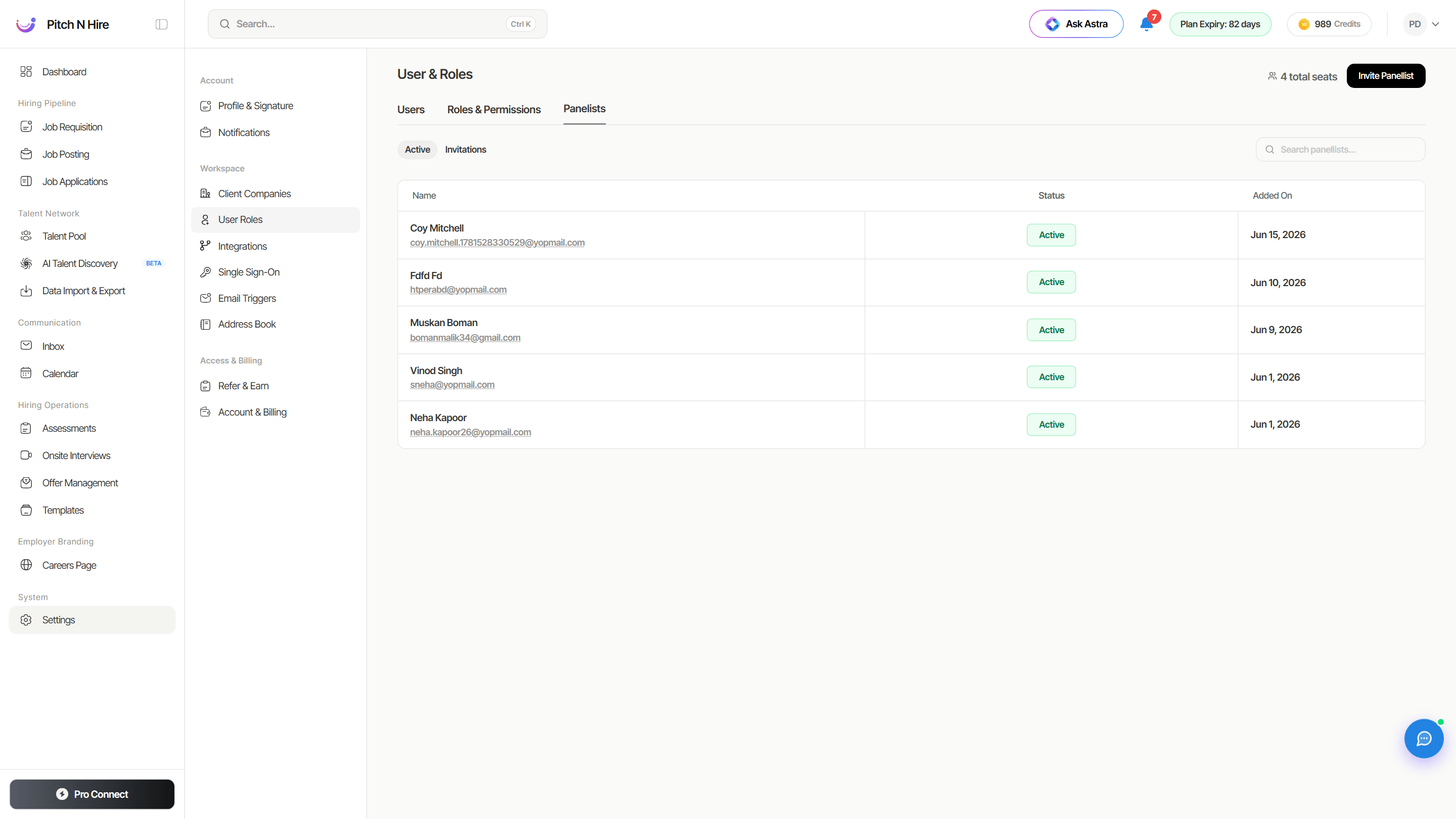
Invite a panelist
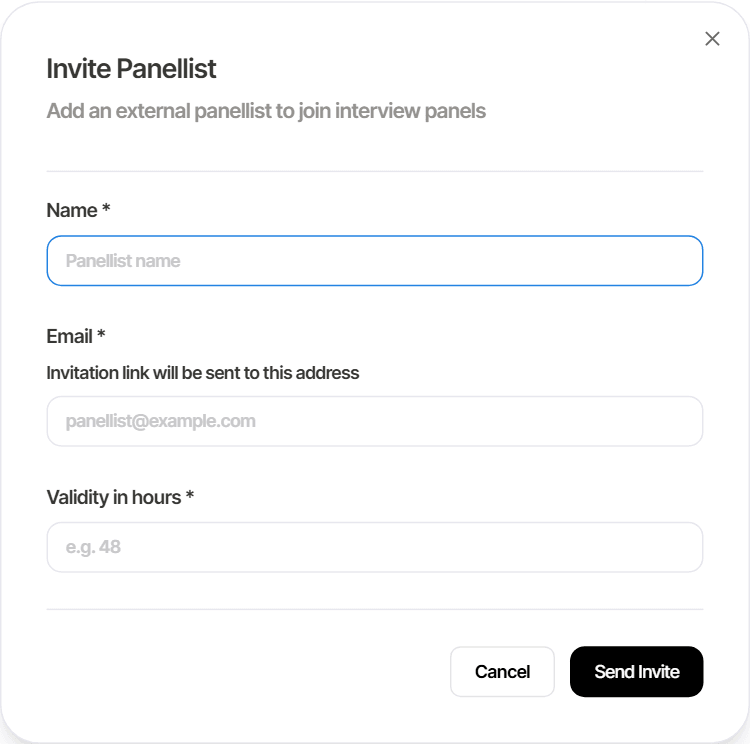
Click Invite Panellist to open the invite dialog and add an external interviewer:
- Name — the panelist’s full name.
- Email — the address the invitation link is sent to.
- Validity in hours — how long the invitation link stays valid (for example
48).
Click Send Invite. The panelist receives an email with a link to join; until they accept, they appear under the Invitations sub-tab, and once they’re set up they move to Active.
Panellists and workspace users
Within the same organisation, users and panellists are interchangeable. Someone on your workspace team can be assigned to an interview panel, and a panellist can be given a workspace user seat — the same person doesn’t need two disconnected accounts.
In practice that means you can build a panel from whoever is actually right for the interview — a recruiter, a hiring manager on a ₹49 Hiring Manager seat, or an external specialist — without worrying about which side of the product they were originally set up on.
Panellist Notes
Recruiters can leave notes written specifically for the interview panel on a candidate’s application, and every panellist on that application can read them from their own dashboard before the interview.
Recruiter side — write the note
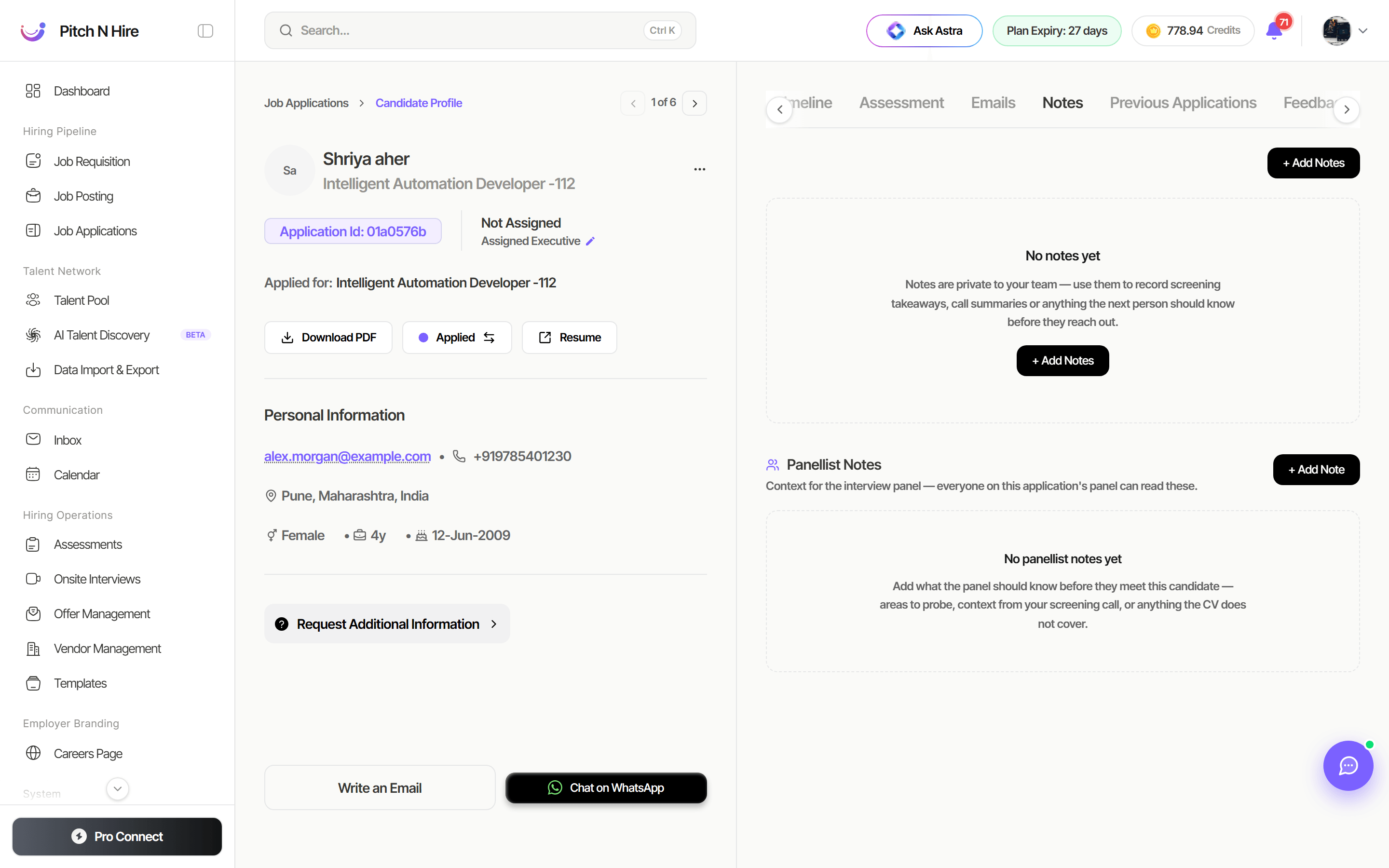
- Open the candidate from Job Applications (click their name) and go to the Notes tab on their profile.
- Below your team’s own notes you’ll find Panellist Notes — “Context for the interview panel — everyone on this application’s panel can read these.” Click + Add Note.
- Give the note a Title and write the body in the rich-text editor — both are required.
- Save. Each note shows its author and date, and can be edited or deleted later.
Use them for what the CV doesn’t say: what your screening call surfaced, the areas you want probed, a concern to test, or context about the candidate’s situation.
Panellist side — read the note
Panellists see the notes on the interview detail page in their portal, alongside the candidate’s resume and AI summary — so the context reaches them before they join the call, without a separate email.
Panelist side — the panelist portal
Panelists work from a separate, simplified portal — they don’t see your full dashboard.
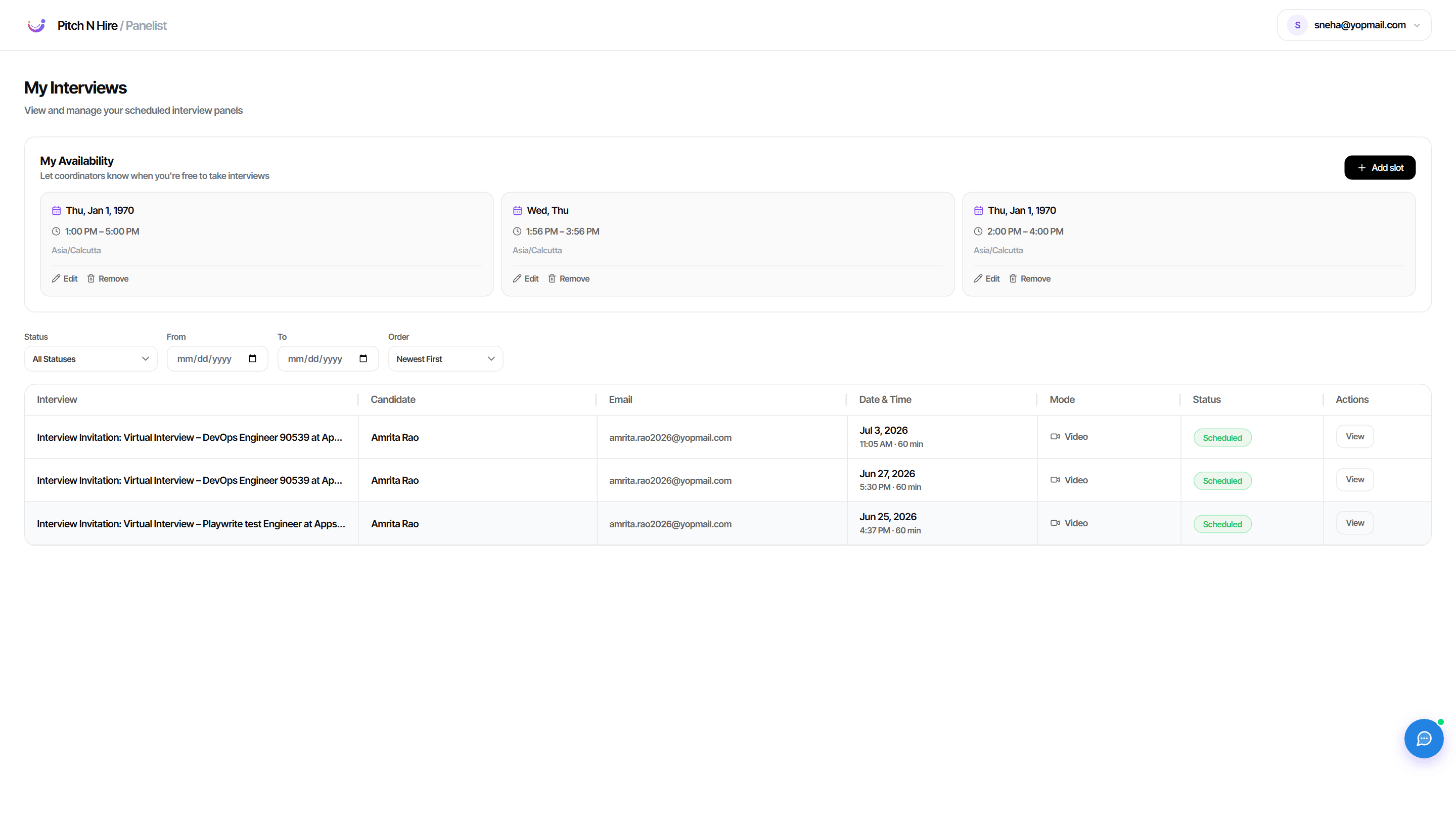
My Interviews & availability
After signing in, the panelist lands on My Interviews. At the top, My Availability shows the time windows they’ve offered, each with Edit and Remove controls and an + Add slot button. Below, a filterable table (by Status, date From/To, and Order) lists every interview assigned to them with the Candidate, Email, Date & Time, Mode (e.g. Video), Status (e.g. Scheduled) and a View action.
Add an availability slot
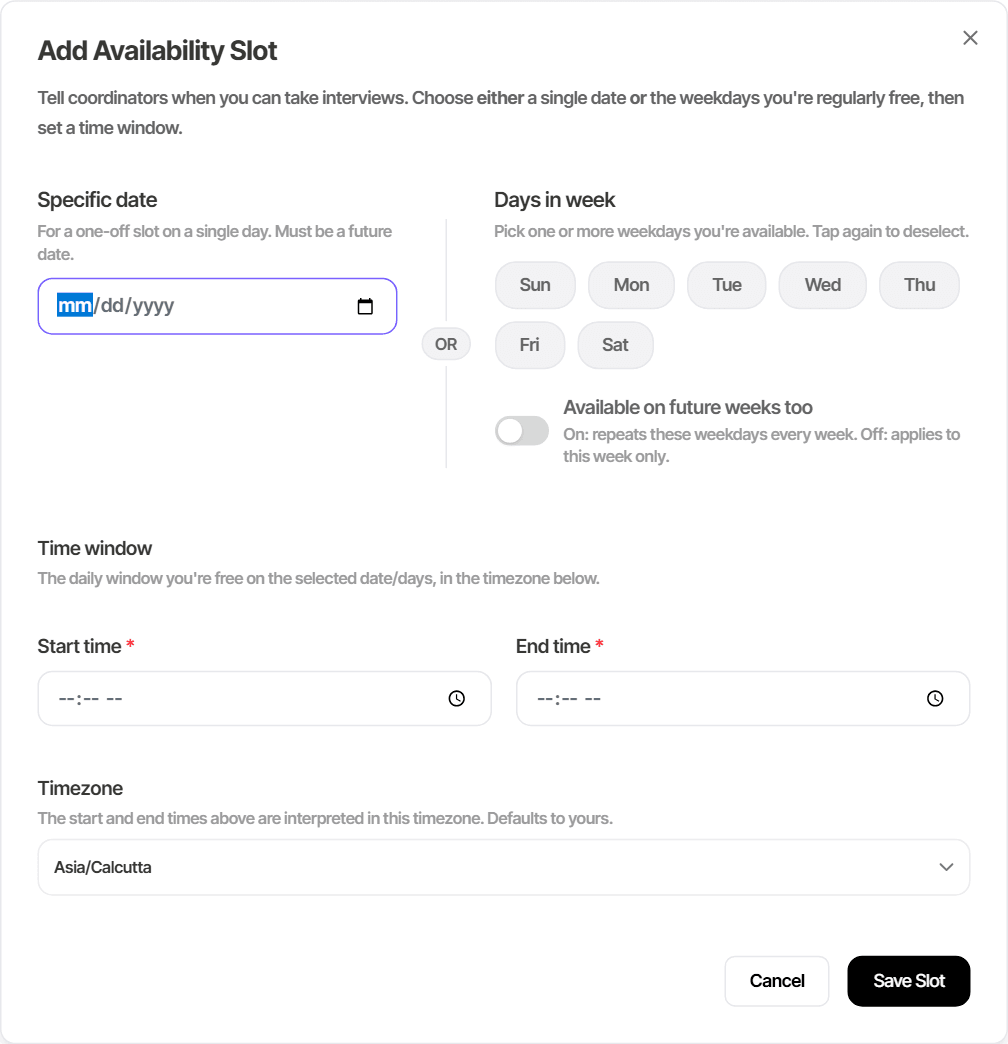
Clicking + Add slot opens Add Availability Slot, where the panelist tells coordinators when they can take interviews:
- Specific date — a one-off slot on a single future date, OR
- Days in week — pick one or more weekdays they’re regularly free, with an Available on future weeks too toggle (on = repeats every week, off = this week only).
- Time window — a Start time and End time for the selected date/days.
- Timezone — the timezone those times are interpreted in (defaults to the panelist’s own).
Click Save Slot. Coordinators can then schedule interviews inside these windows.
View an interview & submit feedback
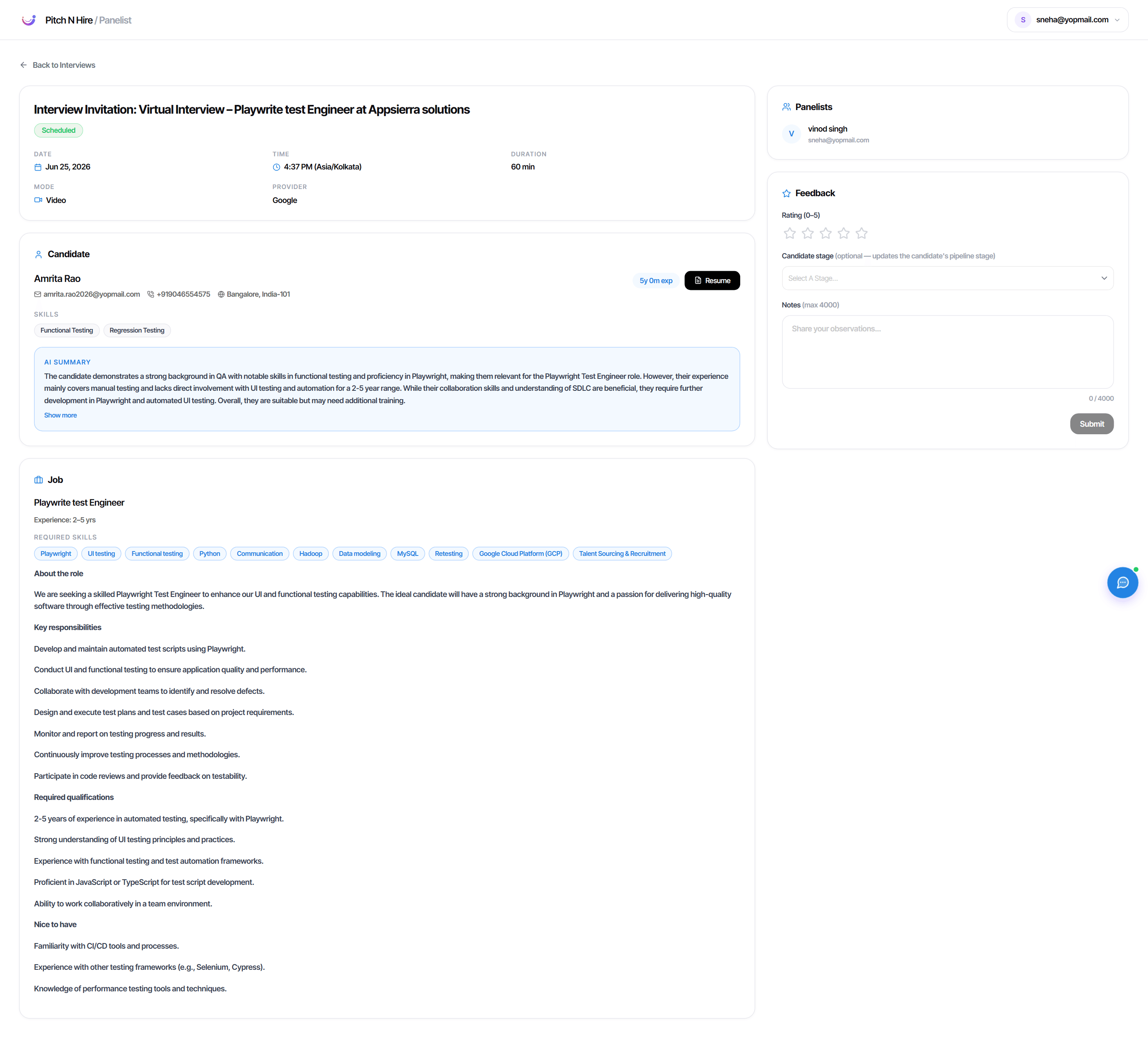
Selecting View on an interview opens its detail page. The panelist sees the interview header (date, time, duration, mode, provider), the Candidate (contact, skills, an AI Summary, and a Resume button), the Job with its description and required skills, and the other Panelists on the panel.
On the right is the Feedback panel, where the panelist submits their assessment:
- Rating (0–5) — star rating for the candidate.
- Candidate stage (optional) — selecting a stage updates the candidate’s pipeline stage directly.
- Notes — free-text observations (up to 4000 characters).
Click Submit to send the feedback back to the recruiting team.
Tips
Common issues & fixes
- Panelist sees no interviews — they’re only assigned interviews where they’re on the panel; confirm the interview was scheduled with them as a panelist.
- Coordinators can’t find a time — the panelist likely hasn’t added availability, or their slots are in the past; ask them to add a future availability slot.
- Feedback button is unavailable — feedback only opens once the interview is due to start; before then it shows “Feedback isn’t open yet”.
Related
- Manage your internal team and roles in User Roles & Permissions.
- Schedule the interviews panelists attend from the Interview Calendar.