Onsite Interviews
Onsite Interviews lets recruiters organize in-person hiring events such as walk-in drives and scheduled on-site interview days. Each event is tied to a job, has a physical location, defined time slots, and a live status so your team can run high-volume, face-to-face hiring without leaving Pitch N Hire.
Overview
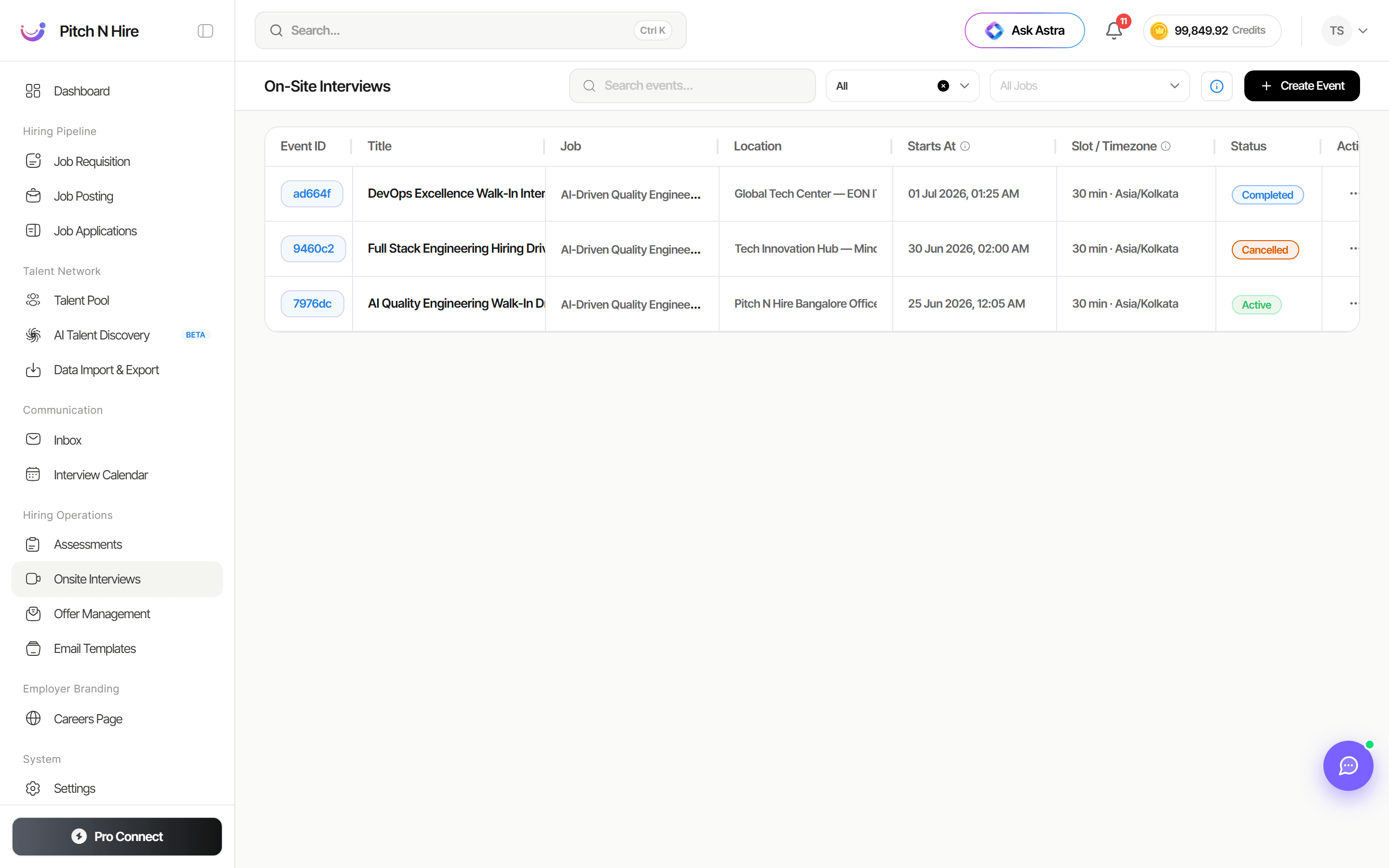
The On-Site Interviews screen lists every event you have created in a table. Each row shows the auto-generated Event ID, the event Title, the linked Job, the Location, the Starts At date and time, the Slot / Timezone, and the event Status. A search box, an All status filter, and an All Jobs filter sit along the top, with the + Create Event button at the top right.
Key features
- Event list — every on-site event in a single sortable table.
- Event ID — a short, clickable identifier (for example
ad564f,9460c2,7976dc) for each event. - Job link — each event is associated with a specific job (for example “AI-Driven Quality Engineer…”).
- Location — the physical venue, such as “Global Tech Center”, “Tech Innovation Hub”, or “Pitch N Hire Bangalore Office”.
- Starts At — the event date and start time (for example
01 Jul 2026, 01:25 AM). - Slot / Timezone — the slot length and timezone for the event (for example
30 min · Asia/Kolkata). - Status — color-coded states: Completed, Cancelled, and Active.
- Search & filters — search events by name, filter by status (All), and filter by All Jobs.
Step-by-step
- Open Onsite Interviews from the Hiring Operations section of the left sidebar.
- Review the event table to see all scheduled, active, and completed events at a glance.
- To add a new event, click + Create Event at the top right.
- Fill in the event details — title, the job it belongs to, location, start date and time, and the slot length / timezone.
- Save the event. It appears in the list with an Active status once it is live.
- Use the Search events… box or the All / All Jobs filters to quickly locate a specific event.
- Click an Event ID to open the event and manage its attendees and slots.
Tips
Common issues & fixes
- Can’t find a recent event — clear the All status filter and the All Jobs filter, then search again by the event title.
- Event missing a job — every event must be linked to a job. Re-open the event and select the correct job from the list.
- Wrong start time displayed — confirm the Slot / Timezone matches the venue’s timezone before saving.