Job Pipeline
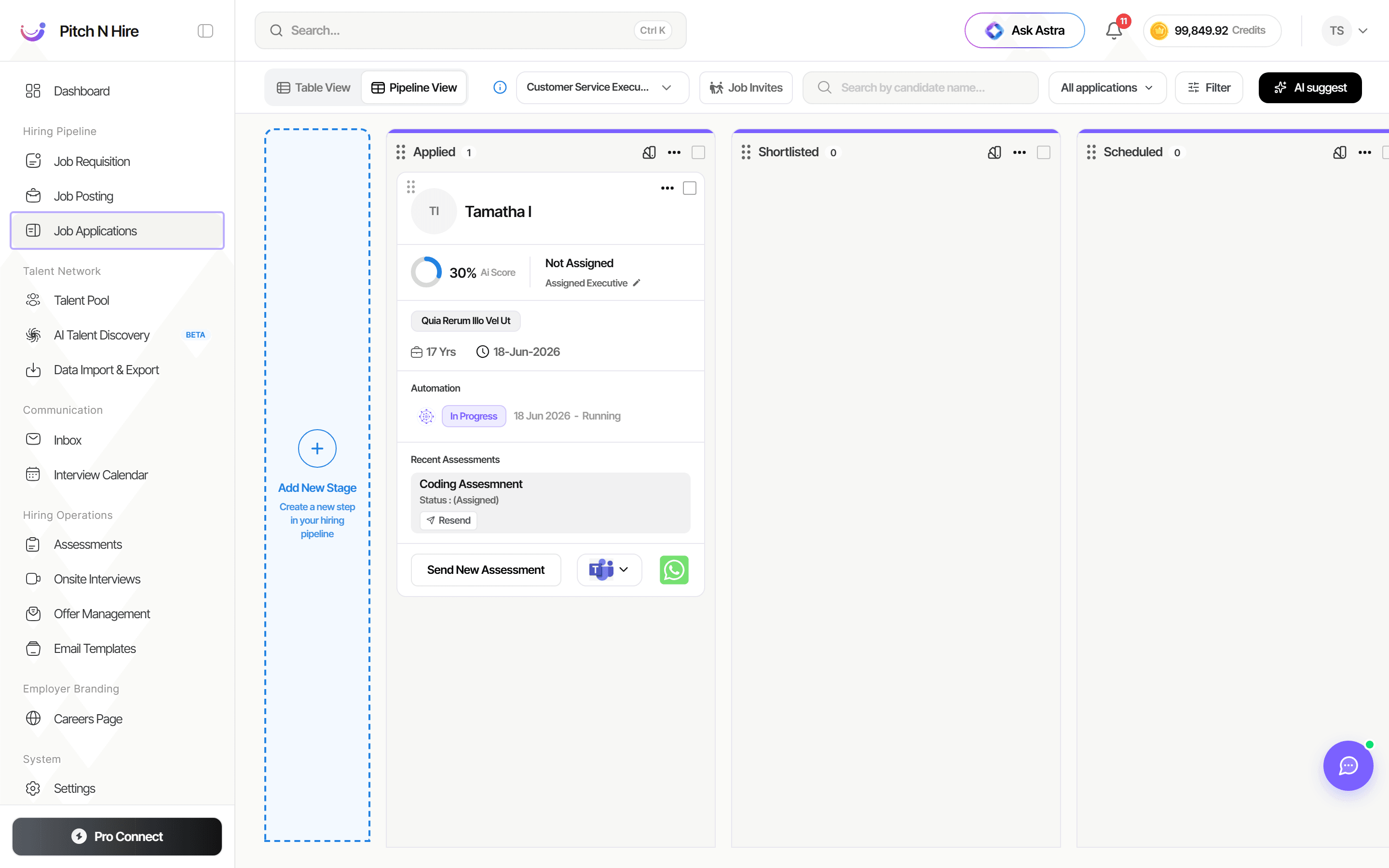
The Job Pipeline is your visual hiring board, a column-by-column view of every candidate for a job as they progress from Applied through Shortlisted, Scheduled and beyond. Each candidate sits on a card enriched with an AI match score, automation status and recent assessments, so you can review, move and action people without leaving the board.
Overview
The pipeline opens as a Kanban-style board with a column for each hiring stage. A toolbar across the top lets you switch between Table View and Pipeline View, pick the job from a dropdown, send Job Invites, search by candidate name, Filter the board, and run AI suggest. On the left, a dashed Add New Stage column lets you extend the pipeline to fit your process.
Key features
- Table View / Pipeline View toggle to switch between a list and the Kanban board.
- Stage columns such as Applied, Shortlisted and Scheduled, each showing a live count of candidates.
- Candidate cards that surface, per applicant:
- an AI Score (e.g. 30%) indicating match strength,
- the assigned executive (e.g. Not Assigned),
- experience and key dates,
- an Automation status (e.g. In Progress - Running),
- Recent Assessments with status and a Resend option.
- Send New Assessment straight from a card via Microsoft Teams or WhatsApp.
- AI suggest to get AI-recommended actions or candidate matches for the pipeline.
- Job Invites, candidate search and Filter controls in the top toolbar.
- Add New Stage column to create a new step in your hiring pipeline.
Step-by-step
Work the pipeline board
- Open a job from Job Applications, then make sure the toolbar shows Pipeline View (toggle from Table View if needed).
- Confirm the correct job is selected in the job dropdown at the top of the board.
- Review candidates stage by stage, each column (Applied, Shortlisted, Scheduled) shows its count and the cards within it.
- Drag a candidate card to a different stage column to advance or reject them in the process.
Review and action a candidate
- On a candidate card, read the AI Score to gauge fit and check the assigned executive.
- Check the Automation status to see whether automated steps are running for that candidate.
- Under Recent Assessments, view the assessment status and use Resend if needed.
- To send a fresh assessment, click Send New Assessment and choose Microsoft Teams or WhatsApp as the delivery channel.
Customise stages and use AI
- Click Add New Stage in the dashed left column to create a new step in your pipeline.
- Use AI suggest in the top-right to get AI-driven recommendations for moving candidates forward.
- Use Filter and the candidate search box to narrow the board to the people you want to focus on.
Stage settings
Each stage column carries its own settings. Open the ⋯ menu in a stage’s header to find them:
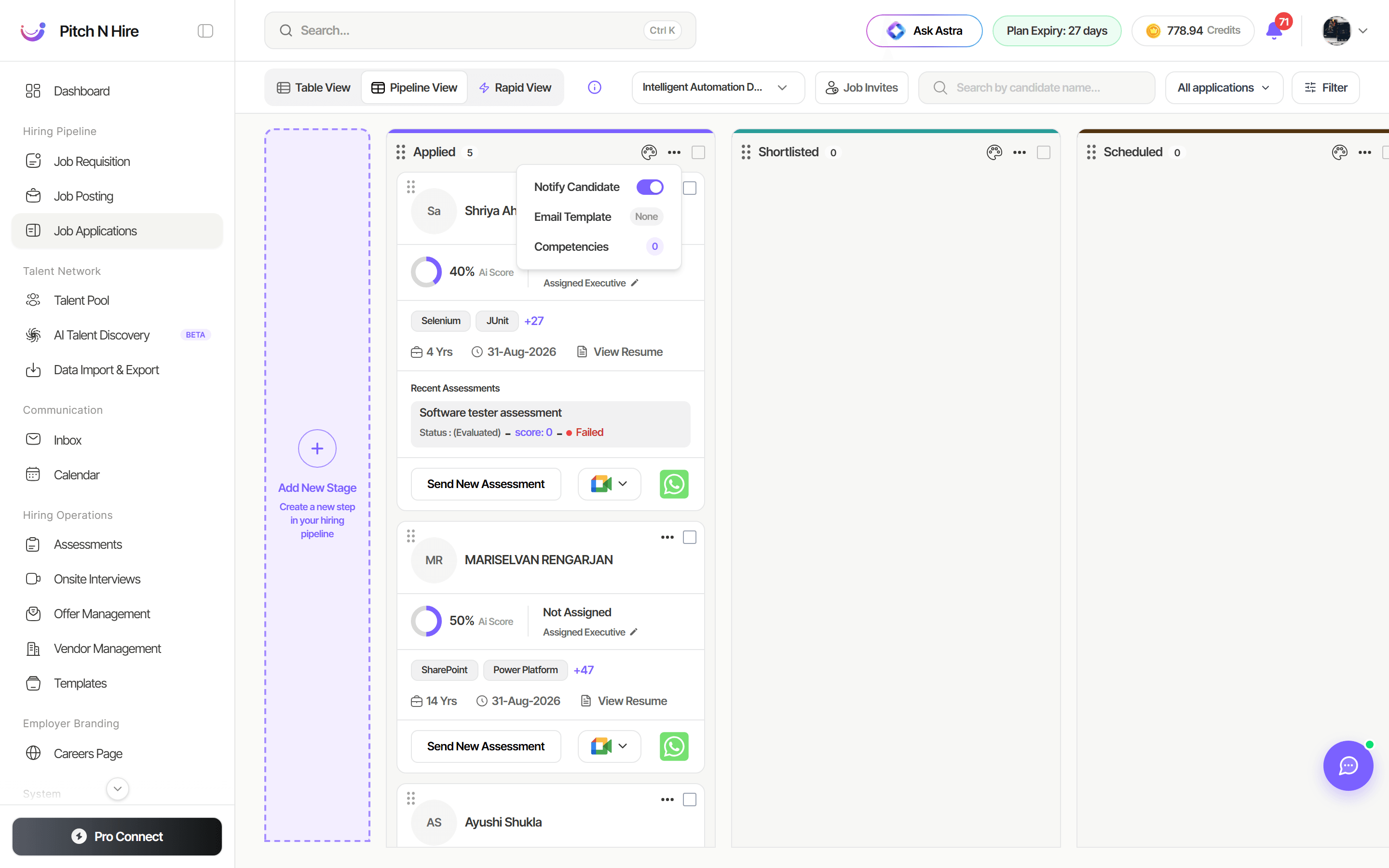
- Notify Candidate — whether candidates are emailed automatically when they’re moved into this stage.
- Email Template — which email they receive. Shows None until you map one.
- Competencies — the criteria panellists rate a candidate on at this stage (for example Communication, Problem Solving), each optionally skippable.
The palette icon beside the ⋯ menu sets the stage’s colour, so the board stays easy to scan.
Set the email for a stage
This is how you automate candidate communication: map a template once, and every candidate who lands in that stage gets the right message without anyone writing it.
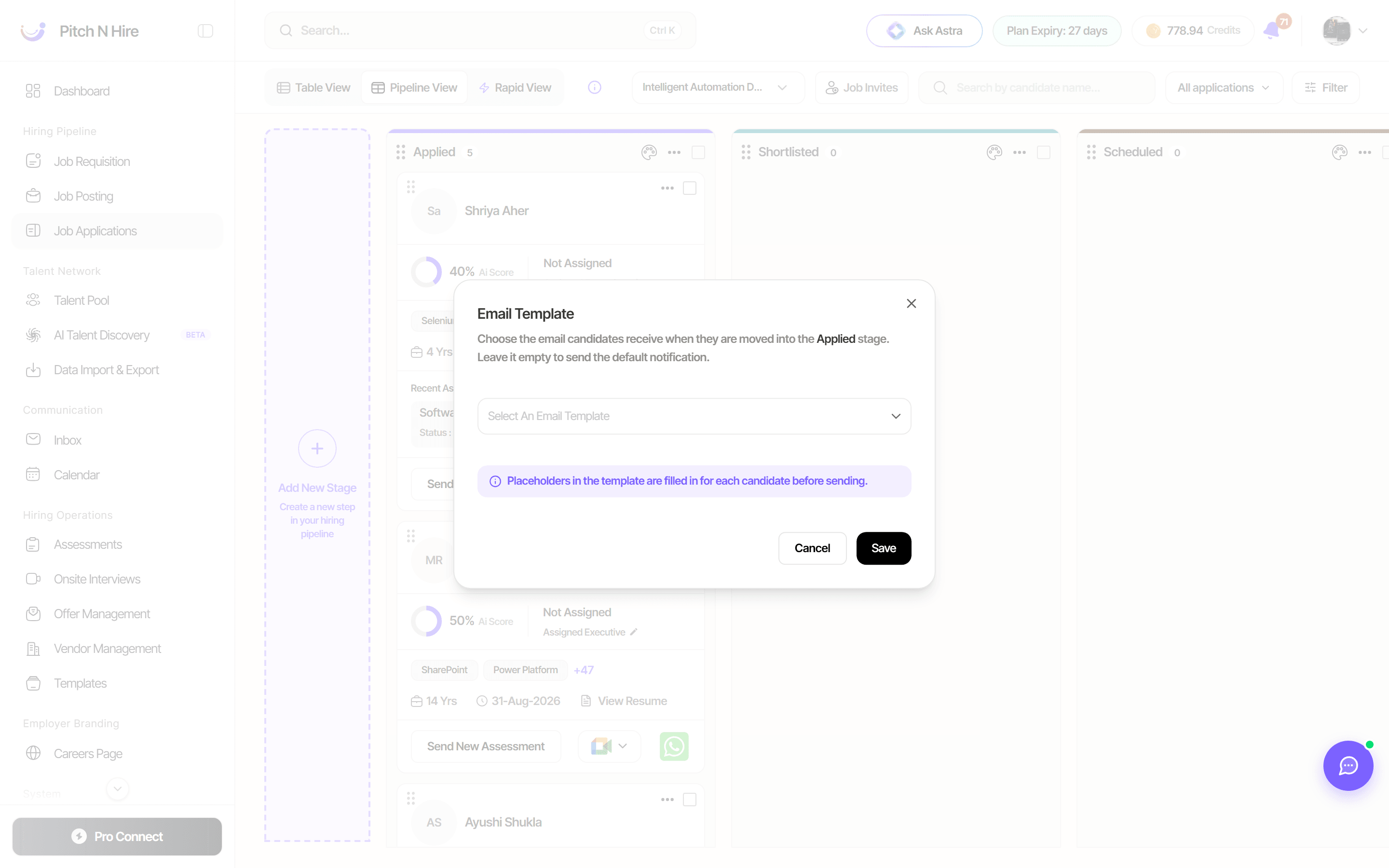
- Open the stage’s ⋯ menu and click Email Template.
- The dialog explains the mapping: “Choose the email candidates receive when they are moved into the Applied stage. Leave it empty to send the default notification.”
- Pick one under Select An Email Template — the list is searchable and shows only Approved templates.
- Click Save. The stage menu now shows the mapped template’s name instead of None.
To go back to the standard message, reopen the dialog and click Remove template; to change it, just pick a different one and save.
Tips
Common issues & fixes
- Board looks empty - no applicants yet, or a filter is active - clear the Filter and candidate search, and confirm the right job is selected.
- Cannot drag a candidate between stages - you may be in Table View - switch to Pipeline View to enable drag-and-drop.
- Assessment not delivered - wrong channel or missing contact - resend via Teams or WhatsApp and verify the candidate’s contact details.
- New stage not appearing - the stage was not saved - re-open Add New Stage and complete the stage setup.
- Candidates aren’t getting the stage email - check both halves of the mapping: Notify Candidate must be on for that stage, and an Email Template must be selected. With a template but no notification, nothing is sent.
- A template isn’t in the stage dropdown - only Approved templates can be mapped. Check its Review Status under Templates.
- The mapped template shows as unavailable - it was deleted or unapproved after mapping. Open Email Template on the stage and pick another.