Credits & Pro Connect
Credits are the metered currency that powers Pitch N Hire’s automation features — resume parsing, bulk data imports, assessment evaluation, and AI generation all draw from your credit balance. Your live balance is always visible in the top bar, and a full, itemised history lives under Account & Billing. Pro Connect is the quick-access button pinned to the bottom of the left sidebar.
Overview
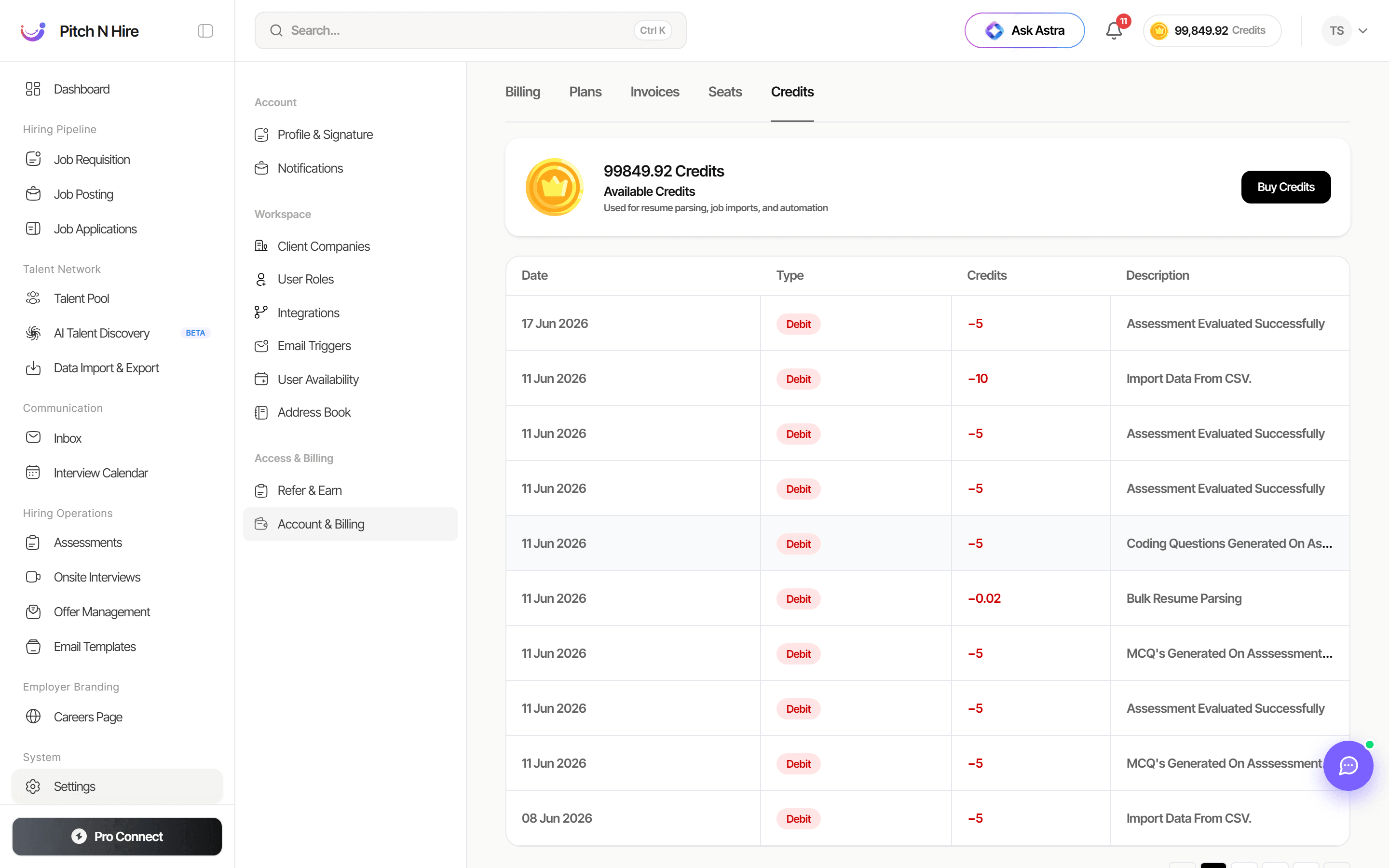
The Credits tab (within Account & Billing) shows your Available Credits at the top — a large balance with a Buy Credits button — described as being “used for resume parsing, job imports, and automation.” Below is a dated table of every transaction with Date, Type (e.g. a red Debit badge), Credits (the amount, shown in red for deductions), and a Description explaining what consumed them.
Key features
- Live balance in the top bar — your current credits are always visible on every screen.
- Available Credits panel — a clear total with a Buy Credits action to top up.
- Full credit history — a dated, itemised ledger of every debit and its description.
- Transaction detail — each entry shows Date, Type, the credit amount, and a plain-language description.
- Pro Connect — a pinned sidebar button for quick access to expert/connect features.
What consumes credits
Based on the credit history, credits are debited by automation-driven actions such as:
- Resume parsing — including bulk resume parsing.
- Data imports — e.g. “Import Data From CSV”.
- Assessment evaluation — e.g. “Assessment Evaluated Successfully”.
- AI generation — e.g. generating MCQs or coding questions for assessments.
Each action records its own debit row so you can see exactly where credits go.
Step-by-step
1. Check your balance
Glance at the top bar on any page to see your current credit balance at a glance.
2. Review your credit history
Open Settings → Account & Billing → Credits. Read down the table to see each dated transaction, its Type, the Credits amount deducted, and a Description of the action that used them.
3. Top up credits
Click Buy Credits in the Available Credits panel to purchase more when your balance runs low.
4. Use Pro Connect
Click the Pro Connect button pinned at the bottom of the left sidebar to access its connect features whenever you need them.
Tips
Common issues & fixes
- Balance looks lower than expected — open the Credits tab and review recent Debit rows; bulk operations and AI generation each debit separately.
- You can’t see the Credits tab — Account & Billing requires the company-edit permission. Ask your admin to grant access under Settings → User Roles.
- Buy Credits doesn’t open — make sure pop-ups aren’t blocked and that your billing details are set under Account & Billing.