Interview Automation
Interview Automation lets you screen candidates for a job without moving everyone by hand. You configure it per posting in the Job Automation panel: pick the stage that passing candidates move to and the stage that failing candidates move to, then add an ordered list of screening steps. Each step either checks a candidate’s AI match score or sends them an assessment, and based on the result the candidate is routed to your pass or fail stage automatically.
Opening Job Automation
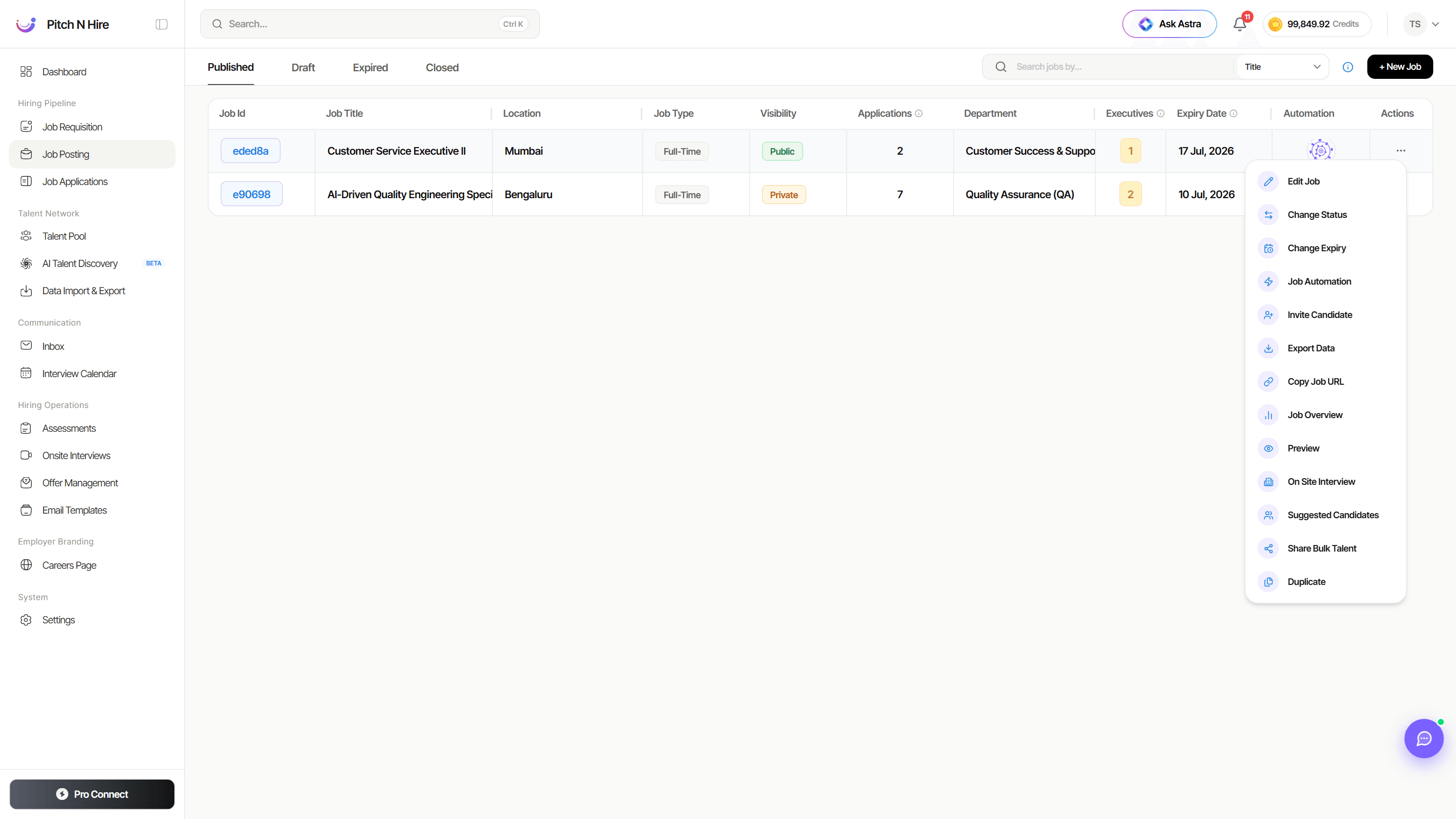
Each job in the Job Posting list has an Automation column and an Actions (⋯) menu. Both open the same Job Automation dialog for that specific job:
- Automation column icon — a quick shortcut on the row.
- Actions (⋯) → Job Automation — alongside Edit Job, Change Status and Change Expiry.
The Job Automation panel
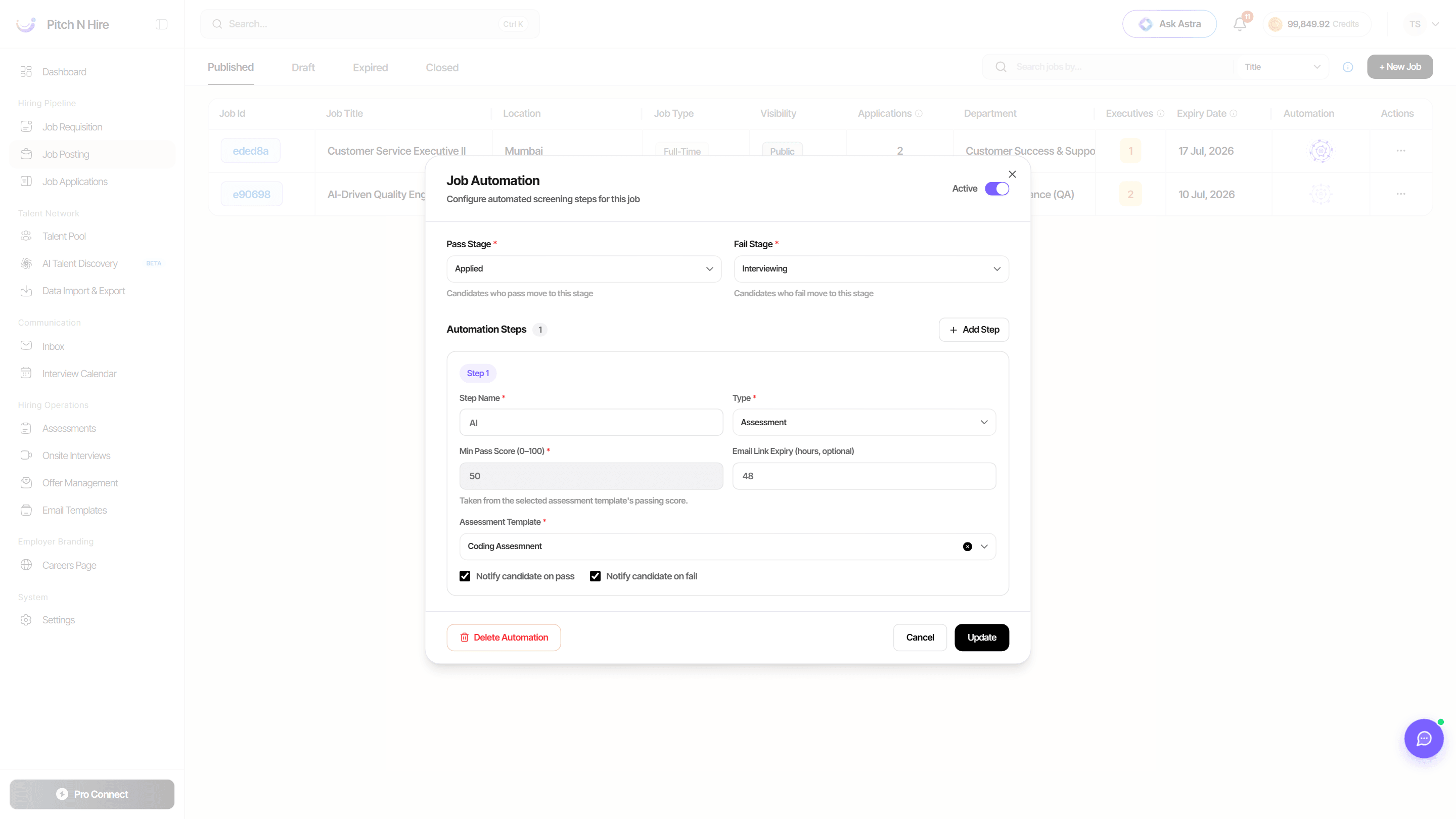
The dialog is titled Job Automation — Configure automated screening steps for this job. At the top right is an Active / Inactive toggle that turns the whole automation on or off for the job. Below it you set the pass and fail stages and build your steps.
Pass Stage and Fail Stage
Both are required and list the pipeline stages that belong to this job:
- Pass Stage — candidates who pass the automation move to this stage.
- Fail Stage — candidates who fail move to this stage.
Automation Steps
Click + Add Step to build the screening sequence — the counter beside the heading shows how many steps you have. Steps run in order, and you can remove any step after the first with its trash icon. Each step has:
- Step Name (required) — a label for the check, for example “Resume AI Match”.
- Type (required) — choose how the step evaluates the candidate:
- AI Score — compares the candidate’s AI match score against your threshold.
- Assessment — sends the candidate an assessment and uses its result.
- Min Pass Score (0–100) (required) — the minimum score to pass the step.
- For AI Score, you set this number directly.
- For Assessment, the field is filled automatically from the selected assessment template’s passing score, so the automation threshold always matches the test.
- Email Link Expiry (hours, optional) — how long the emailed link (e.g. an assessment invite) stays valid.
- Assessment Template (required for Assessment steps) — search and select which assessment to send; picking one pulls in its passing score.
- Notify candidate on pass / Notify candidate on fail — email the candidate when they clear or miss the step.
Step-by-step
- Go to Hiring Pipeline → Job Posting and locate the job.
- Click the Automation icon on the row, or open Actions (⋯) → Job Automation.
- Choose a Pass Stage and a Fail Stage for the job.
- Under Automation Steps, click + Add Step and give it a Step Name.
- Pick a Type — AI Score (set the Min Pass Score) or Assessment (choose an Assessment Template; its passing score fills in automatically).
- Optionally set an Email Link Expiry and tick Notify candidate on pass / on fail.
- Add more steps as needed; they run in order.
- Click Create to save the automation (the button reads Update when you’re editing an existing one).
- Turn the Active toggle on so the automation starts running for new and existing candidates.
Interview recording and invite settings
These interview options live in Settings → Interviews (admin) and on the interview scheduling form.
Record and transcribe Meet and Teams interviews
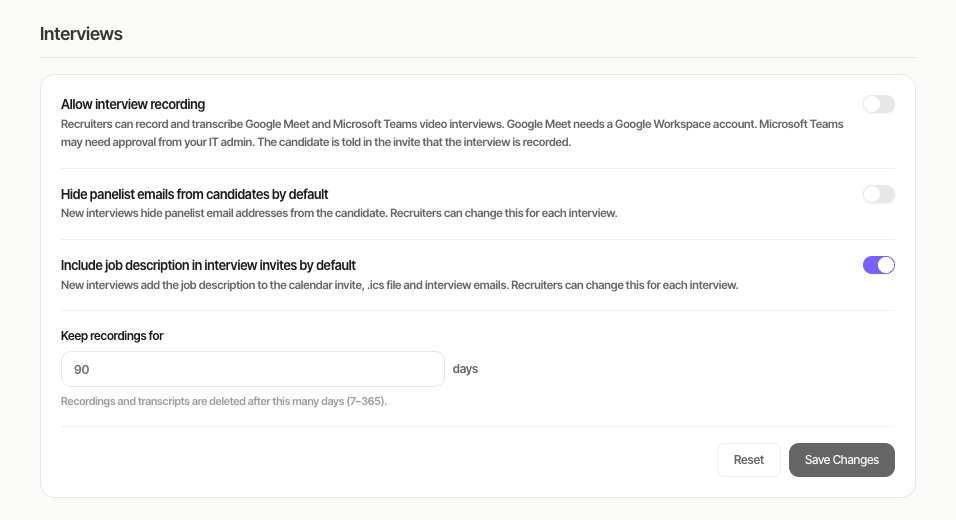
- An admin switches on Allow interview recording in Settings → Interviews and, optionally, changes Keep recordings for (default 90 days, range 7-365). After that, the recording and transcript are deleted automatically.
- Each recruiter connects their Google or Microsoft account under Settings → Integrations. When scheduling a video interview, click Enable recording permissions under the Record & transcribe switch and sign in with the same connected account. Google needs a Workspace account (personal Gmail shows “Recording needs a Google Workspace account”); Microsoft may show “Need admin approval”, in which case your IT admin must approve Pitch N Hire.
- Schedule a Video interview, switch on Record & transcribe and save.
- After the interview, open the candidate’s application, go to the Interviews tab and wait for Recording ready (usually 15-60 minutes), then click View recording. Click a transcript line to jump to that moment, or use Download. Panelists can watch it from their portal. Candidates never see recordings or transcripts.
The candidate is always told: the invite says “This interview will be recorded and transcribed”, and Meet and Teams announce it when recording starts. Recording needs the organizer, or someone allowed to record, to join the meeting. If an interview shows Not recorded, no recording was found for it.
Job description in interview invites
Switch Include job description in the invite on or off per interview, or set the company default with Include job description in interview invites by default in Settings → Interviews. It is on by default. When off, the calendar invite shows your note and the job title but not the job description, and the .ics file and interview emails to the candidate and panelists leave the job description section out. To change it later, edit the interview from the candidate’s Interviews tab; the calendar invite updates.
Tips
Common issues & fixes
- The Automation icon shows an upgrade message — Interview Automation isn’t in your current plan; check Settings → Account & Billing or ask your admin to upgrade.
- The Active toggle won’t turn on — you must Create the automation first; the toggle is disabled until the configuration is saved (“Create the automation first before activating it”).
- Can’t save — Pass Stage, Fail Stage, and every step’s Step Name and Min Pass Score are required, and Assessment steps also need an Assessment Template selected.
- Min Pass Score is greyed out — that’s expected on Assessment steps; the score comes from the chosen assessment template. Switch the step to AI Score to set it manually.
- Candidates aren’t moving — confirm the automation is Active, the Pass/Fail stages are still valid for the job, and the candidate has actually completed the step (for assessments, that the invite wasn’t past its link expiry).
- Want to stop automating a job — reopen Job Automation and either toggle it Inactive or use Delete Automation to remove it entirely.