Interview Calendar
The Interview Calendar is where recruiters plan, view, and manage every interview in one connected schedule. Sync it with your Outlook account, create events with video links, and switch between month, week, day, and agenda views to keep your hiring days organized.
Overview
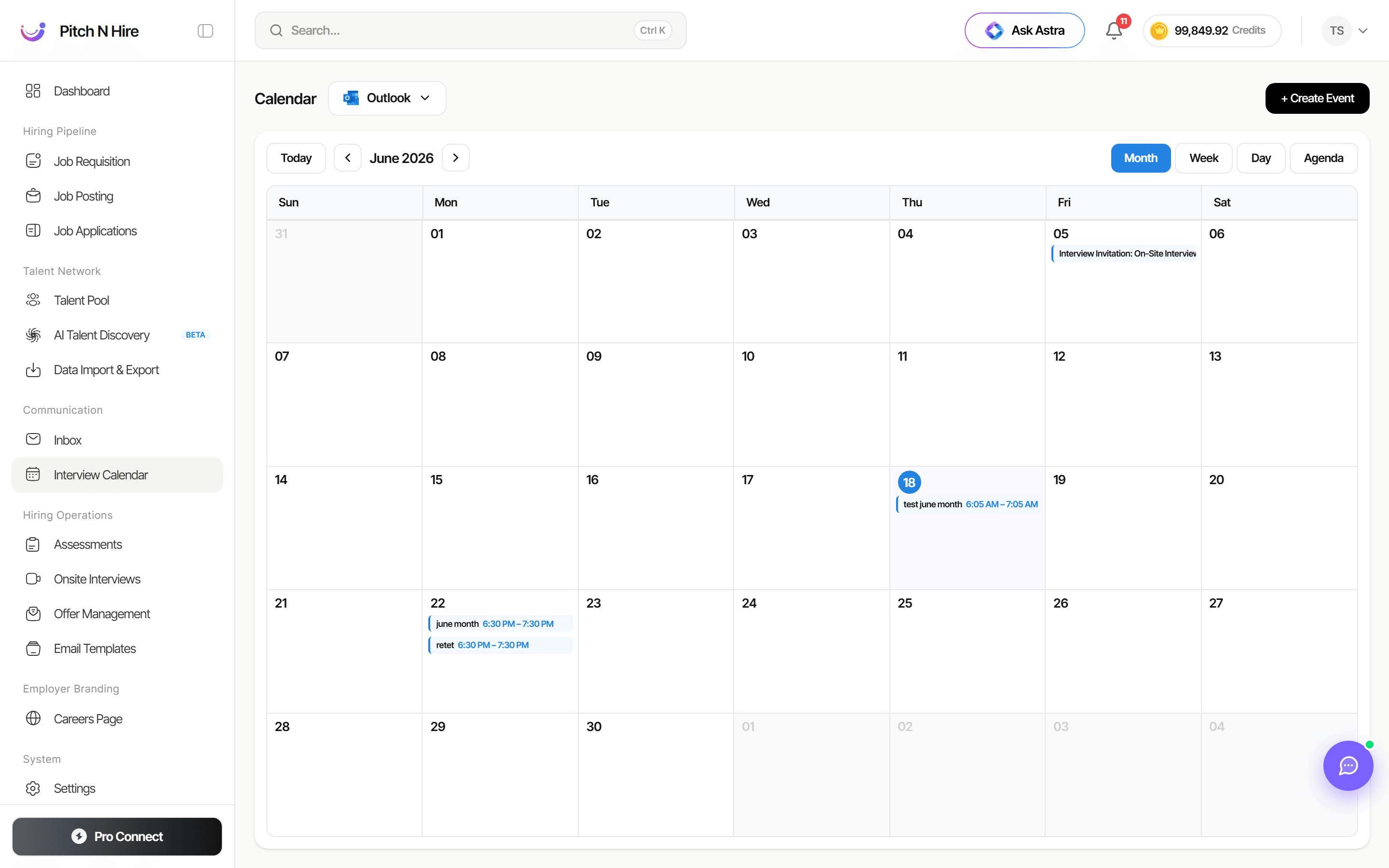
The calendar opens on the current month with your scheduled interviews placed on their dates. A connected account selector (for example, Outlook) sits at the top next to the Calendar heading, and a + Create Event button on the right lets you add new interviews. View controls — Month, Week, Day, and Agenda — let you change how the schedule is displayed, while Today and the arrow buttons move between time periods.
Key features
- Connected calendar — Sync with your Outlook account so events stay aligned across tools.
- + Create Event — Add a new interview or meeting directly from the calendar.
- Multiple views — Switch between Month, Week, Day, and Agenda layouts.
- Date navigation — Jump to Today or step forward and back through months with the arrow controls.
- Event entries — Interviews appear on their scheduled dates with a title and time (for example, an on-site interview invitation), so the day’s plan is visible at a glance.
- Video conferencing links — Attach Google Meet or Microsoft Teams links to events for remote interviews.
Step-by-step
- Go to Communication → Interview Calendar in the left sidebar.
- If prompted, connect your Outlook account so events sync into the calendar.
- Pick a view — Month, Week, Day, or Agenda — depending on how much detail you need.
- Use Today and the arrow buttons to navigate to the date you want.
- Click + Create Event to schedule a new interview.
- Fill in the event details — title, date, time, attendees — and add a Google Meet or Microsoft Teams link for remote interviews.
- Save the event; it will appear on the calendar and sync to your connected account.
- Click an existing event to review or edit its details.
Tips
Common issues & fixes
- Events aren’t appearing — Confirm the correct account (Outlook) is connected, then refresh the calendar.
- Wrong month showing — Click Today to return to the current date, or use the arrows to navigate.
- Meeting link missing — Re-open the event and confirm a Google Meet or Microsoft Teams link was attached before saving.
- Double-booked slots — Switch to Day or Week view to spot overlapping interviews more easily.