LinkedIn Job Posting
Connect your LinkedIn company page to Pitch N Hire to post jobs to LinkedIn and automatically pull in applicants — no manual copy-pasting required. Once connected, your roles can be picked up by LinkedIn as Basic Jobs, and paid contracts can promote roles through Job Wrapping.
Overview
The Integrations page groups your connections into two sections:
- Email & Calendars — Outlook/Teams and Google Meet/Calendar for sending candidate emails and scheduling interviews.
- Job Portals — LinkedIn, Foundit, OnJob.io and Palify for distributing your job postings.
LinkedIn lives in the Job Portals section. Each portal appears as a card with a short description and a single action button; once LinkedIn is set up, the card shows a green Connected badge.
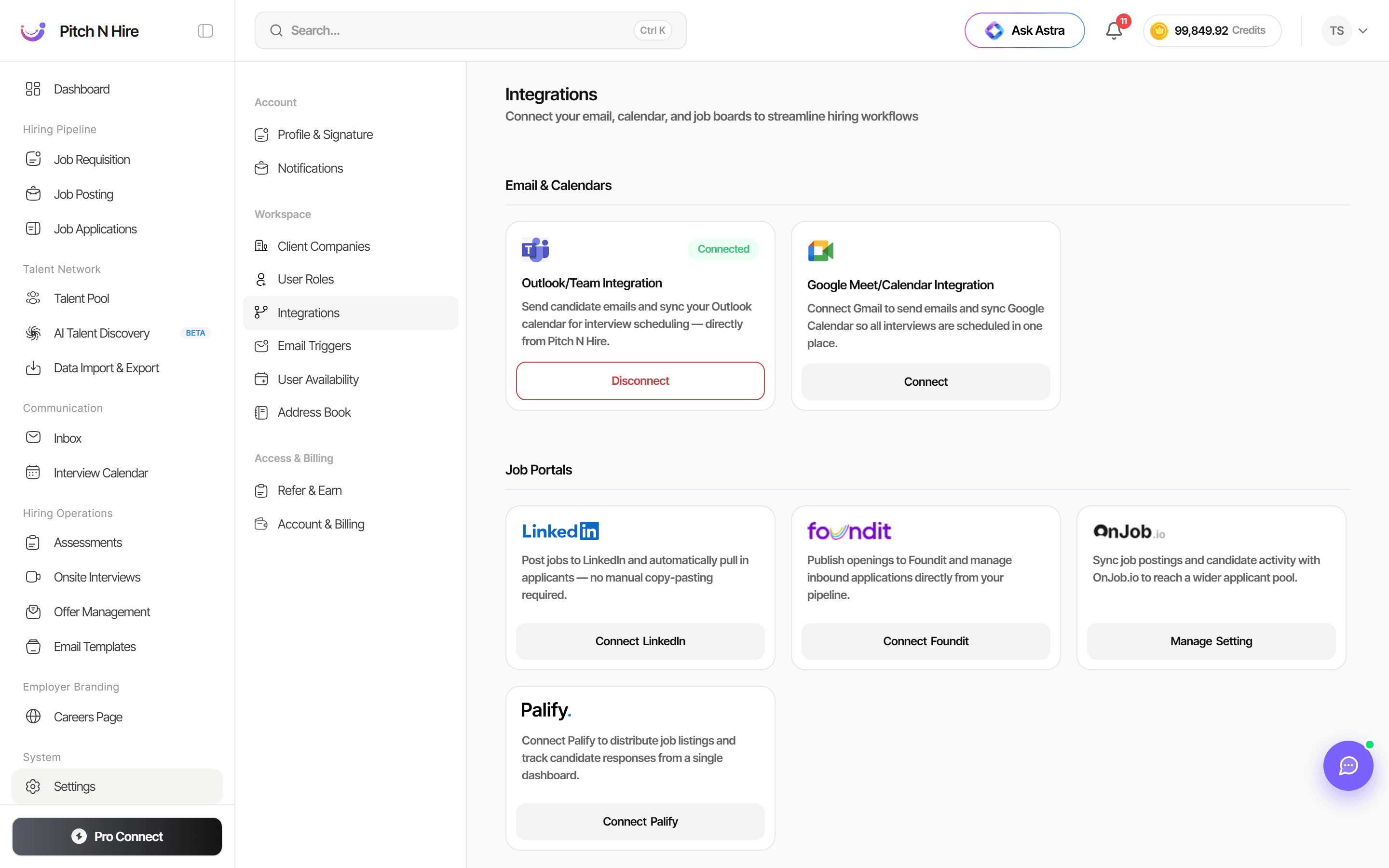
Connect LinkedIn
Connecting LinkedIn means linking your LinkedIn Company ID to your Pitch N Hire account, so your jobs can be posted to and managed from your LinkedIn page.
Step One: Open the LinkedIn integration
- Go to Settings → Integrations.
- Scroll to the Job Portals section.
- On the LinkedIn card, click Connect LinkedIn. (If you’ve connected before, the button reads Update LinkedIn and the card shows a Connected badge.)
The Connect LinkedIn Company dialog opens — “Used to post and manage jobs from your LinkedIn page.”
Step Two: Enter your LinkedIn Company ID
- In the dialog, enter your Company ID (required) in the field — for example
123456. - Click Connect LinkedIn to save. The button is disabled until a Company ID is entered.
Posting jobs as LinkedIn Basic Jobs
LinkedIn Basic Jobs (formerly Limited Listings) are picked up from your Pitch N Hire job board automatically once the integration is connected. These jobs are visible to candidates actively searching on LinkedIn or viewing your company’s LinkedIn Page.
Enable basic job posting on LinkedIn’s side
Starting at the end of March 2026, if you are creating a new LinkedIn company page or posting a basic job for the first time, LinkedIn requires a company page admin to do the following before basic jobs can be listed:
- Navigate to Settings → Job Postings in your LinkedIn Company page.
- Switch on the Enable basic job posting option.
- Click + Connect ATS and select Pitch N Hire from the dropdown.
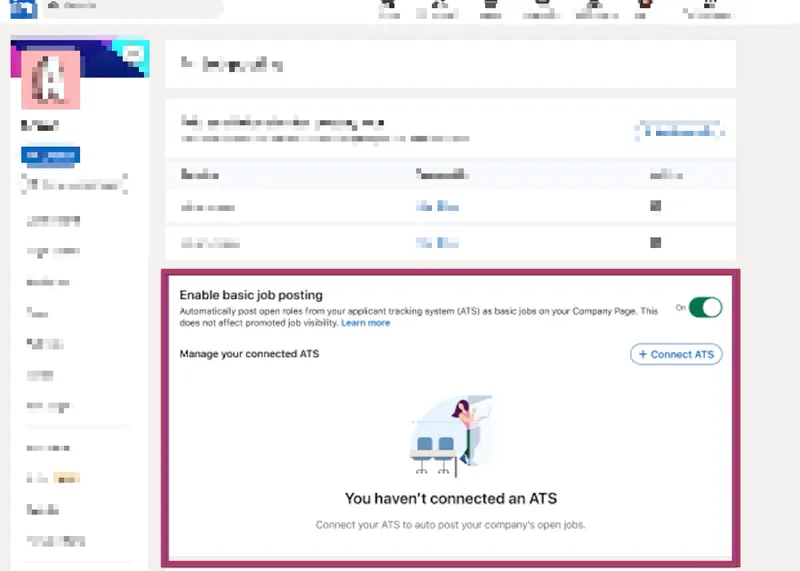
Companies that have already posted basic jobs via another ATS and connected LinkedIn in Pitch N Hire do not need to re-enable the basic job posting toggle — just ensure Pitch N Hire is selected under + Connect ATS.
Job Wrapping
Job Wrapping is a service LinkedIn provides to ingest jobs in bulk from your company’s career site or ATS and post them on LinkedIn. LinkedIn’s full guide on job wrapping can be found here, and LinkedIn’s Job Wrapping FAQs can be found here.
What is Job Wrapping?
With Job Wrapping, jobs are pulled from Pitch N Hire, uploaded to LinkedIn as Basic Jobs, and then the jobs meeting your LinkedIn criteria get promoted into one of your Job Slots.
Jobs in Job Slots have:
- Greater visibility and reach
- Increased promotion
- Integration with other LinkedIn products
- On-demand analytics/reporting
How do I set up job wrapping?
To start the setup process, take the following steps in LinkedIn Recruiter:
- Click on your Profile Picture at the top of the home page in Recruiter.
- Click Product settings in the drop-down menu.
- Click Job posting on the left-hand side.
- Next to Job sources for automated job postings, click View/Edit.
- Click the Job source requests tab.
- Click Add new job source.
- Using the Select ATS or other job source drop-down, select Pitch N Hire.
To get your URL from Pitch N Hire to add to the Job Source URL field in Recruiter:
- Navigate to Admin > Integrations > Integrations and open up the LinkedIn integration tile.
- Enable the Use Job Wrapping? option to generate your feed URL.
- Update the source listed in the Source field to Inbound: LinkedIn Job Wrapping.
- Copy the URL and add it to the Job Source URL field in LinkedIn.
Then fill out the remaining fields in Recruiter, such as your designated job poster and company page on LinkedIn.
For your Applicant source tracking code, create a custom tracking link in Pitch N Hire, then add the utm_source parameter into the source tracking code field in LinkedIn. You can read more on creating a custom tracking link below.
Where do I find the utm_source parameter?
As an example, if a custom tracking link was created with the Tracking Code field set to LinkedInPaid in Pitch N Hire, you would add utm_source=LinkedInPaid to the Use applicant source tracking code field in LinkedIn. We would recommend giving this custom tracking link the title LinkedIn Paid for your reference.
How can I view my promoted and basic jobs?
You can view all basic and promoted jobs in the Jobs menu:
- The Promoted tab displays the ingested jobs that met the rules you established to be moved into one of your Job Slots.
- The Basic tab displays the ingested jobs that do not meet the criteria you’ve established to qualify a job to be moved to a Job Slot.
I don’t see the option to set up job wrapping in Recruiter — what do I do?
You may need to reach out to LinkedIn Support or your LinkedIn CSM directly with your Pitch N Hire XML feed to get your job source updated. Follow the instructions above to find your XML feed URL. We would also recommend creating a custom tracking link (more on this above) and sharing that with your LinkedIn CSM with your XML feed URL. This will help to ensure that the correct source is attributed to applications.
Good to know from LinkedIn
These points come straight from LinkedIn’s own help center — read them before you rely on Basic Jobs or Job Wrapping.
Basic Jobs, Job Wrapping and Job Slots
Once the Pitch N Hire integration is connected, your roles are picked up by LinkedIn as Basic Jobs. If your company holds a Job Slot contract with LinkedIn, you can keep posting jobs into Slots by setting up Job Wrapping through self-serve in Recruiter (the steps above). See LinkedIn’s Basic Job Posting integration FAQ for the full details.
Search & staffing companies must promote their jobs
LinkedIn requires search and staffing companies — organizations that help other companies find and recruit employees — to promote their postings, so that every job on LinkedIn is valid, high-quality and unique. This rule applies across LinkedIn.com, Recruiter Lite and Recruiter, as well as third-party sources such as your ATS. From LinkedIn’s Jobs from search and staffing companies FAQ:
- Free job posts aren’t available to search and staffing companies — you must use a paid promotion option.
- Basic Jobs via Job Wrapping won’t appear for these companies; jobs must be promoted into Job Slots to show on LinkedIn.
- If you believe your company was miscategorized as a search or staffing company, contact LinkedIn customer support to request a review.
Tips
Common issues & fixes
- Job Portals section not visible — you don’t have permission to manage company settings. Ask an organization admin.
- Jobs not appearing on LinkedIn — the 30-day paying-customer threshold may not have passed, or the feed hasn’t synced yet. Wait up to 2 business days after connecting.
- Pitch N Hire not listed under + Connect ATS on LinkedIn — the integration hasn’t synced yet. Connect in Pitch N Hire first, then wait ~24 hours.
- Wrong company shown on LinkedIn — the Company ID is incorrect. Re-check it from your LinkedIn Page URL (
currentCompany) and click Update LinkedIn to fix it. - Connect button is greyed out — the Company ID field is empty. Enter your numeric Company ID to enable the button.