Inbox
The Inbox brings your connected email account directly into Pitch N Hire, so you can read, send, and track candidate conversations without switching tabs. Connect a provider such as Outlook, compose new messages, and keep every candidate thread alongside the rest of your hiring workflow.
Overview
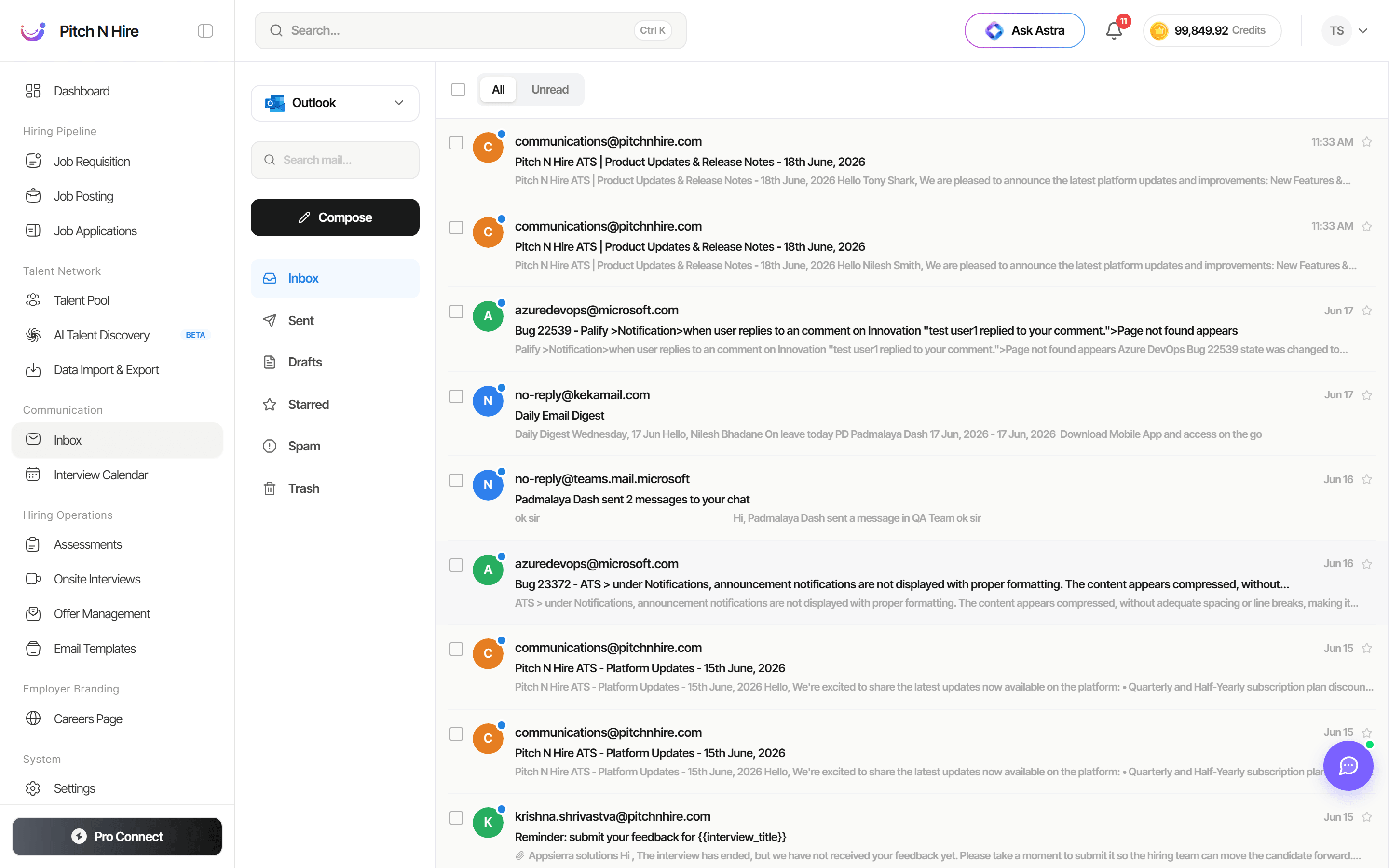
The Inbox is a full email client built into the recruiter workspace. The left column shows your connected account (for example, Outlook) with a prominent Compose button and the standard mail folders. The main panel lists messages, and a filter at the top lets you switch between All and Unread.
Key features
- Connected email account — Link a provider (such as Outlook) so your real mailbox loads inside Pitch N Hire.
- Compose — Start a new email from the Compose button in the left column.
- Mail folders — Quick access to Inbox, Sent, Drafts, Starred, Spam, and Trash.
- All / Unread filter — Toggle between every message and only those you haven’t read yet.
- Folder search — A search box above the folders helps you narrow down conversations.
- Message list — Each row shows the sender, subject, a preview snippet, and the timestamp, so you can scan threads quickly.
- Threaded conversations — Related replies are grouped together so candidate exchanges stay in context.
Step-by-step
- Go to Communication → Inbox in the left sidebar.
- If prompted, connect your email account (for example, Outlook) so messages sync into the Inbox.
- Use the All / Unread filter at the top to focus on new candidate replies.
- Click any message in the list to open the full thread.
- To start a new message, click Compose, fill in the recipient, subject, and body, then send.
- Reply directly within a thread to keep the candidate conversation in one place.
- Switch folders (Sent, Drafts, Starred, and so on) to find or revisit messages.
Tips
Common issues & fixes
- Messages aren’t loading — Confirm your email account is connected and reconnect the provider (Outlook) if the sync appears stale.
- Can’t send a message — Make sure the recipient address is valid and your connected account still has permission to send.
- A reply is missing — Check the Spam and Trash folders, and switch the filter to All in case it was already marked read.
- Wrong account showing — Verify the connected account selector at the top of the left column points to the mailbox you expect.