AI Screening Interview
The AI Screening Interview replaces the first screening call. An AI interviewer holds a live voice conversation with the candidate, works through the questions on the assessment, asks follow-ups when an answer is thin, and returns a scored, graded transcript you can read in seconds. It’s the fastest way to qualify a large applicant pool before any recruiter time is spent.
How it works
- You create an assessment and set its type to AI Screening Interview.
- You add the questions the AI should ask — manually, from the Question Bank, or generated from a job.
- You publish it and send it to candidates. They get a link — no login needed.
- The candidate talks to the AI interviewer in their browser. It asks your questions, plus follow-ups.
- Pitch N Hire grades every answer and returns a scored transcript against the application.
Create the interview
- Go to Hiring Operations → Assessments and click + Create.
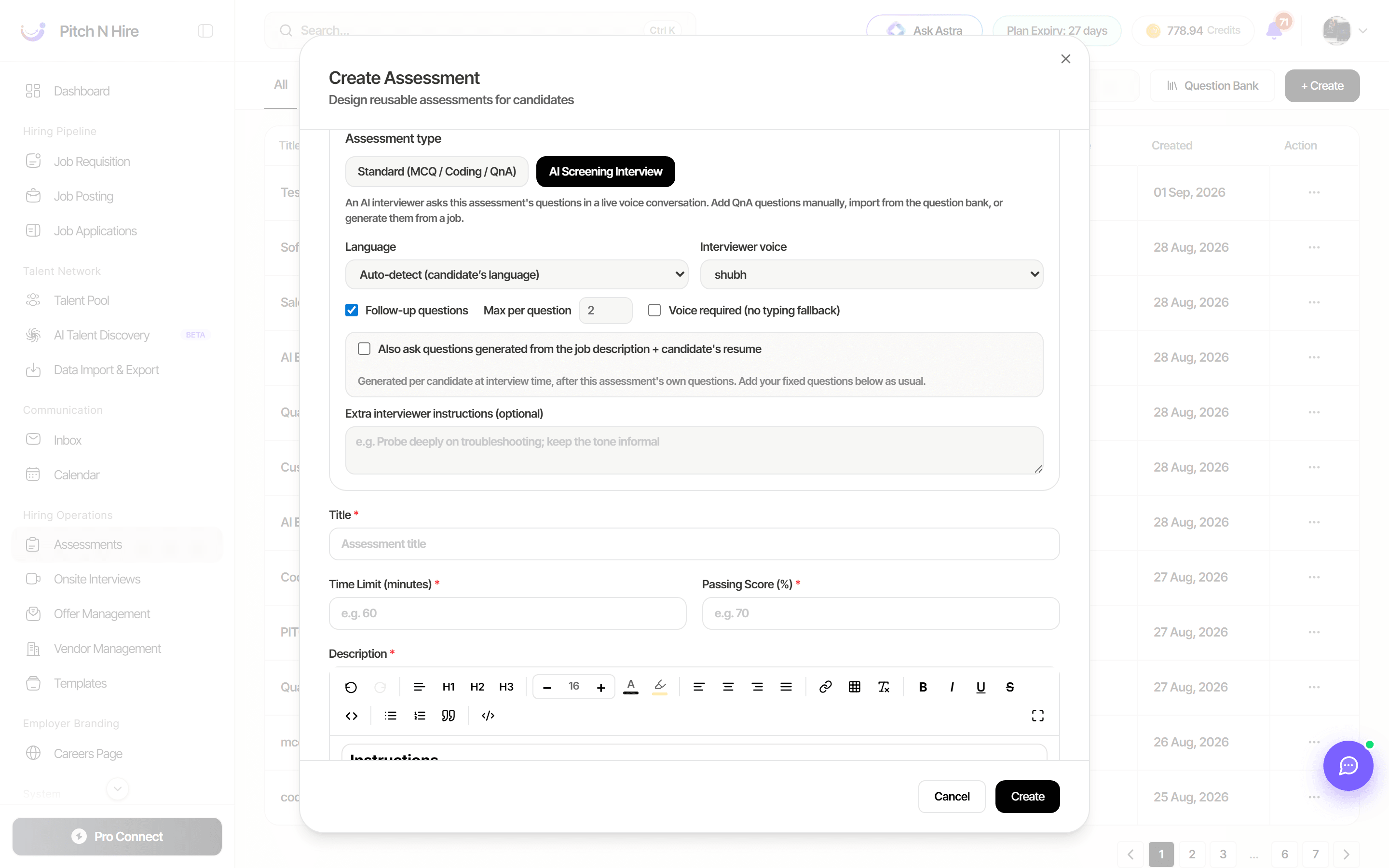
- Under Assessment type, choose AI Screening Interview. The helper text confirms what changes: “An AI interviewer asks this assessment’s questions in a live voice conversation. Add QnA questions manually, import from the question bank, or generate them from a job.”
- Optionally pick a job under Generate questions from a job — Pitch N Hire then generates a matching question set as soon as the assessment is created.
- Give it a Title, a Time Limit (minutes) and a Passing Score (%), and edit the candidate-facing Description/instructions if you want.
- Save, then Publish it so it can be sent to candidates.
Interview settings
Choosing the AI Screening Interview type reveals the settings that control how the interviewer behaves:
| Setting | What it does |
|---|---|
| Language | Auto-detect (candidate’s language), or fix it to English, Hindi, Bengali, Tamil, Telugu, Marathi, Gujarati, Kannada, Malayalam or Punjabi. |
| Interviewer voice | The voice the candidate hears. |
| Follow-up questions | When ticked, the AI probes further on weak or short answers. Max per question caps how many. |
| Voice required (no typing fallback) | When ticked, candidates must answer by speaking; with it off, they can type instead. |
| Also ask questions generated from the job description + candidate’s resume | Adds per-candidate questions at interview time, after the assessment’s own questions. |
| Extra interviewer instructions (optional) | Free text that steers the AI, for example “Probe deeply on troubleshooting; keep the tone informal”. |
Where the questions come from
The interview asks this assessment’s own questions, in order. Add them the same way you would for any assessment:
- Add Question — write a Q&A question yourself.
- Add from bank — pull ready-made questions out of the Question Bank.
- Generate — have AI draft a set, or link a job so they’re generated for that role.
Then, if you tick Also ask questions generated from the job description + candidate’s resume, the AI adds questions tailored to each individual candidate once your own questions are done — “Generated per candidate at interview time, after this assessment’s own questions.”
Send it to a candidate
AI screening interviews are dispatched like any other assessment:
- Open the candidate from Job Applications and go to their Assessment tab.
- Click Send Assessment and pick your published AI Screening Interview.
- The candidate receives a link and takes the interview in their browser.
Use Resend for anyone who hasn’t started or whose link expired, and Copy URL if you’d rather share the link yourself.
Read the report
Open View Submission on the candidate’s assessment (or from the assessment’s Submissions list) to see the full result.
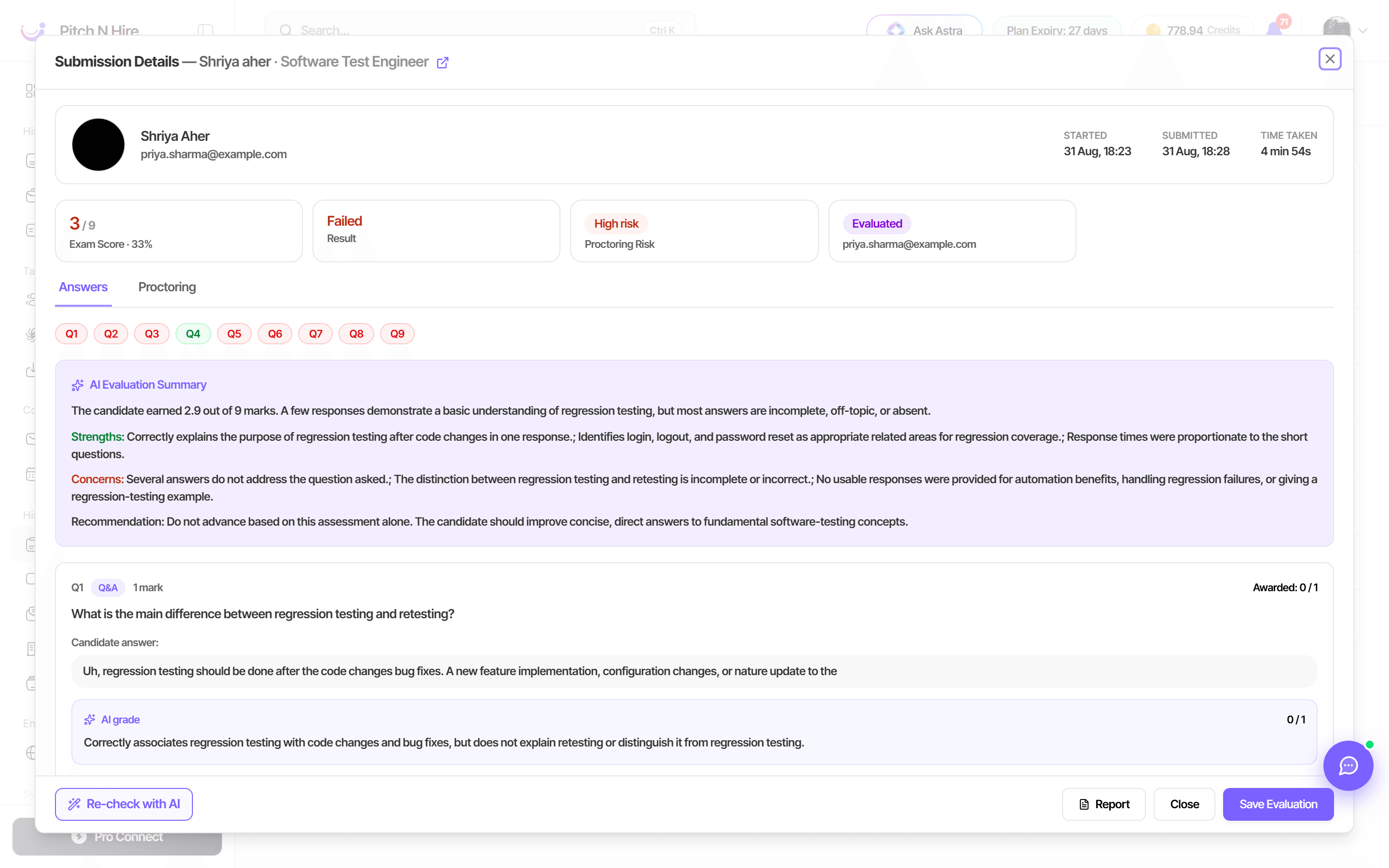
The report shows:
- Started, Submitted and Time taken.
- The Exam Score (marks and percentage) and Result — Passed or Failed.
- A Proctoring Risk level, if proctoring was enabled on the assessment.
- An AI Evaluation Summary with Strengths, Concerns and a Recommendation — for example “Do not advance based on this assessment alone.”
- Every question in turn, with the candidate’s spoken answer transcribed, the AI grade and the marks Awarded, plus colour-coded Q1…Qn chips so you can jump to a weak answer.
- A separate Proctoring tab where proctoring was on.
From the footer you can Re-check with AI to re-grade, Save Evaluation after adjusting marks yourself, or open Report to download a branded PDF or copy a 7-day share link that needs no login — see Reports and sharing.
Tips
Common issues & fixes
- The interview isn’t offered when sending an assessment — it’s still a Draft. Publish it first.
- The candidate says the mic doesn’t work — they must allow microphone access in the browser. If they can’t, untick Voice required so they can type their answers instead.
- No follow-up questions were asked — Follow-up questions is off, or Max per question is set to 0.
- The interview link expired — use Resend on that candidate’s assessment row.
- The AI asked off-topic questions — tighten Extra interviewer instructions, or untick Also ask questions generated from the job description + candidate’s resume so it only asks what you wrote.
- You can’t change the assessment type — the type locks once questions are added; create a new assessment instead.