GDPR & Candidate Consent
Recruiting means holding personal data about people who may never work for you, and GDPR (and comparable privacy laws) puts limits on how long you can keep it and what you must tell candidates. Pitch N Hire’s GDPR settings put those controls in the product: set how long candidate data lives, delete it automatically when that time is up, publish a privacy notice, and ask candidates for consent — with a full audit trail of who was asked and how they answered.
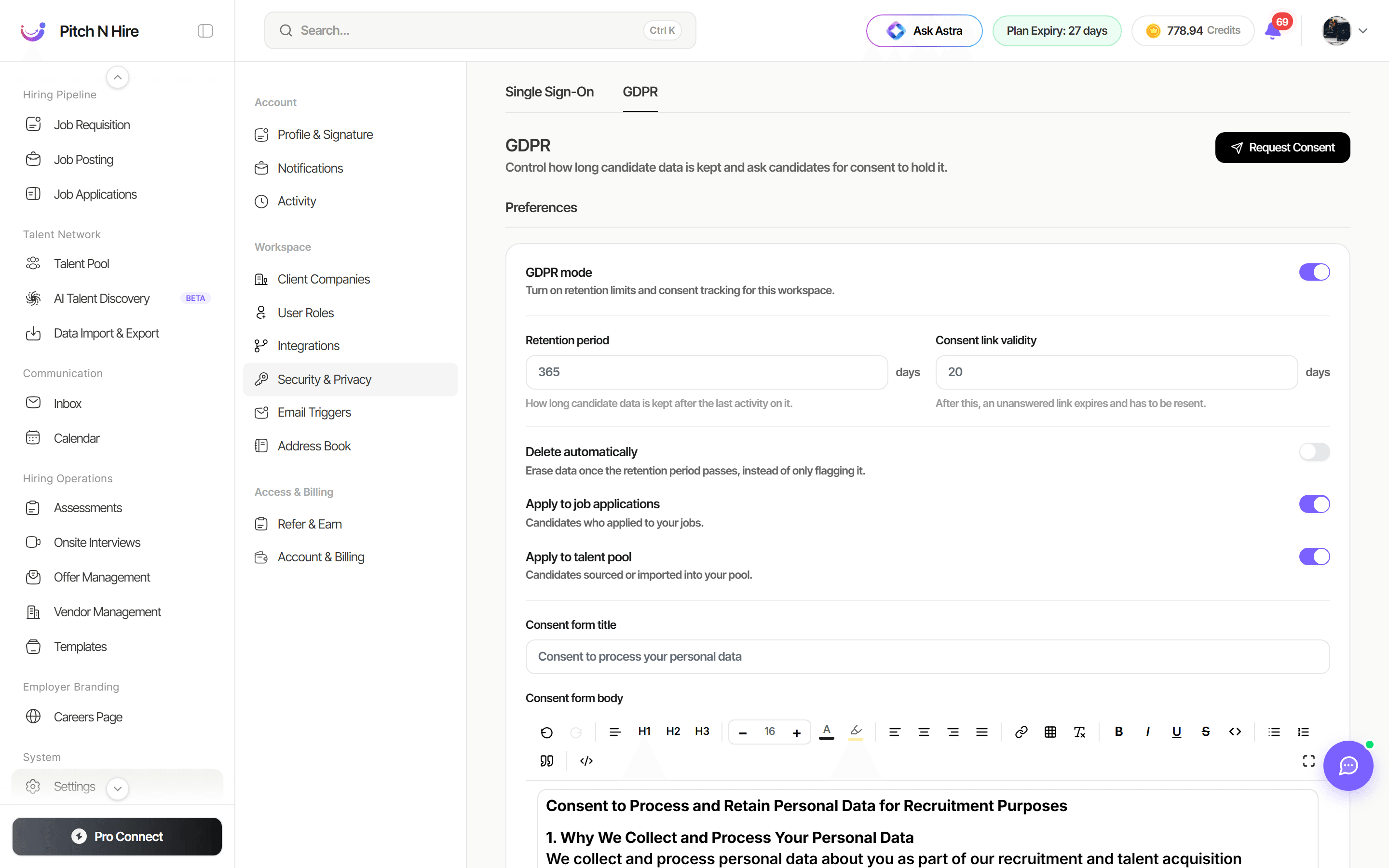
Turn on GDPR mode
GDPR mode is the master switch: it turns on retention limits and consent tracking for the whole workspace. Everything below only takes effect once it’s on.
Retention and deletion
| Setting | What it does |
|---|---|
| Retention period | How many days candidate data is kept after the last activity on it. |
| Consent link validity | How many days a consent request link stays usable. After that, an unanswered link expires and has to be re-sent. |
| Delete automatically | Erases data once the retention period passes, instead of only flagging it. |
| Apply to job applications | Includes candidates who applied to your jobs. |
| Apply to talent pool | Includes candidates you sourced or imported into your pool. |
Consent form and privacy notice
Three pieces of candidate-facing wording are editable here:
Consent form — what a candidate sees when you ask permission to keep their details.
- Consent form title — for example “Permission to keep your details”.
- Consent form body — explain what you keep, why, and for how long.
Privacy notice — your public statement to candidates.
- Turn on Publish privacy notice to show it on your career page and application forms.
- Set the Privacy notice title (for example “Candidate Privacy Notice”) and the body — what you collect, why, how long you keep it, and the rights candidates have.
Footer disclaimer — turn on Footer disclaimer to append a short data-protection line to every email sent to candidates, for example: “We hold your details to consider you for roles. Reply to withdraw consent at any time.”
Request consent from candidates
You can ask candidates for consent in two places:
- In bulk from the Talent Pool — select candidates and choose Request Consent to send them all a request at once.
- One at a time from the GDPR page — use Request Consent and enter the recipient email (several, comma-separated, are allowed), plus an optional Candidate ID or Job application ID to link the request to an existing record.
Each recipient gets an email with a secure link to the consent form you wrote above. The link stops working after the consent link validity window.
Track consent requests
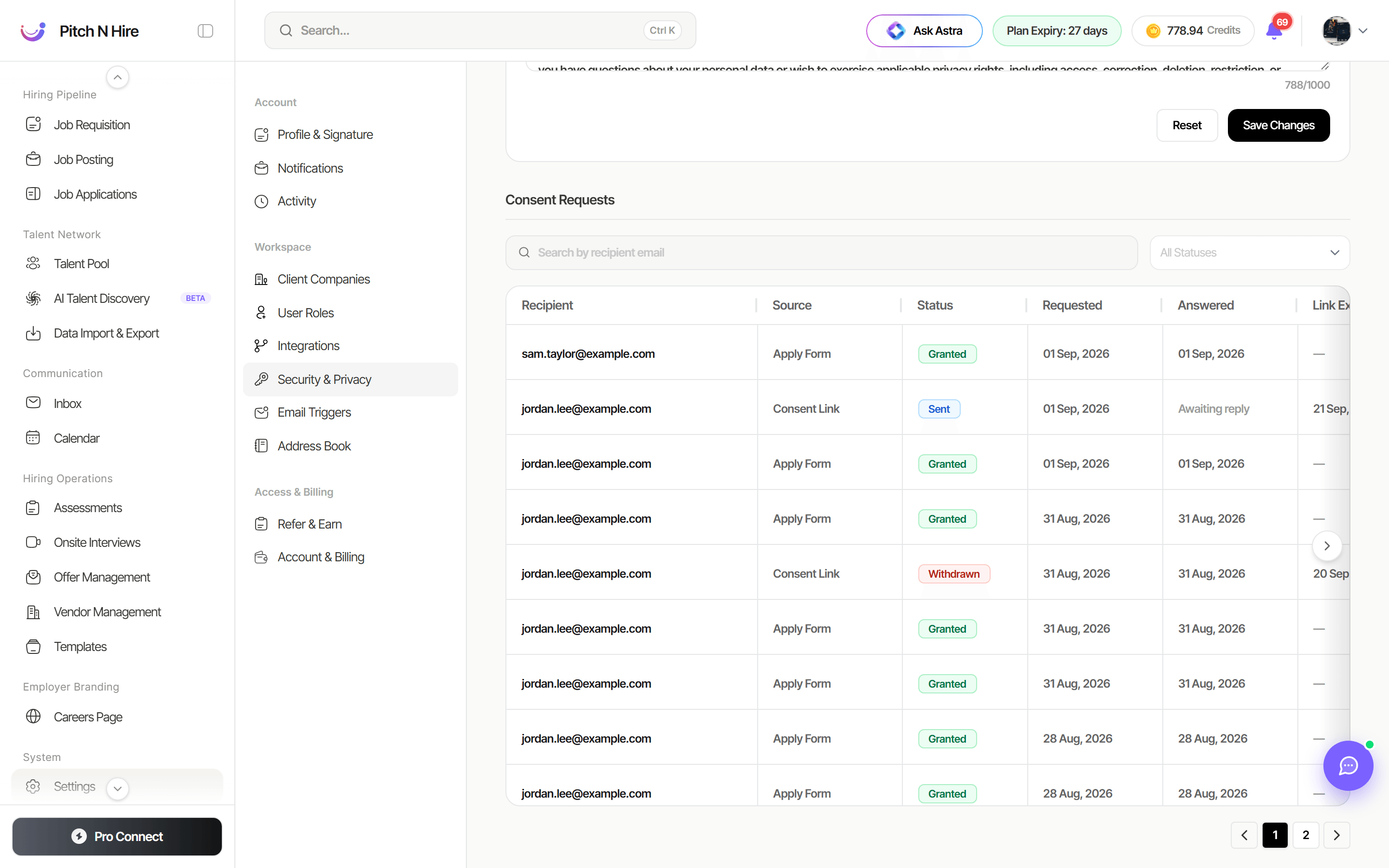
The Consent Requests table is your audit trail. Search by recipient email or filter by status, and read each request’s:
- Recipient — who was asked.
- Source — where the request came from.
- Status — Pending, Sent, Granted, Declined, Withdrawn or Expired.
- Requested — when it was sent.
- Answered — when they replied, or Awaiting reply.
- Link Expires — when the link stops working.
Two per-row actions help you follow up:
- View the exact consent text that candidate was shown — useful when someone asks what they agreed to.
- Resend a fresh link for any request still unanswered (Pending, Sent or Expired); the old link stops working immediately.
Consent status also appears on the candidate’s own record, both in the Talent Pool and on a job application, so recruiters can see where they stand before reaching out.
Tips
Common issues & fixes
- The settings are read-only — managing GDPR requires the company-edit permission. Ask your workspace Owner or Admin.
- Nothing is being retained or deleted — GDPR mode is off. Turn it on, then confirm Apply to job applications and Apply to talent pool match what you intend to cover.
- Data expired but wasn’t removed — Delete automatically is off, so expired records are only flagged.
- A candidate says their link doesn’t work — it passed the consent link validity window. Use Resend on that row for a fresh one.
- The privacy notice isn’t visible to candidates — turn on Publish privacy notice; the wording alone doesn’t publish it.
- A candidate wants to withdraw consent — their status changes to Withdrawn when they use the link, and the footer disclaimer on your emails tells them how to ask.