Vendor Management
Vendor Management is where you run the agencies and staffing partners who source candidates for you. Add each vendor with their agreement details, hand them the roles you want filled, set the commission, and track what they submit — all without giving them access to your workspace. Vendors work from their own separate portal.
Overview
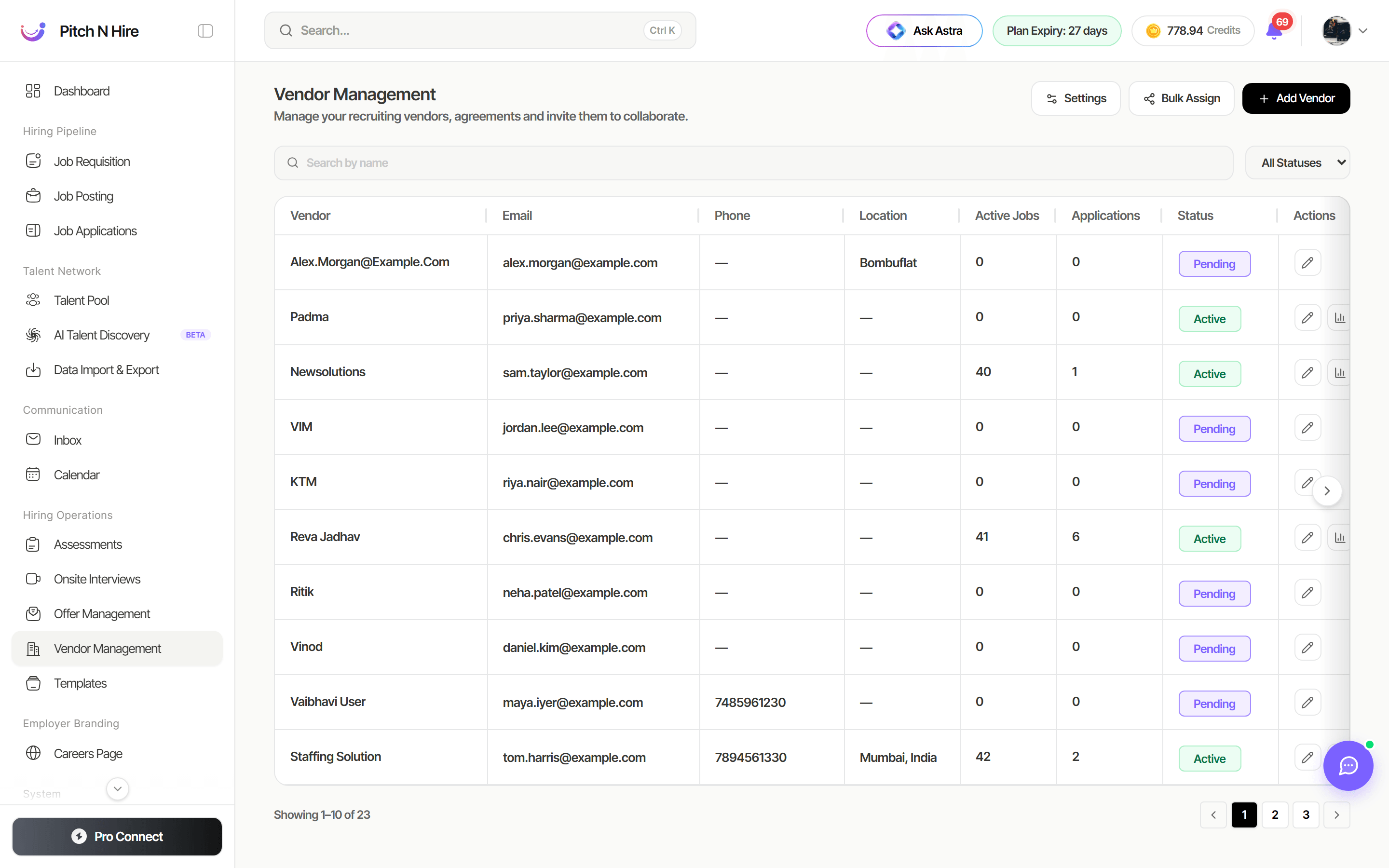
The Vendor Management screen lists every vendor with their Vendor name, Email, Phone, Location, Active Jobs, Applications and Status (Active, Inactive, Pending or Rejected). Search by name, filter by status, and use the row actions to edit a vendor or email that vendor a performance report.
Three controls sit at the top right:
- Settings — configure the vendor cooling-off period.
- Bulk Assign — assign several jobs to several vendors at once.
- + Add Vendor — register a new vendor.
Add a vendor
Click + Add Vendor and fill in the vendor record:
- Name and Email — the email is the vendor’s login identity and can’t be changed later.
- Phone number and Website.
- Country, State, City, Street address and Postal code.
- Agreement notes — terms, commission percentage, or anything else you want on file.
- Attachments — upload the signed agreement or any supporting documents.
The vendor is invited by email and completes their own sign-up, after which they work from the Vendor Management System portal (app.pitchnhire.com/vms/login) where they see only the jobs you’ve assigned to them and the candidates they’ve submitted.
Assign jobs to a vendor
Open a vendor to see their profile, status, and Assigned Jobs. Use Assign Job to add a role, setting:
- Job (required) — the posting the vendor should source for.
- Status — the state of this assignment.
- Commission type and value — how the vendor is paid for a successful placement.
- Fill deadline — when you need the role filled by.
- Notes — anything the vendor should know about the role.
From a vendor’s assigned job you can drill into the applications that vendor submitted for it, so agency-sourced candidates stay attributable.
To remove a role from a vendor, use Remove job assignment on that row.
Bulk Assign — many jobs, many vendors
Assigning roles one at a time doesn’t scale when you’re distributing a requisition list across a panel of agencies. Bulk Assign handles the whole matrix in one action:
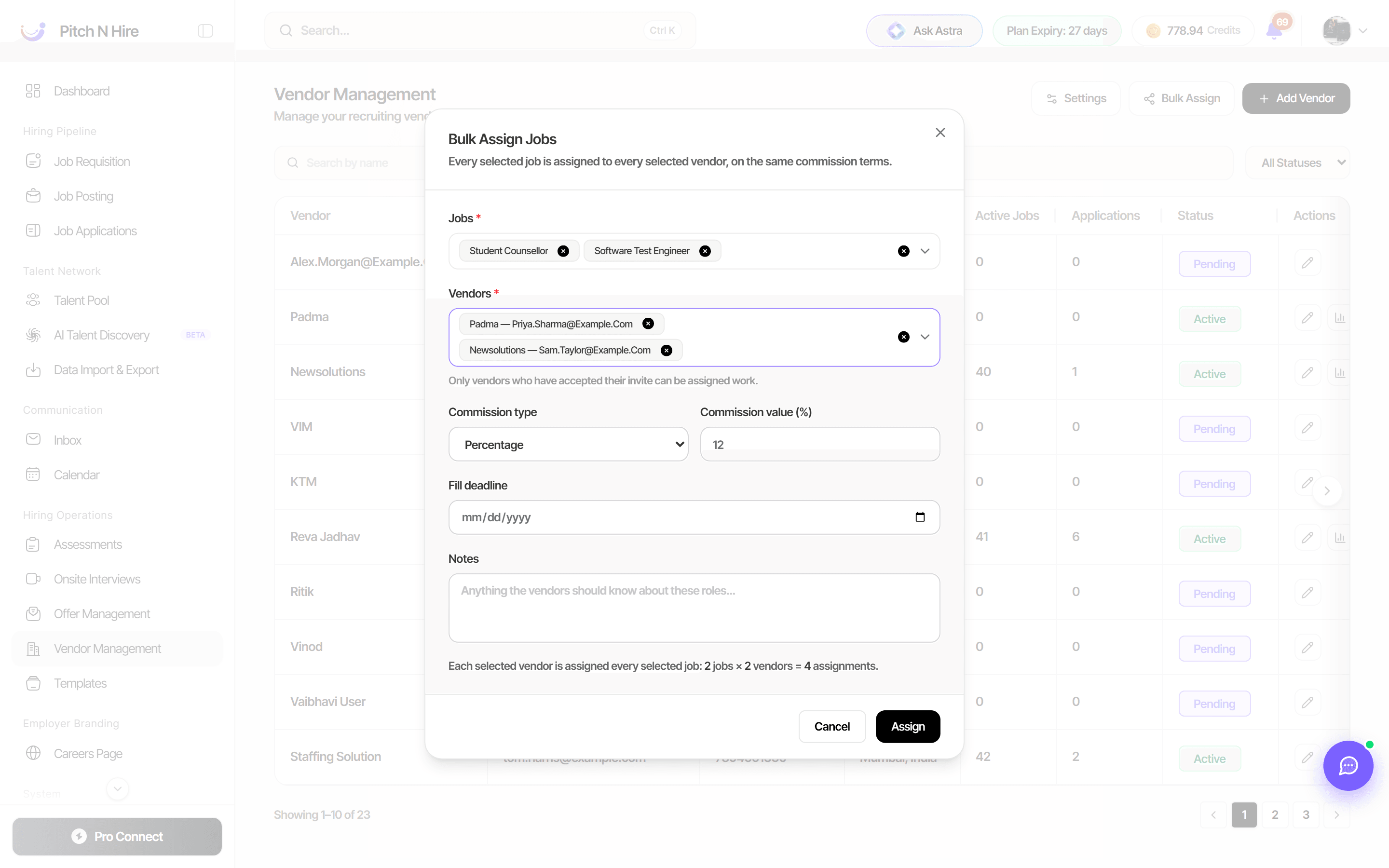
- Click Bulk Assign at the top of the Vendor Management screen. The dialog states the rule plainly: “Every selected job is assigned to every selected vendor, on the same commission terms.”
- Jobs (required) — select every active role you want to distribute.
- Vendors (required) — select every vendor who should receive them. Only vendors who have accepted their invite can be assigned work.
- Set the shared Commission type (for example Percentage) and Commission value (%), the Fill deadline, and any Notes the vendors should see.
- Check the running summary — “Each selected vendor is assigned every selected job: 2 jobs × 2 vendors = 4 assignments.” — then click Assign.
Cooling-off period
Multiple agencies working the same market will eventually submit the same person. The cooling-off period decides who owns that candidate.
Open Settings on the Vendor Management screen to set:
- Cooling-off window — the number of days (for example
90) during which a candidate already in your system stays attributed to whoever submitted them first. - Alert message — what the vendor is told when they submit a candidate who is already covered by the window.
This keeps duplicate submissions — and the commission arguments that follow them — out of your pipeline.
Tips
Common issues & fixes
- Vendor Management isn’t in your workspace — it’s a plan feature. Ask your account manager to enable it.
- A vendor can’t sign in — they use the separate vendor portal at /vms/login, not the recruiter login. Re-send their invitation if they never completed sign-up.
- A vendor can’t see a job — vendors only see roles explicitly assigned to them. Assign the job from their profile, from the job’s Manage → Assign to Vendor, or via Bulk Assign.
- A vendor doesn’t appear in Bulk Assign — only vendors who have accepted their invite can be assigned work. Check their Status: Pending vendors haven’t completed sign-up yet.
- You can’t change a vendor’s email — the email is the vendor’s identity and is locked after creation. Add a new vendor record if the contact has changed.
- A vendor’s submission was blocked as a duplicate — the candidate is inside the cooling-off window from an earlier submission. Adjust the window under Settings if your policy is different.