US Staffing
US Staffing adds US-specific candidate details to Pitch N Hire: work authorization (visa status), sponsorship, visa expiry, tax terms (W2, C2C, 1099), expected hourly rate, C2C employer, relocation, security clearance and zip code. Once it is on you can collect these on application forms, see and edit them on candidates and applications, filter by them and ask Astra about them. Companies that leave it off see none of this.
Overview
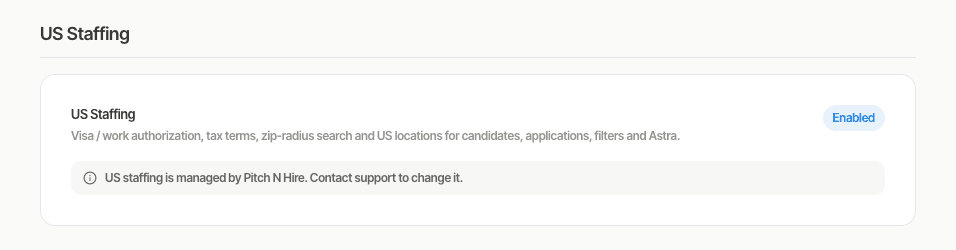
US Staffing is a per-company setting managed by the Pitch N Hire team and affects every recruiter in your company. The Settings page shows Enabled or Disabled; there is no switch. To turn it on, contact support or your account manager.
Key features
- US fields on application forms — in the form builder’s US Staffing section: zip code, work authorization (about 50 statuses), requires sponsorship, visa expiry date, tax terms (W2, W2 Hourly, C2C, 1099, Full-time), expected hourly rate (USD), C2C employer, willing to relocate and security clearance (None through TS/SCI with Polygraph). All are added as optional; mark the ones you need as required.
- Answers saved on both records — each answer is saved on the application and copied to the candidate. Values are normalized (H1B, H-1B and h1-b are all stored as H-1B).
- Pre-fill from candidate profiles — candidates in the US can fill in US Work Authorization on their profile, which pre-fills your form.
- Resume import — set Visa / work authorization, State and Zip code per file (or Apply to all files). Picking a zip code fills its state. Blank fields are detected by the resume parser.
- Filters — in the Talent Pool and in a job pipeline: Visa / work authorization, Tax terms, Security clearance, Requires sponsorship, Willing to relocate, and zip code with a radius of 10, 20, 30, 40, 50, 100 or 150 miles (or exact match). Results show a distance column in miles.
- Ask Astra — ask in plain English, for example “Show H1B candidates within 30 miles of 75201” or “Which applicants for the Data Engineer job don’t need sponsorship?”. Astra understands shorthand such as USC, GC, GC EAD, H1, H4 EAD, L1, OPT, STEM OPT, TN and C2C.
Step-by-step
- Check Settings → US Staffing shows Enabled; if not, ask support to enable it and reload.
- Open the application form builder for your US jobs, add the fields from the US Staffing section, mark the important ones required, save and attach the form to jobs.
- Collect answers from applicants or edit a candidate or application to fill them in.
- In Talent Pool, open Filters and use the US filters. For distance, enter a zip code (pick from the suggestions) and a radius, then apply.
- In a job’s pipeline, open the filters; the same US filters and zip radius are available.
- Or open Astra and ask your question, then follow up to narrow the list.
Tips
Common issues & fixes
- I don’t see the US Staffing section or filters — US Staffing is off for your company. Ask support to enable it, then reload.
- A candidate applied but their US details are empty — the form didn’t include the US fields or the candidate skipped optional ones. Add the fields or edit the candidate.
- A candidate is missing from a radius search — they have no zip code saved or are outside the radius.
- I need a 25 mile radius — only 10, 20, 30, 40, 50, 100 and 150 miles exist. Use 30 and sort by distance.
- US Staffing was turned off; is data deleted? No. Fields and filters are hidden and the values return when it is turned on again.
- Where did the map and US state / city filters go? They were removed. Use zip + radius, and the regular State and City filters.